Purpose:
Section titled “Purpose:”To provide clear and precise instructions on how to create a client standards review in vCIOToolbox and answer IT audit questions related to the Quarterly Business Review (QBR) assessments in vCIOtoolbox.
Scope:
Section titled “Scope:”This applies to the centrexIT virtual IT Manager (vITMs), who are responsible for managing and maintaining documentation and assessing the current state of the client networks and applicable controls, and to the virtual Chief Information Officer (vCIOs), who are responsible for planning, determining priorities, and guiding the clients risk, knowledge and the client’s IT roadmap for future development and planning.
Responsibility:
Section titled “Responsibility:”virtual IT Manager (vITMs), who are responsible for managing and maintaining documentation and assessing the current state of the client networks and applicable controls, and to the virtual Chief Information Officer (vCIOs), who are responsible for planning, determining priorities, and guiding the clients risk, knowledge and the client’s IT roadmap for future development and planning.
Definitions:
Section titled “Definitions:”- QBR - Quarterly Business Review
Procedure:
Section titled “Procedure:”1. Creating a vCIOtoolbox QBR Assessment Review
Section titled “1. Creating a vCIOtoolbox QBR Assessment Review”-
Open vCIOtoolbox https://cloud.vciotoolbox.com/ (login with Microsoft 365)
-
Go to QBR tab on the top bar
-
Go to customers in the left hand column
-
Locate the customer needing the review
-
Click IT Review on the right hand side of the customer row
-
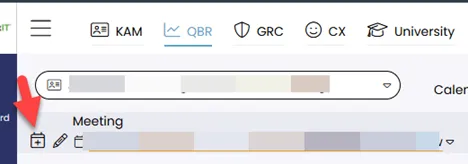
Click the create meeting icon
-
Fill out the details, Title will be “Customer Name – YEAR QX QBR” where X is the quarter the review is for. The due date will be the date of the meeting. This should be created at least 1 month prior so that vITM (Engineer) and vCIO will have time to complete the assessment prior to the meeting date.
-
Once a meeting is created follow steps 1-5 above and then in the meeting review view, select the review for the meeting you created in step 6 from the dropdown next to the create meeting icon.
-
Answer the questions following the guidelines below in the “General Guide to the vCIO toolbox questions.”
-
Once the vITM (Engineer) has completed the review they should notify the vCIO via Microsoft Teams and the vITM should change the status of the QBR meeting to “vCIO Review” and then set up a time to review the answers with the vCIO and ensure ample time to review any questions that show deviation from best practice, introduce risk, and or have a technical deficiency.
-
The vCIO will then analyze the report, add any additional notes, and create a QBR presentation for the QBR meeting following the vCIO QBR guide (KBXXXXXX - Still being drafted).
2. General Guide to the vCIO toolbox questions:
Section titled “2. General Guide to the vCIO toolbox questions:”The answers should be yes or no. When answering the assessment questions an answer must be a true yes for all instances of where the question would be relevant for the client to answer the question with a yes and for all parts of the question. For example, if the client has 10 switches across their 4 locations, and only one switch does not meet the requirements of the question, then the question needs to be answered “no.” Details of all yes and no answers must be explained in the engineer review text box. The text box is where the nuances of the answer would be explained, as well as using the three severity toggles, best practices, technical vulnerability, and business risk, listed below.
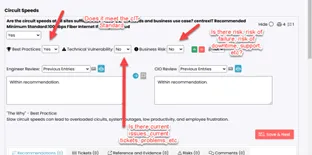
- The no answer does not automatically trigger a negative score for the report. The Best practices, technical vulnerability, and business risk boxes set the actual score for that question.
- For Best Practices, this should only be a yes answer if the client meets the centrexIT recommended standards for all instances of where this question would apply and everything listed is documented fully, under warranty and support, and fully supportable by centrexIT.
- For Technical Vulnerability, this should only be set to “yes” if a client has recent tickets or outages associated with the items, if there are known issues, the device is out of support and/or warranty, or if there is a believed imminent risk of failure for any reason. Use the business risk if the item is not technically deficient by there is risk associated with the device or configuration.
- For Business Risk, this should be answered yes, if there is business (financial, security, etc) risk associated with this item. This could be a yes, even if there is no immediate technical vulnerability and it meets the best practices requirements, if it still presents a risk to the environment for another reason.
Effectiveness Criteria:
Section titled “Effectiveness Criteria:”- Once completed the vCIO will review and craft a Quarterly Review (QBR) for the client which will encompass the results of the standards assessment.
References:
Section titled “References:”Process References:
Section titled “Process References:”- Link to process map.
Note: Please add KB relationships to core process, process. SOPs or other WIs on the right.