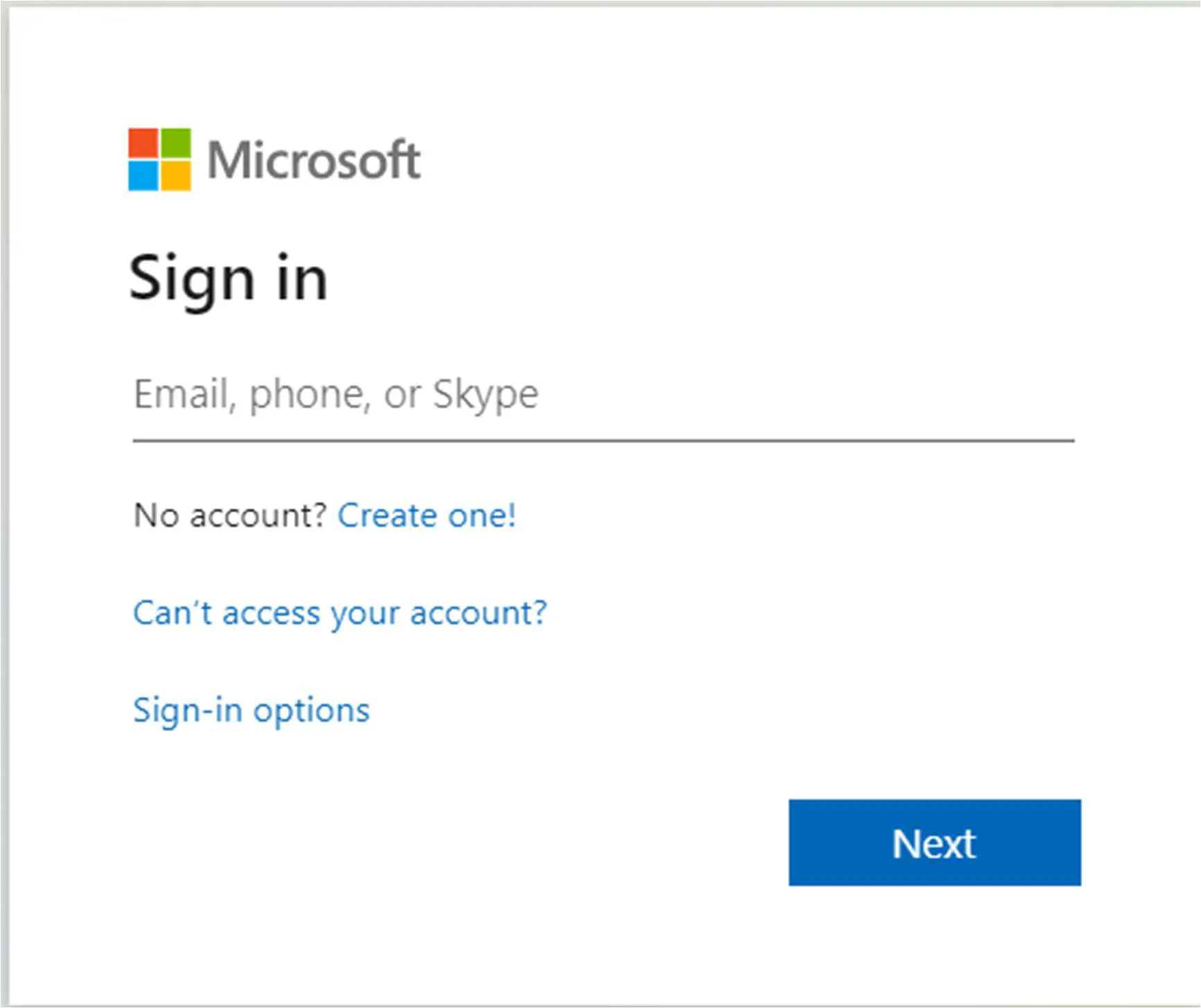
1. On your computer, go to https://portal.office.com and sign in with your Office 365 credentials:
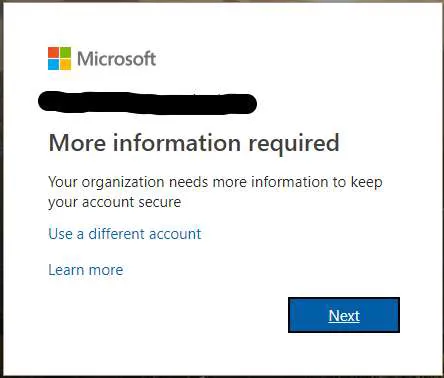
2. You will now be required to provide more information in order start enrolling your device with your Office 365 account.
3. You will now be presented with a wizard to install the Microsoft Authenticator app on your phone.
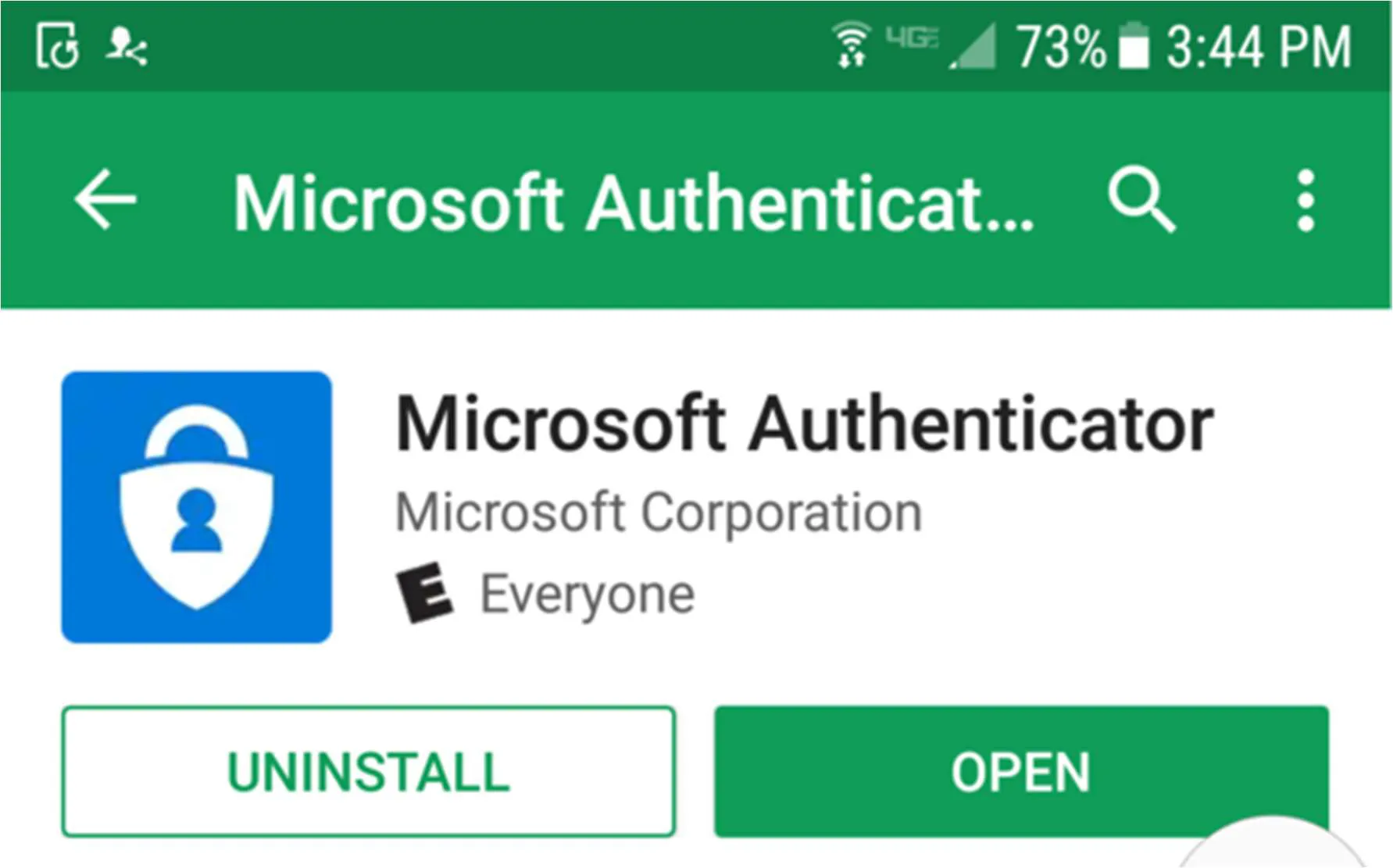
4. On your mobile device, go to either the Apple Store for iPhones or the Google Play Store for Android phones and download and install the Microsoft Authenticator app.
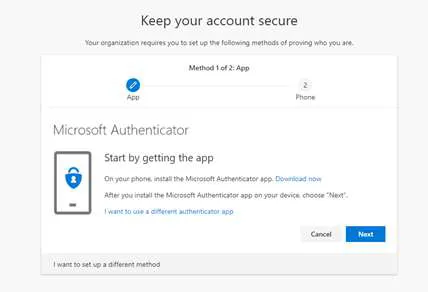
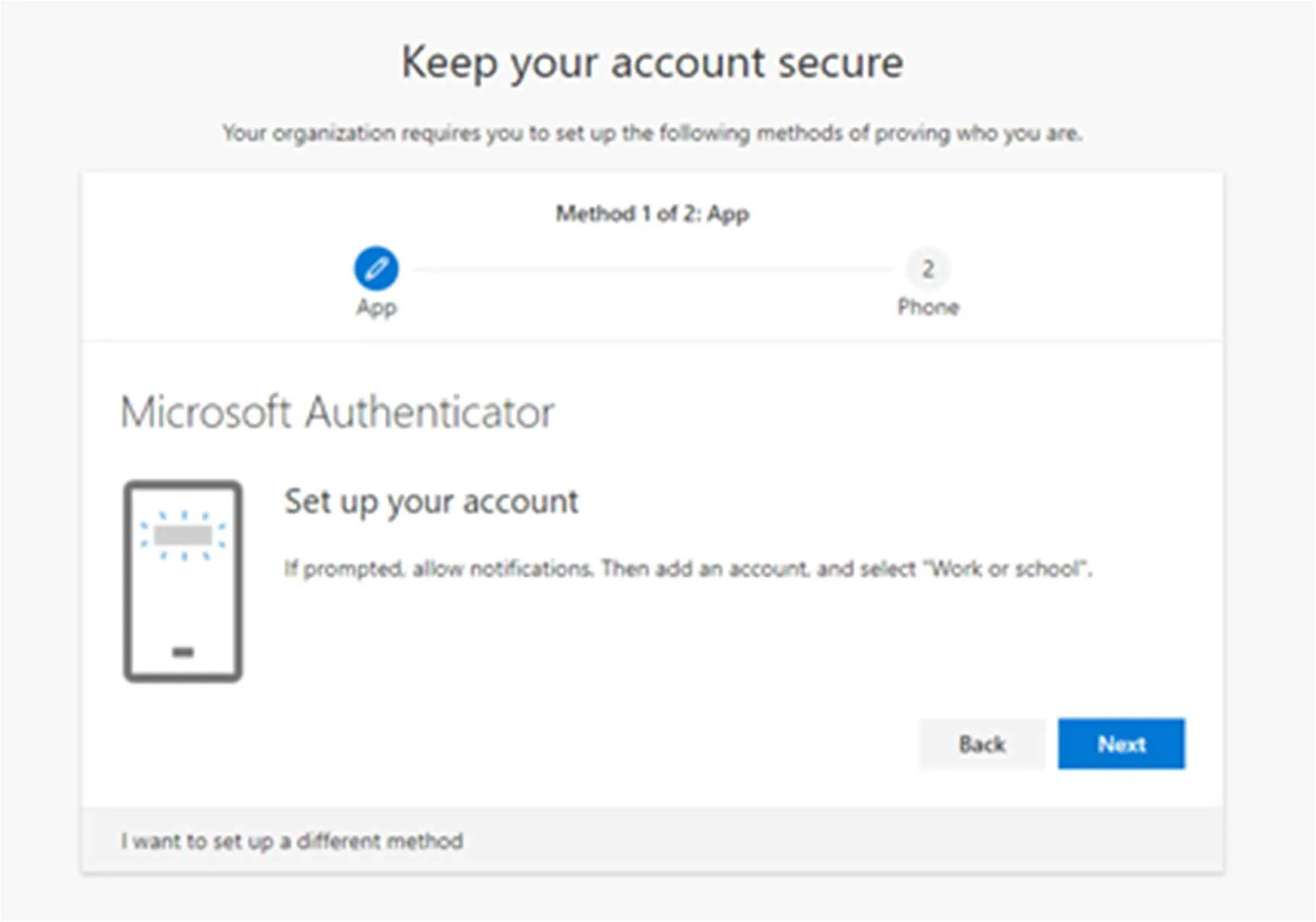
Once you have downloaded the app, please make sure you allow the Microsoft Authenticator app to use your camera if asked. If the app cannot use the camera, you will not be able to complete the setup correctly. Once the app is installed, you will need to set up your account to connect to the app.
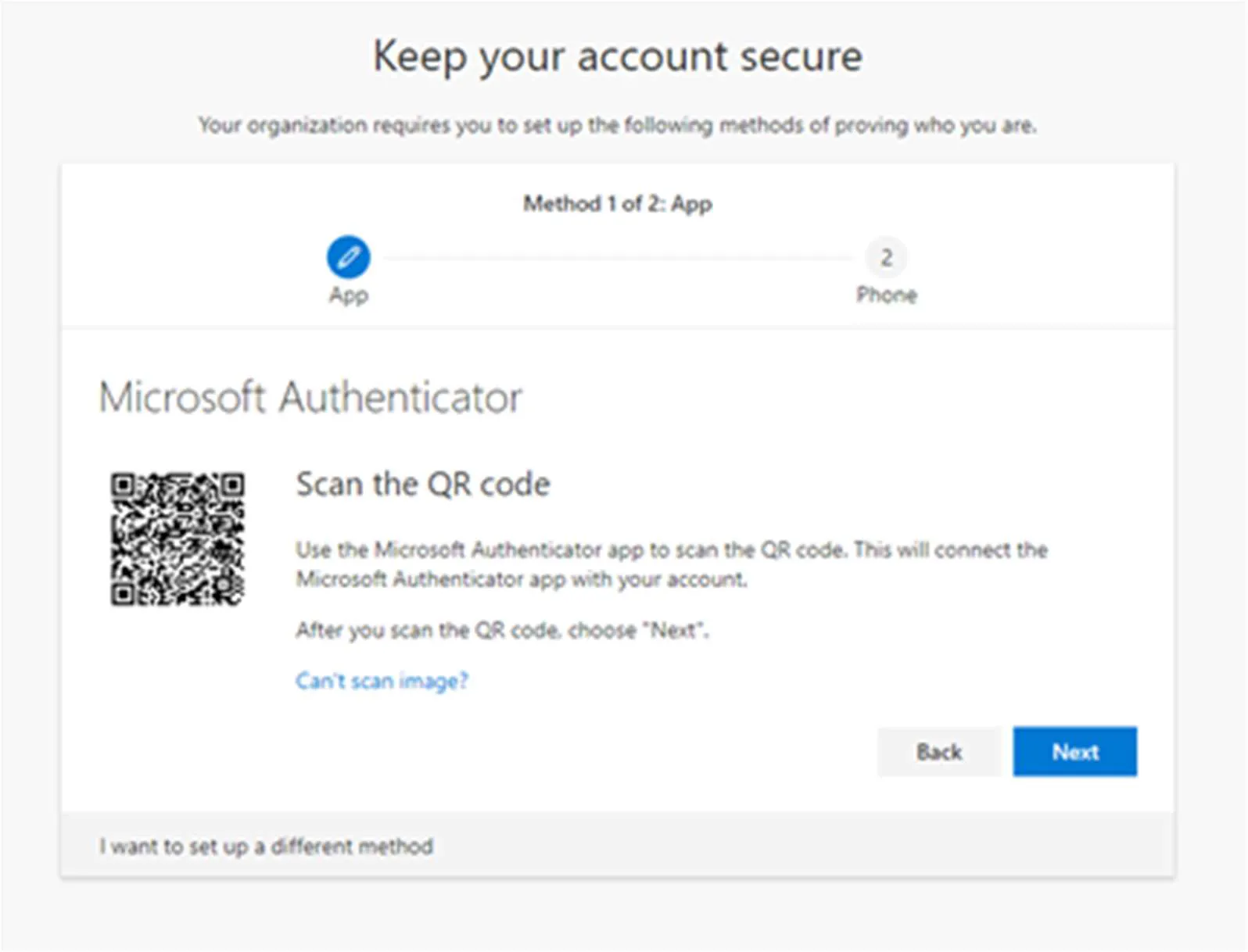
Now that the app has been registered against your account, let’s validate that it has been set up correctly.
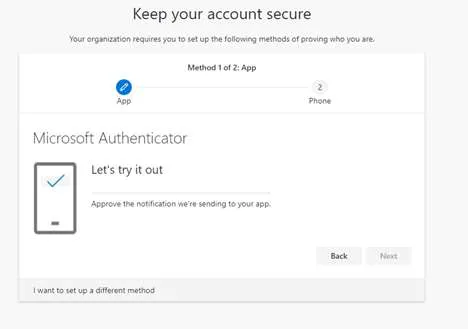
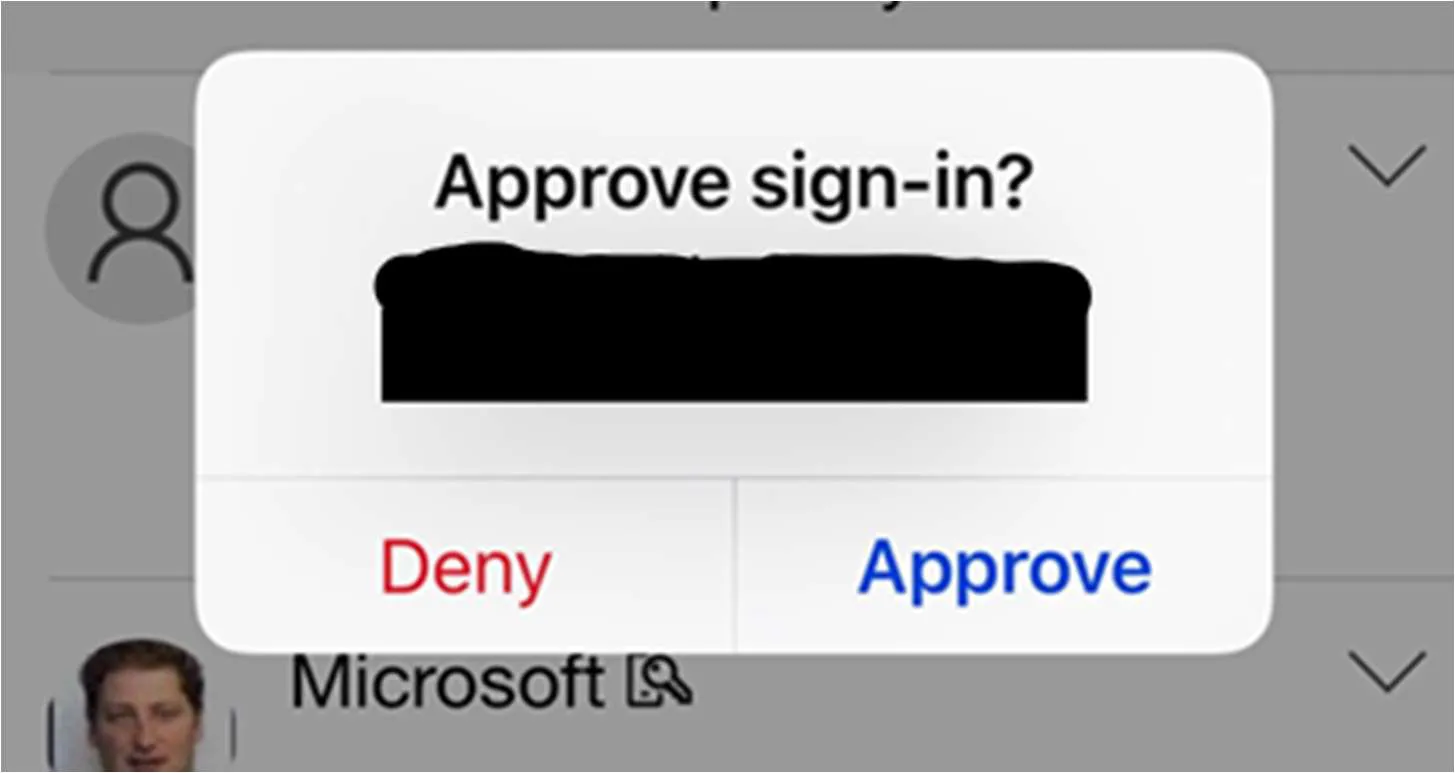
You will then receive a pop-up notification from Microsoft Authenticator. You will need to press the Approve button to move forward. The nice thing is that compared to SMS, MFA does not require you to type any number, making the process faster and easier.
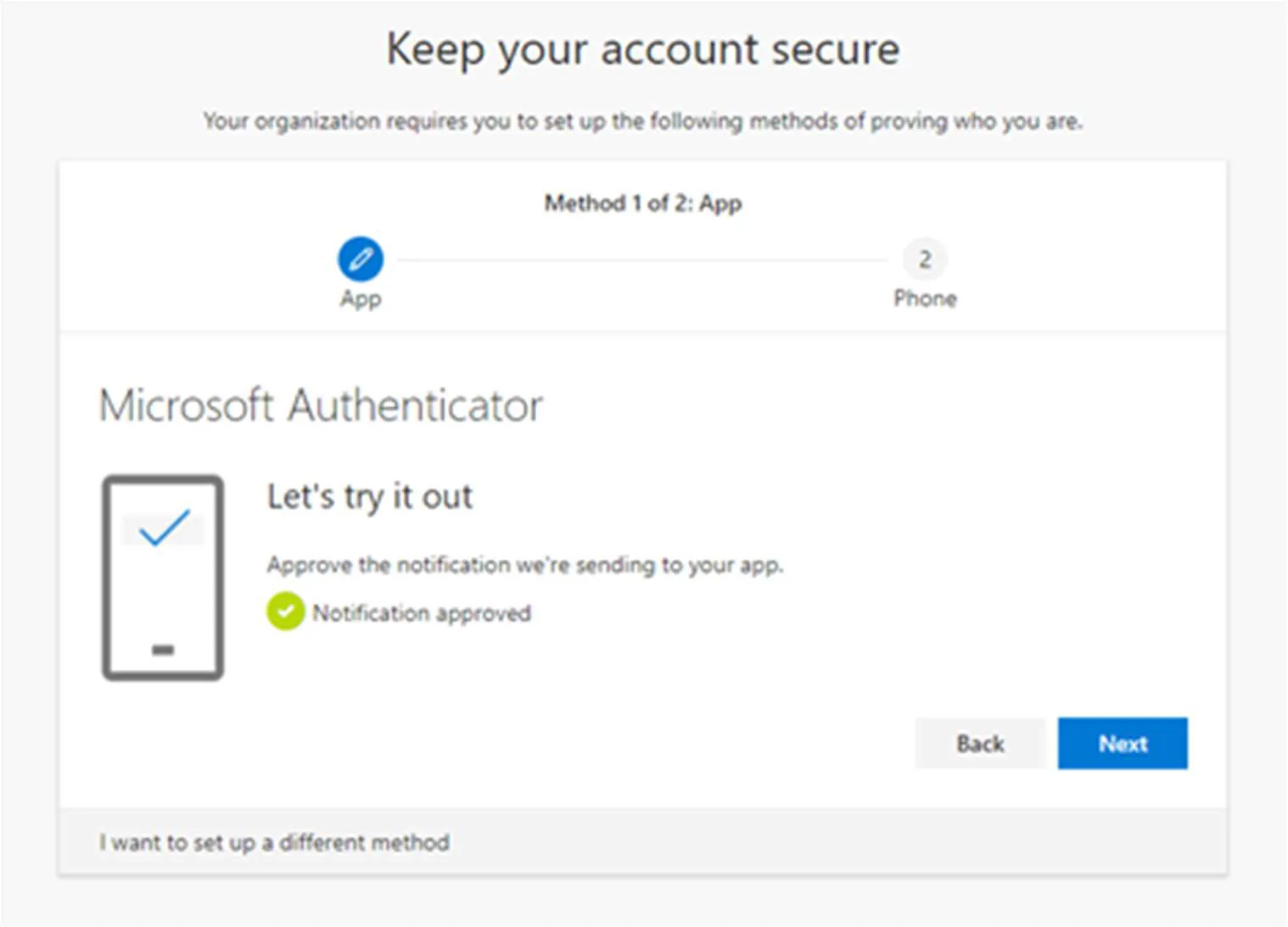
If the setup is successful, you will receive the following confirmation: “Notification approved”.
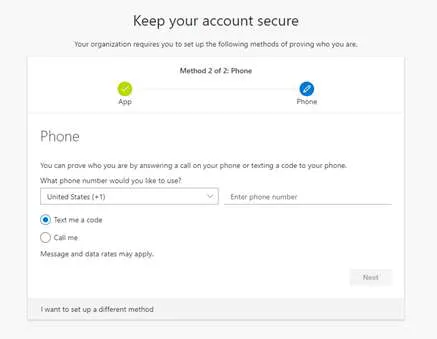
Next, you will set up a backup option, which is MFA via SMS. You will be asked to enter your mobile phone number and decide if you want to have your validation done via an SMS text or by having Microsoft call you.
In the example below, I have chosen the SMS option. Once you receive the SMS, enter the 6 digit code and click Next.
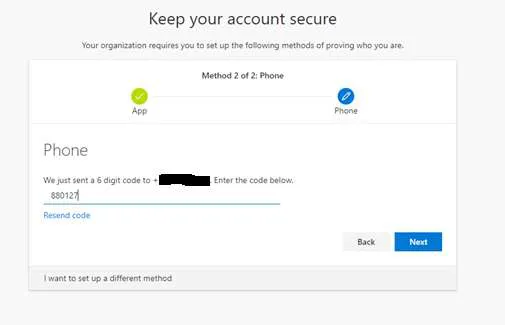
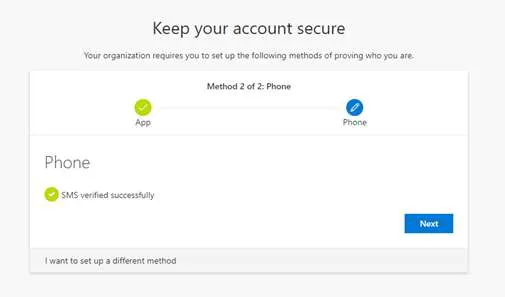
When successful, you will receive the following screen “SMS verified successfully”.
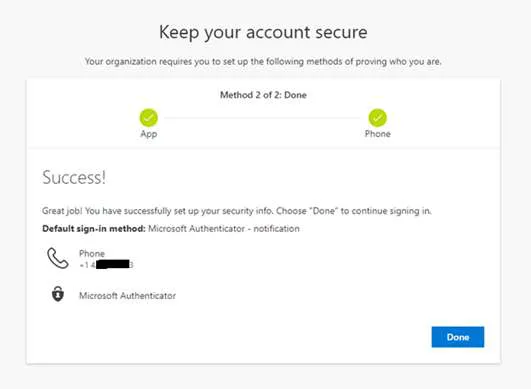
You are now ready to use Microsoft Authenticator as the default sign-in method.