The intended purpose of this document is to give a general overview of the process. It is not client specific and may not match up completely with any specific client environment. This article will assist with the renewal of a self-signed certificate in a RDGateway environment that contains a Gateway server. This process assumes the certificate has not yet already expired. Disclaimer, Wedgewood was used as the template for the purpose of taking screenshots.
Part 1
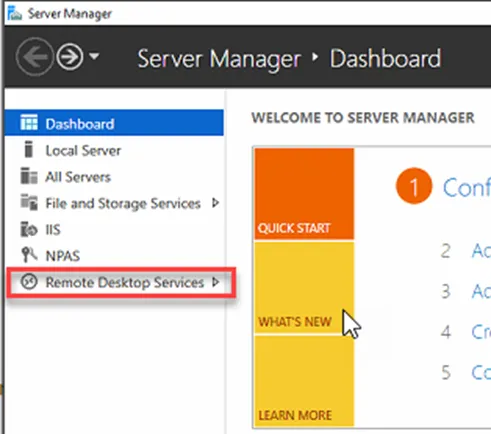
1. Sign into the gateway server and from Server Manager select Remote Desktop Services from the menu on the left-hand side.
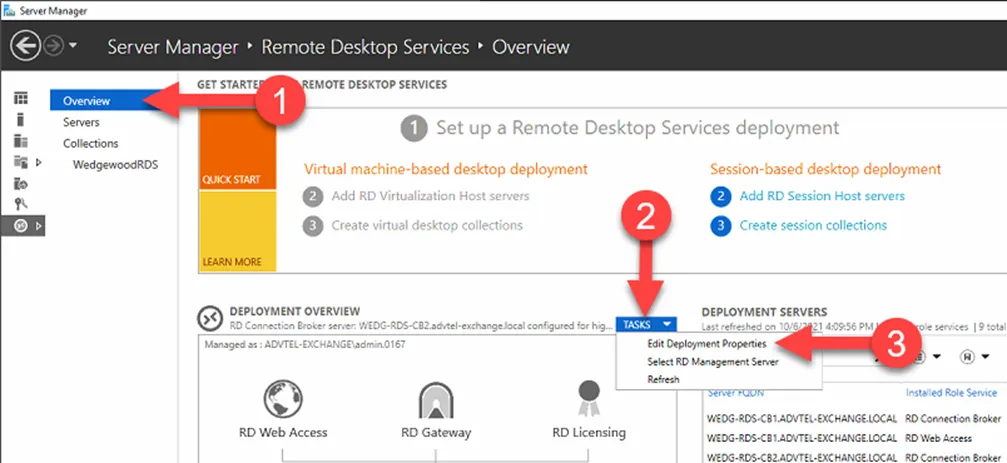
2. Select Overview if not already highlighted (left hand side). You will see a section that says DEPLOYMENT OVERVIEW down to the right. Find TASKS, in the drop down select Edit Deployment Properties.
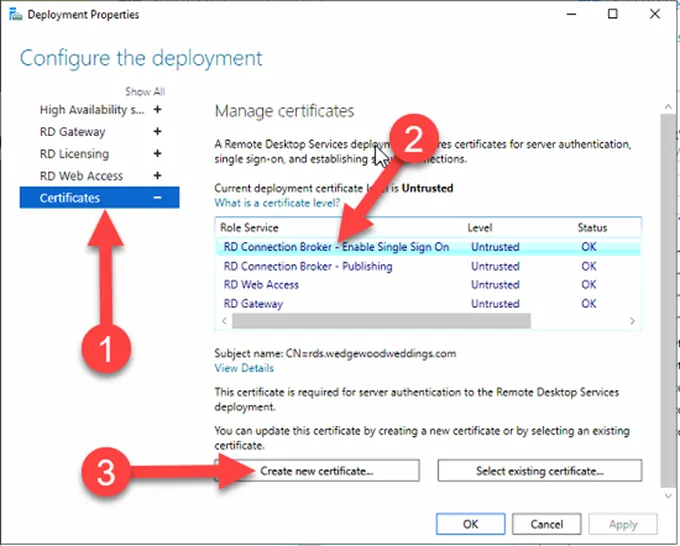
3. From the newly opened window, select Certificates and then the top listed role, RD Connection Broker – Enable Single Sign On and then Create new certificate.
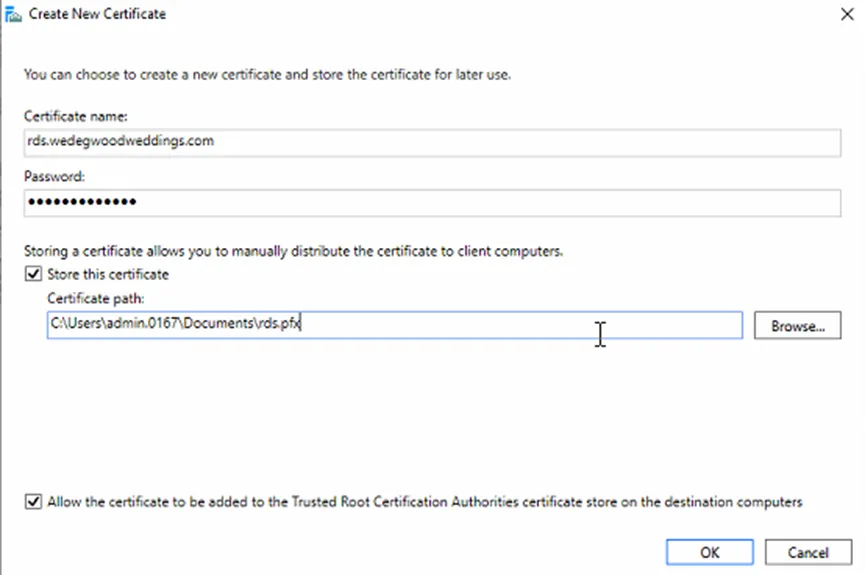
4. For certificate name, enter the same name as the existing certificate, ex. rds.wedgwoodweddings.com. Manually generate a password via PWstate. Select a certificate path for where you wish to save your PFX file and check the bottom box and select OK.
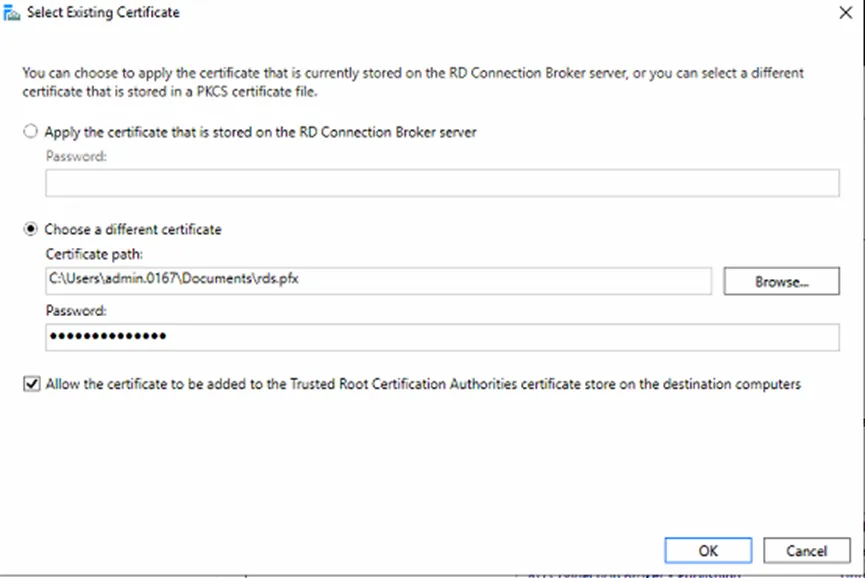
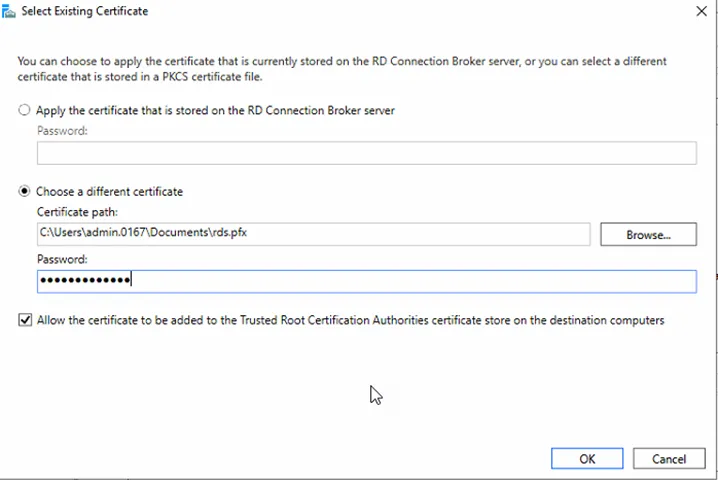
5. Now select, Select existing certificate. This is the same location shown in the third screenshot. Enter the same password you generated in step 4 and select the bottom box and select OK.
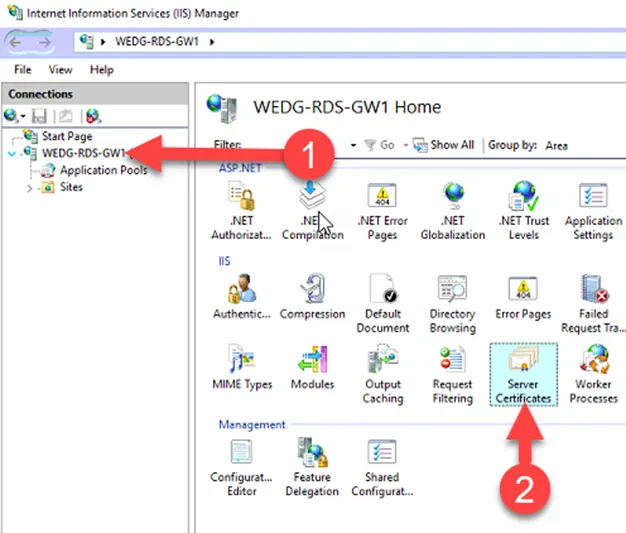
6. To confirm creation. Launch Internet Information Services (IIS) Manager, select the drop down under the server’s name and select Server Certificates.
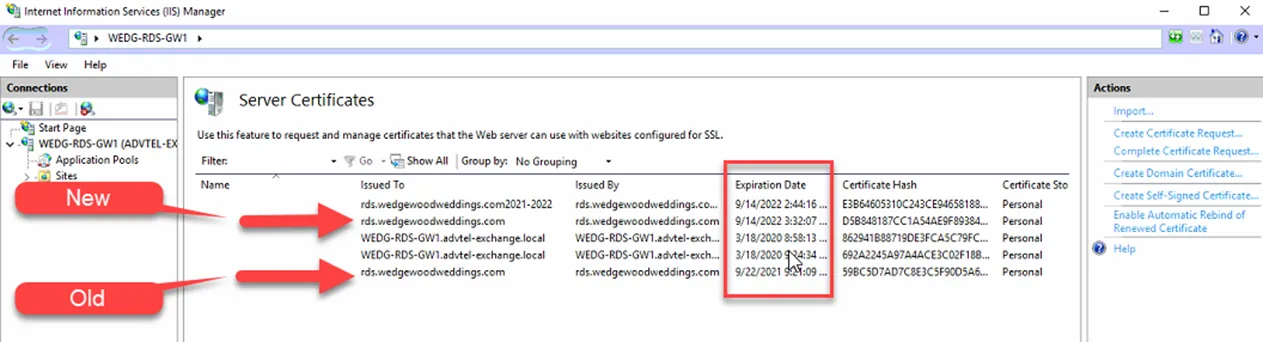
7. Notice your new certificate and old certificate have the same Issued To name. The differentiator is the Certificate Hash, that shows they are indeed different. Also notice the Expiration Date of your new file compared to the old.
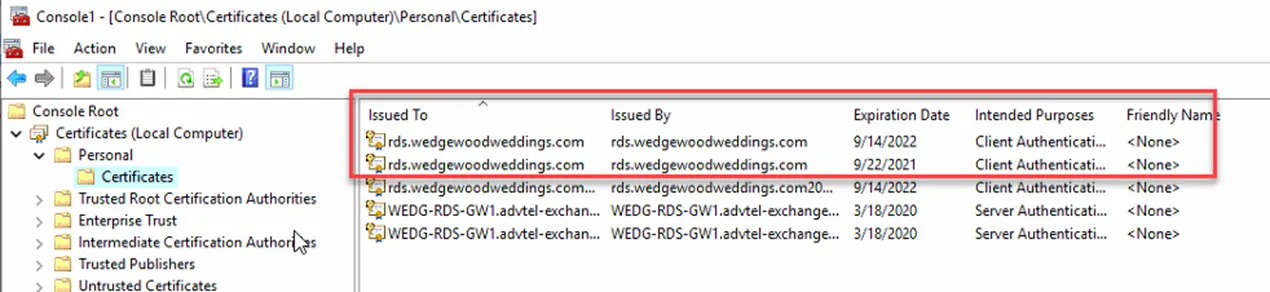
8. You can also reference the Personal Certificate Store. Search MMC, select File, then Add/Remove Console Snap-in… Select Certificates, then Add, Computer Account, Next, Local Computer, Finish, OK. Expand the Certificates tree on the left and then Personal – Certificates. Here you will see the old and the new by comparing the Expiration Date.
9. Go back to the same location shown in screen shot #3. You will now import your new certificate for the roles required for your gateway server. For the necessary roles, first select it, and then choose Select existing certificate on the lower right. Select your newly created self-signed certificate and enter the password you generated earlier, pick the bottom box and choose OK.
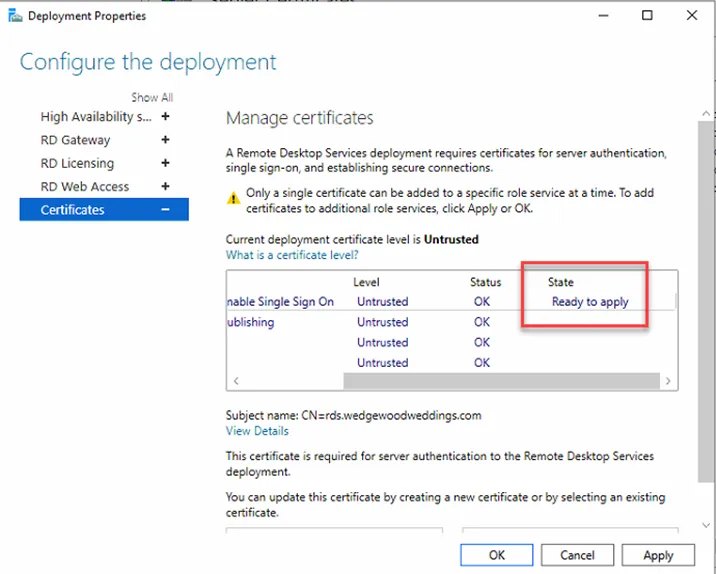
10. Now you will see the State section say Ready to apply. Select Apply on the lower right to apply your new certificate to this role. Reproduce these same steps for all applicable roles. One done choose OK.
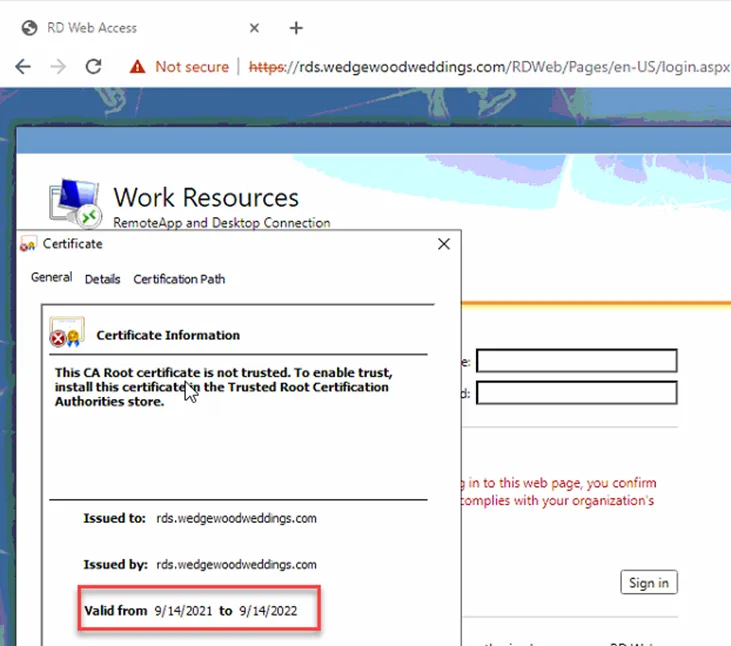
11. Browse to your RDS web URL and check your certificate to see if it applied. Note, in this example the certificate is self-signed, so it is untrusted. This is considered normal for this configuration.
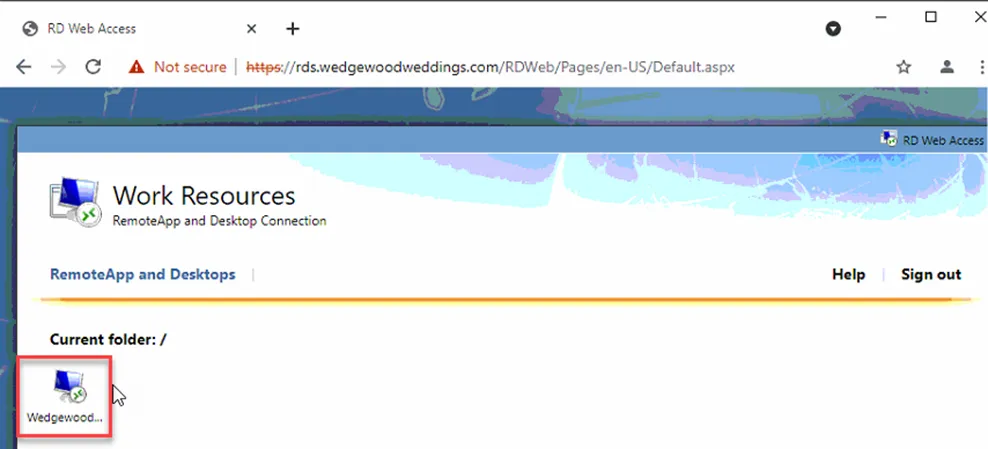
12. Close the Certificate window and sign in with domain admin credentials. You will now see the new RDS icon available for download; select to download.
Part 2
Part two of this guide describes how you can mass deploy this newly created icon via NCentral.
1. Sign into ncentral.centrexit.com
2. Select the applicable company from the top left drop down menu.
3. On the left-hand menu bar, find Actions – File Transfer
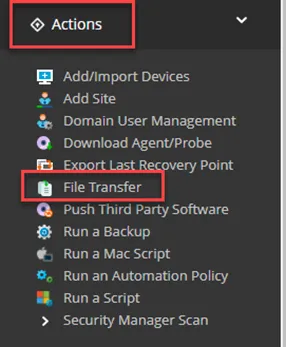
4. Under the Details tab, find Location and check the drop down. You will need the From My Computer option. If you do not have permissions, you will not see this. If that is the case, you will need the NOC team to assist with adding your file to the Repository so you can select it.
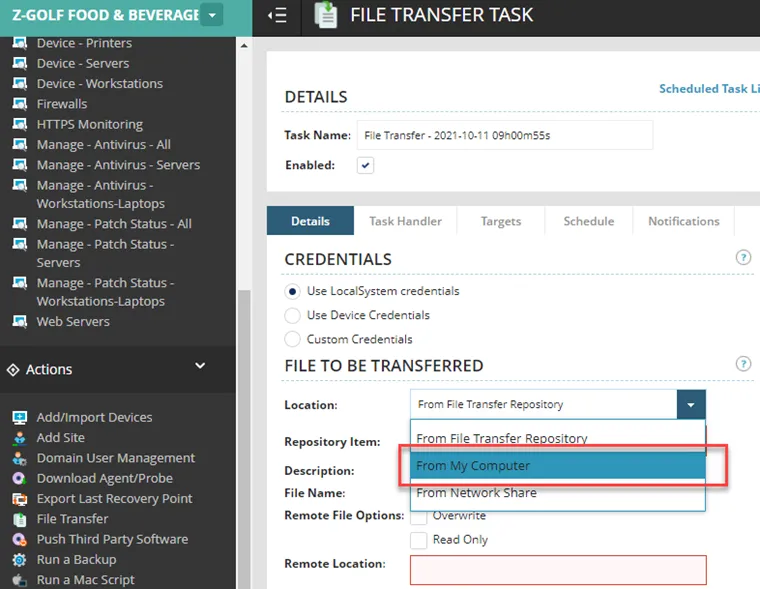
5. You will now need to fill out all 5 tabs. Please use the following examples as a template.
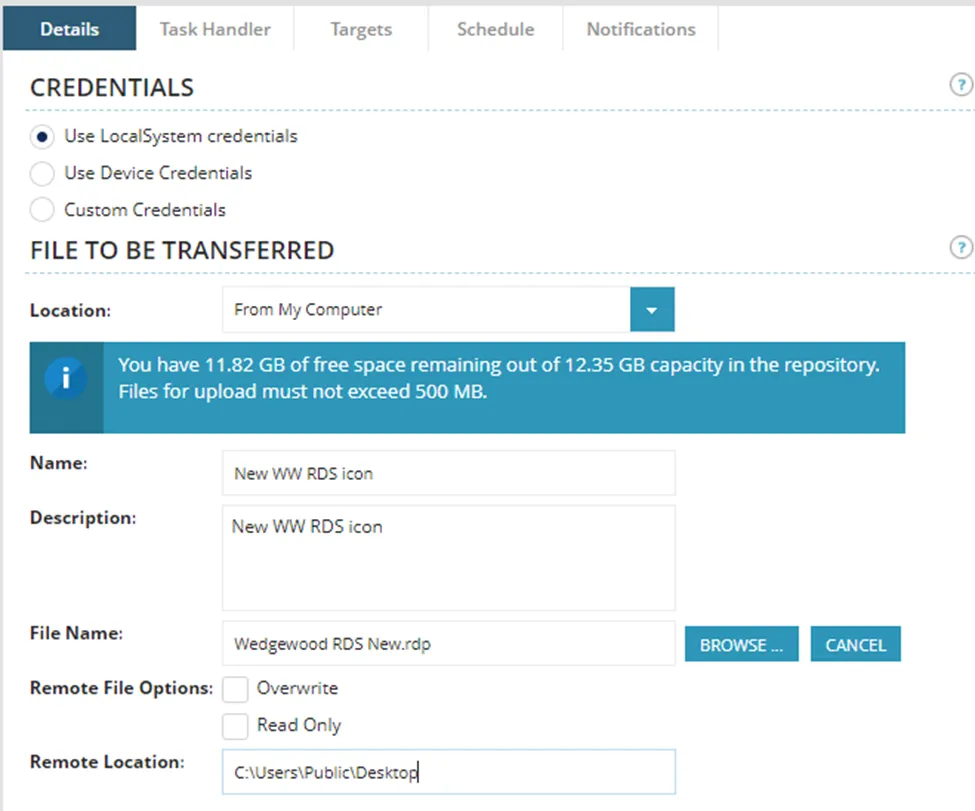
· Note, the public desktop location was picked because the icon needs to be deployed to all end users. This is the only way to target all user desktops via a singular path.
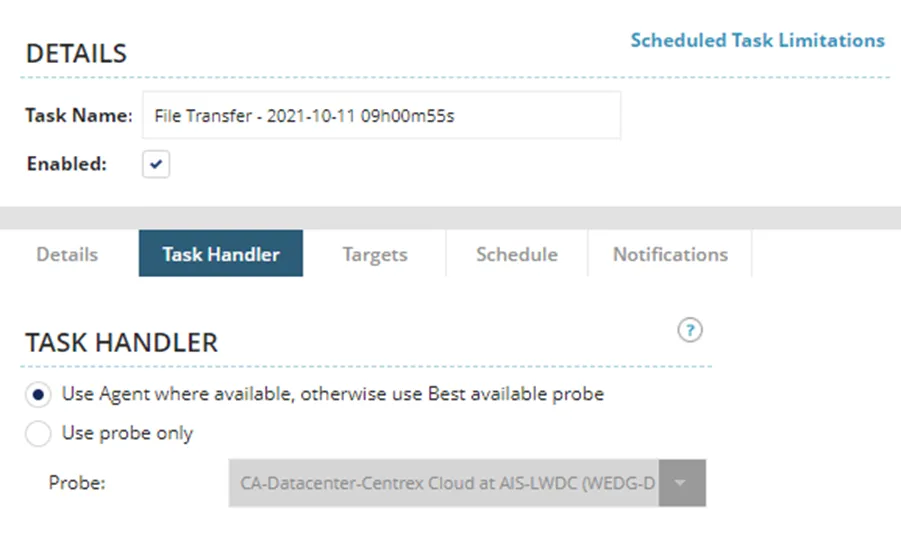
· You do not need to edit anything here.
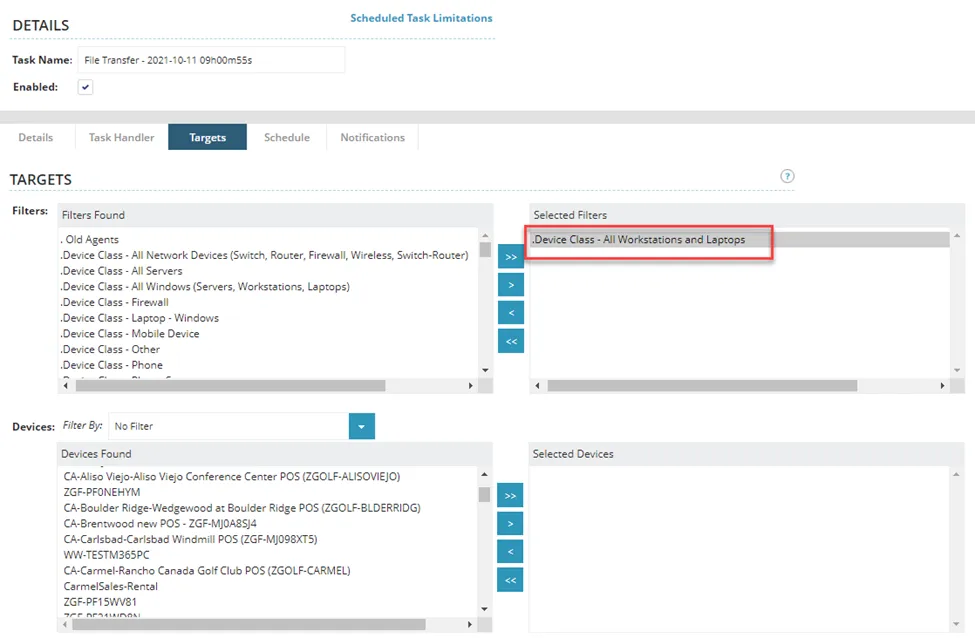
Here is where you designate a target for the device(s) you want to apply your new shortcut too. If you are targeting all workstations and laptop (basically all end user), it will be easiest to use the Device Class filter. In this case Device Class – All Workstations and Laptops. You can also use other Device Classes to select individual devices using the bottom left box.
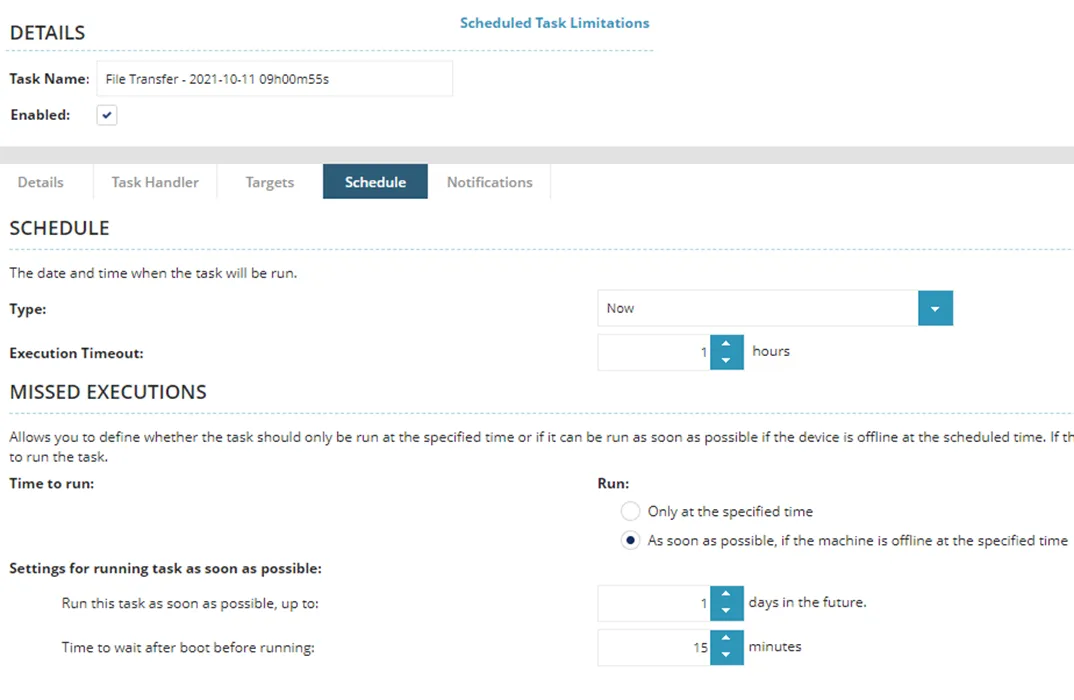
· Leave the type and execution time outs on the default Now and 1-hour selections. Under Missed Executions, you may want to select As soon as possible… bubble and then set the bottom two selections to your preference. This will re-run the task if a computer is powered off at the time of the initial execution. It will attempt to re-run the task during the specified time frame.
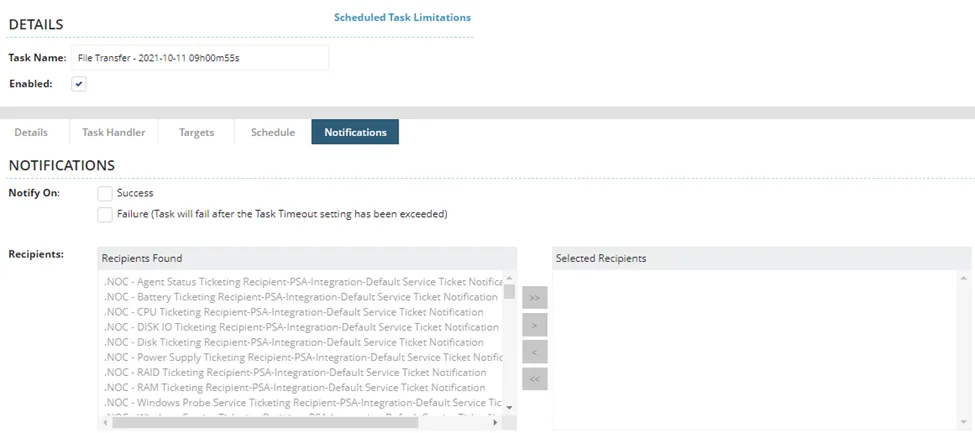
· Here you can specify who you want to email upon the success or failure of the task. Select either one or box boxes and then find your desired recipient under the left side box and select the right facing arrow to add it.
6. Once you are satisfied with your selections, press the green save button on the lower left of your window. This will save the task and begin the execution process. On the following page you can view the progress.