Purpose:
Section titled “Purpose:”To ensure SWARM spaces are created and utilized correctly.
Scope:
Section titled “Scope:”Service Delivery
Responsibility:
Section titled “Responsibility:”Service Desk - create and engage space VITM - engage in space as required VCIO - engage in space as required SME - engage in space as required
Completion Criteria:
Section titled “Completion Criteria:”SWARM space created with all necessary people required to ensure resolution and client facing personnel are notified.
Records:
Section titled “Records:”Ticketing system.
Steps:
Section titled “Steps:”- Once determined that a SWARM space will be required, a new space needs to be created in Teams. To do this, go to Teams and click on the sheet of paper with a pencil in it in the top left corner.
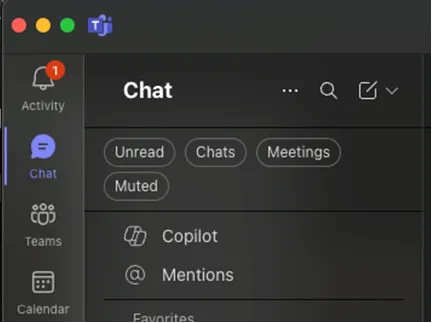
-
Teams will then prompt you to add people to the space in the top right. You need to add everyone that needs to be involved in the SWARM. This includes the escalation tech, VITM of the client impacted, VCIO of the client impacted, Service Desk manager, and any SMEs that may be required. The person creating the space is automatically included in the space.
a. If after hours, adding someone to the space DOES NOT mean they are required to engage without a phone call.
b. Reference KB00050400 for Responding to a Critical Incident During Business Hours and KB00050393 for Responding to a Critical Incident During After Hours to learn more regarding employee engagement in a SWARM space.
-
Once the space has been created, the title needs to be changed to match the following format: client name – ticket number – brief issue summary
a. Example – GPW – TK13256 – PBA inaccessible
This is done by hitting the pencil next to the names of the people in the group. 4. . You have now created a SWARM space.
Process References:
Section titled “Process References:”- See KBs attached on Right. (Responding to a critical incident… KB00050400 & KB00050393)