Purpose:
Section titled “Purpose:”In order to submit a Nexonia expense report for the first time, employees must enter their banking information to designate a bank account for direct deposit reimbursements.
Scope:
Section titled “Scope:”For any employee that needs to submit an expense report
Responsibility:
Section titled “Responsibility:”Accounting All
Completion Criteria:
Section titled “Completion Criteria:”Successfully link bank account to Nexonia
Records:
Section titled “Records:”Nexonia
Steps:
Section titled “Steps:”NOTE: Expense reimbursements are made via direct deposit from Nexonia’s 3rd party vendor, Convera, not through payroll.
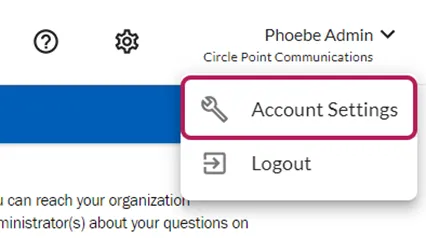
NOTE: Please set up or edit your bank information before starting your expense report. Changes made to bank information after your report is started will not take effect until the next report is submitted. Step 1: On your Nexonia homepage, click your name in the upper right-hand corner.
 Step 2: Click Account Settings.
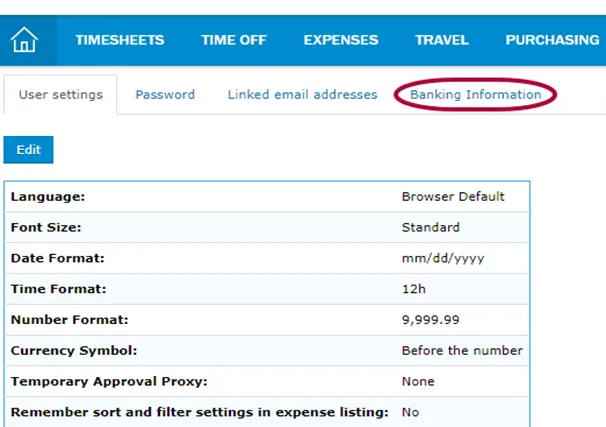
 Step 3: Click the Banking Information tab.
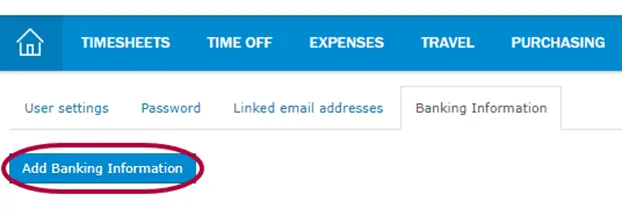
 Step 4: Click Add Banking Information or Modify by clicking the pencil icon, if you are changing your banking information.
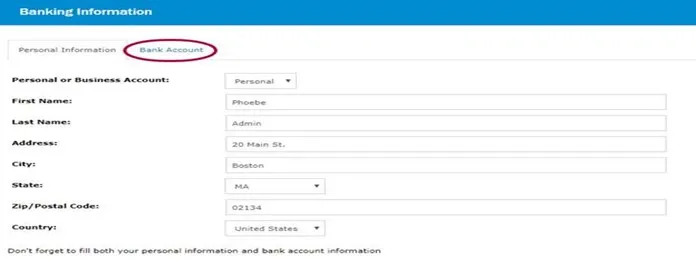
 Step 5: The Banking Information screen appears. First, enter your personal information or update as needed.
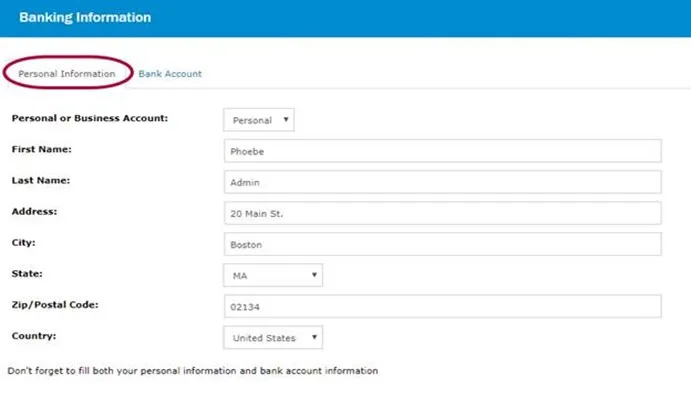 Step 6: When you’re finished entering your personal information, click the Bank Account tab.
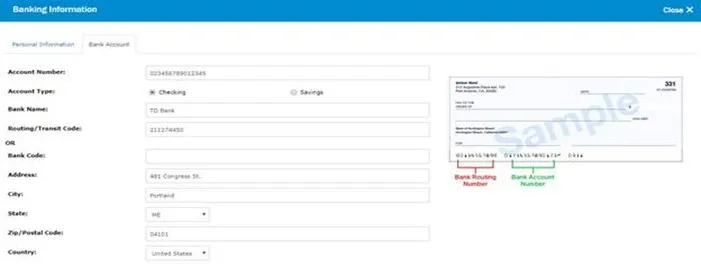
 Step 7: Add or update your Bank Account information into all required fields.
 Step 8: When finished entering both your Personal Information and your Bank Account information, click OK.
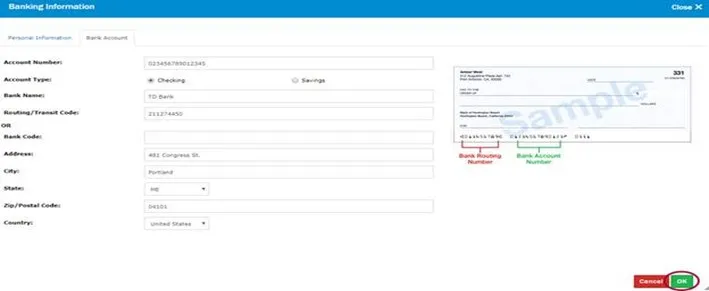 Step 9: You’ll receive a confirmation message that your bank information is complete. Click OK.
 Step 10: Now your Banking Information screen will show your newly added bank information. Always review your bank information. Errors, including typos or extra spaces, will cause a reimbursement to be rejected.

Process References:
Section titled “Process References:”- See Knowledge relationships for further details. Note: Please add KB relationships to core process, process, SOPs or other WIs on the right.