Purpose:
Section titled “Purpose:”To remediate macOS noncompliant devices not checking in with Microsoft Intune (based on the policy’s noncompliant schedule, eg > 5 days)
NOTE: KP Enviornmental’s enviornment was used in this example
Scope:
Section titled “Scope:”End-point management, monitoring, and security.
Responsibility:
Section titled “Responsibility:”Service Delivery, IT Secuirty, vITM
Completion Criteria:
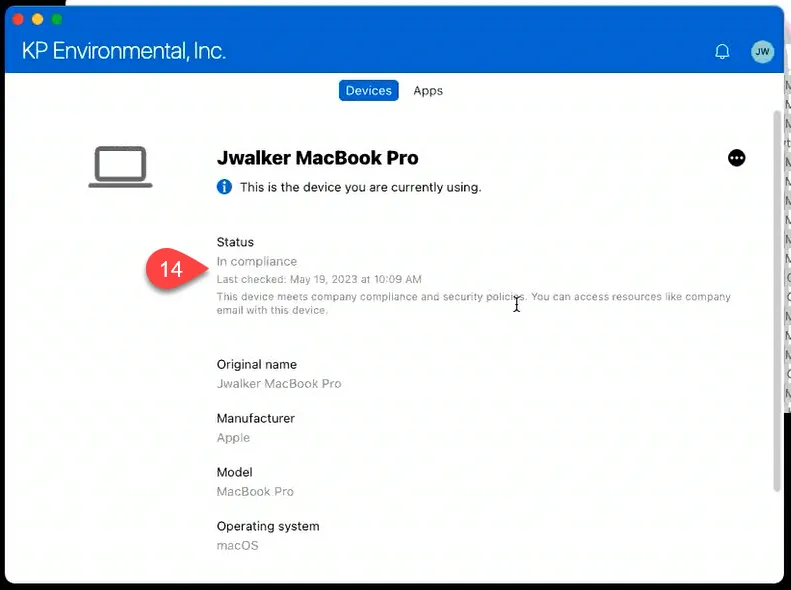
Section titled “Completion Criteria:”- Last Check-In is the current date after remediation
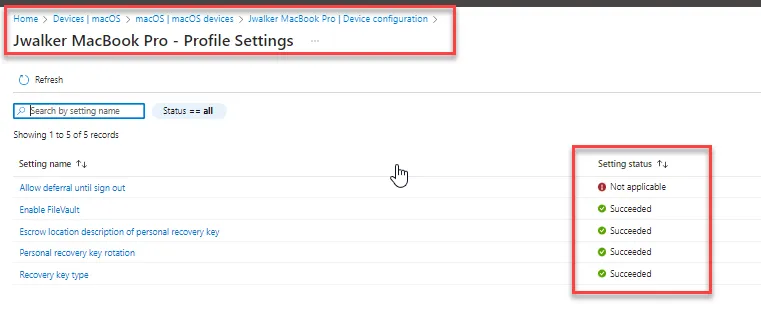
- Device is Complaint in Microsoft Intune Center
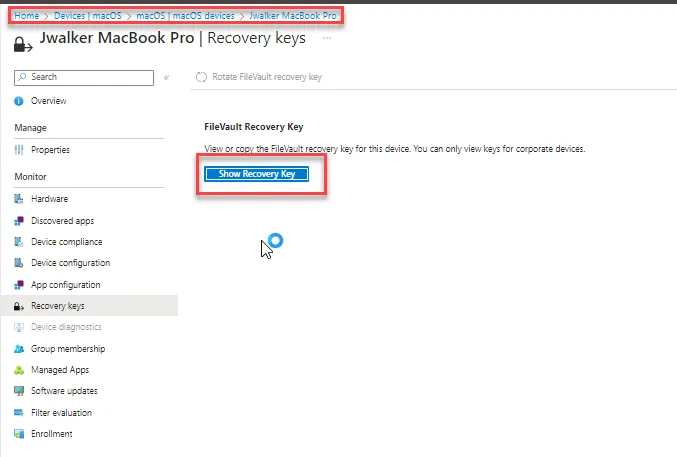
- FileVault Recovery Key is visible in Microsoft Intune Center (If policy is applied to the tenant)
Records:
Section titled “Records:”NA
Steps:
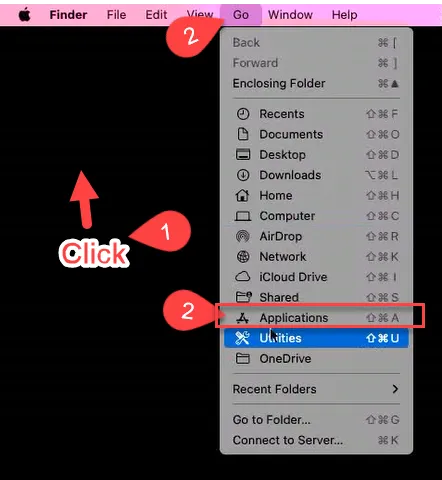
Section titled “Steps:”- Click on user’s Desktop
- From the Mac Menu Bar select Go > Applications
- Open the Company Portal (If not already installed https://go.microsoft.com/fwlink/?linkid=853070)
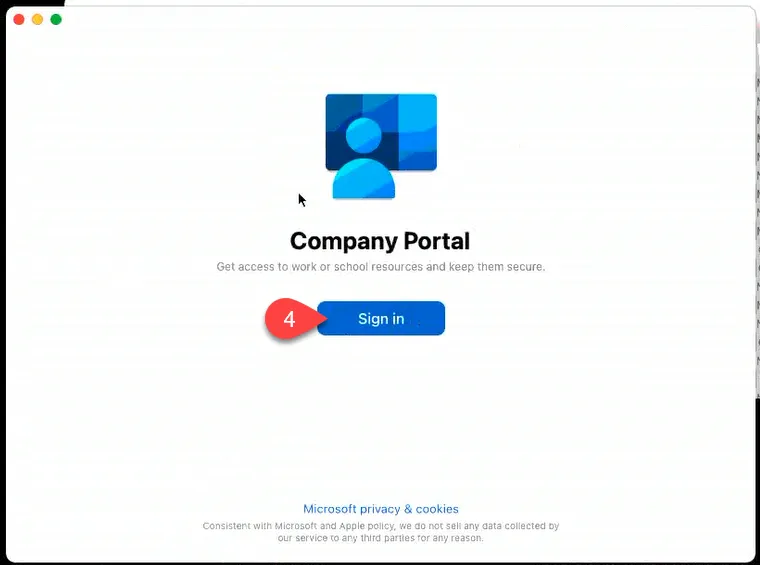
- Sign into the Company Portal (if not already)
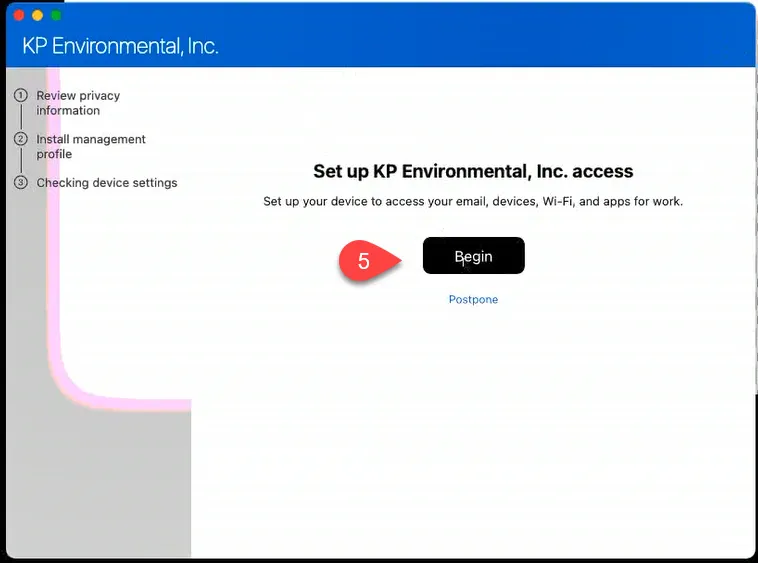
- Click Begin (If you don’t see the Company Dashboard)
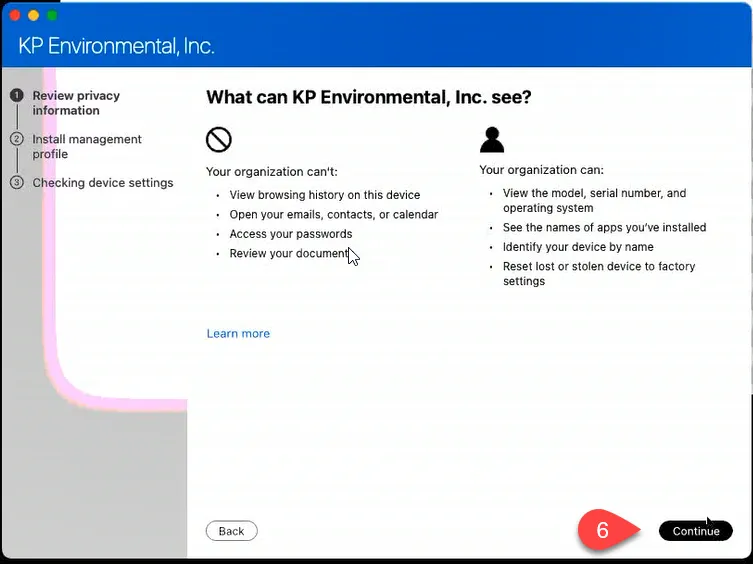
- Click Continue
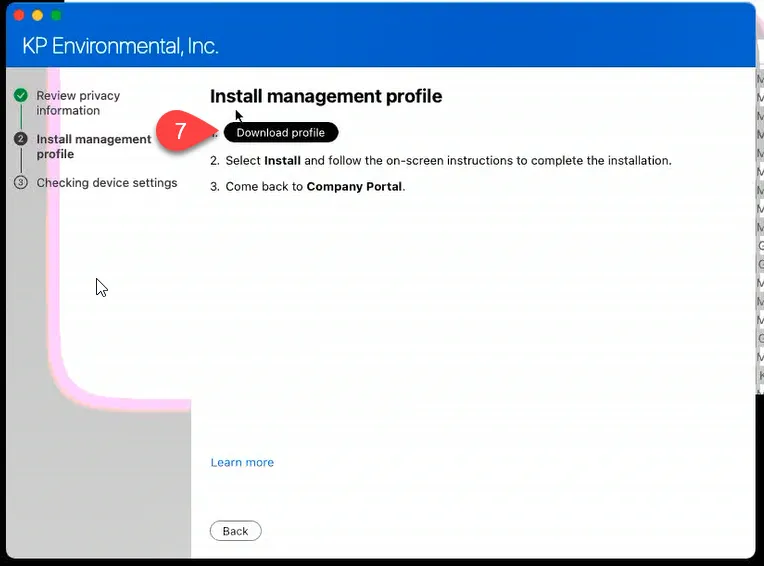
- Click Download Profile (This should open up the Profiles section of Apple > System Preferences)
- If there are multiple Management Profiles entries (delete the oldest)
- This should remove all other Profiles associated with the old Management Profile
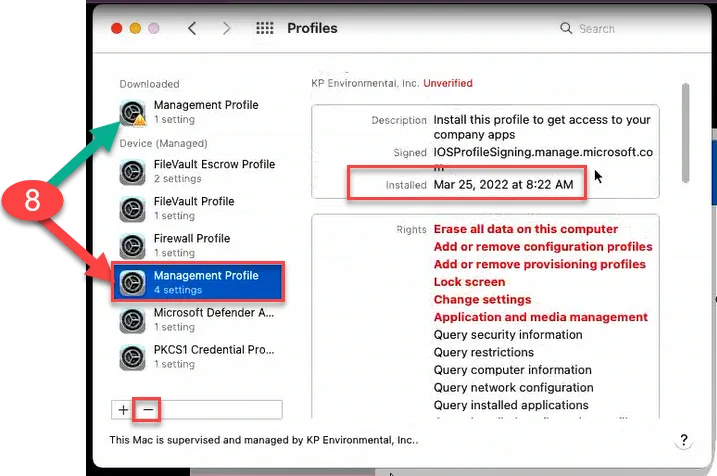
- This should remove all other Profiles associated with the old Management Profile
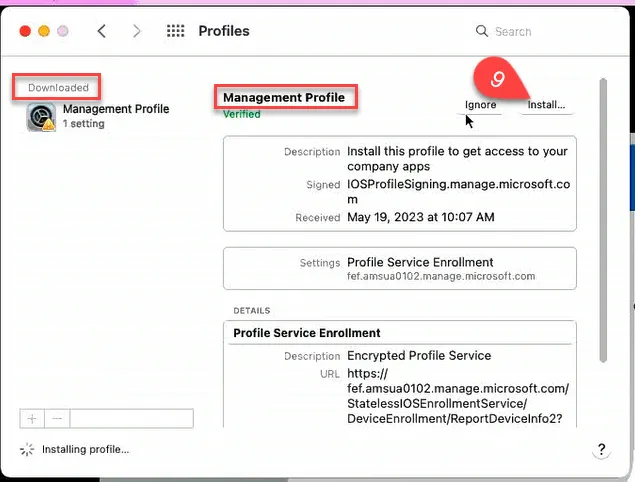
- Click Install… from Downloaded > Management Profile
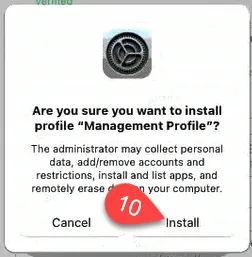
- Click Install from the pop
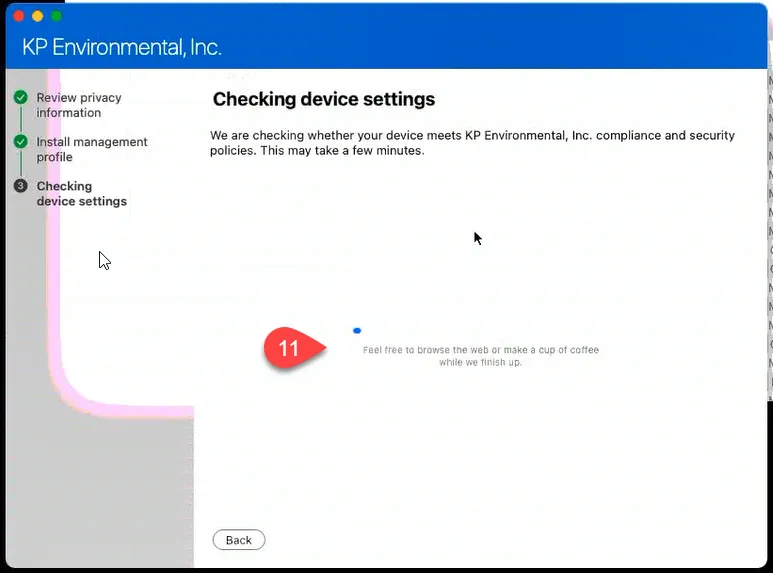
- Go back to the Company Portal app and review device settings being applied
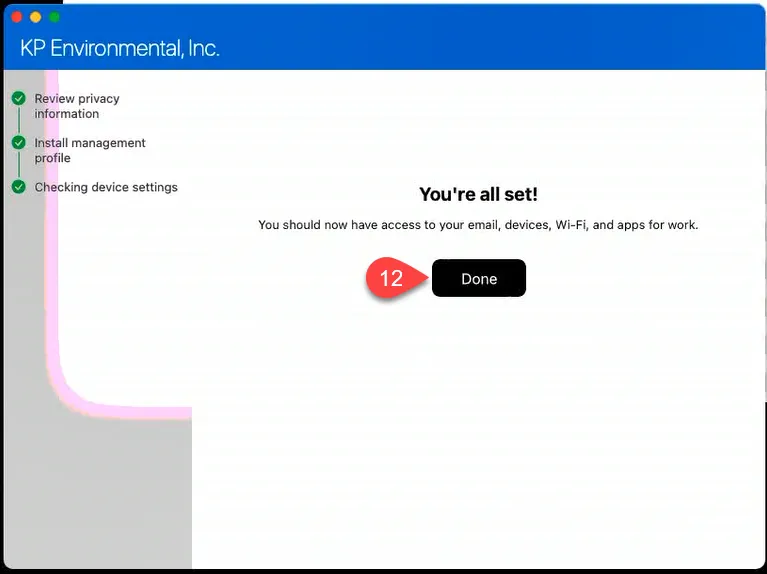
- Click Done once complete
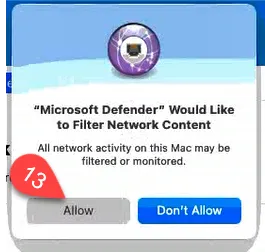
- If client has MS Defender for Endpoint, click Allow on the Filter Network Content pop-up
- Confirm last checked matches with Intune Management Console on Device tab of the Company Portal Dashboard
- If endpoint already has FileVault enabled on their device please follow the steps below to ensure Recovery Keys are backed up to Intune:
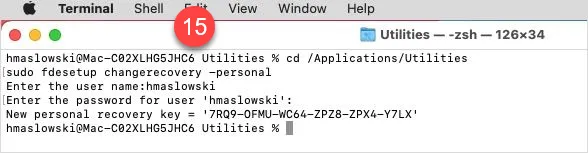
- Open Terminal app from /Applications
- Enter the following command:
cd /Applications/Utilities - Enter the following command (if user is an admin):
sudo fdesetup changerecovery -personal- If user is not an admin run this command first, then the one above:
login [local_admin_account_username](eg login localuser) - [password_for_local_admin_account]
- If user is not an admin run this command first, then the one above:
- Enter the username of the currently signed in user.
- Enter the password of the currently signed in user.
- Force a Compliance check from Intune and confirm Recovery Keys backed up (ETA 10min)
Process References:
Section titled “Process References:”NA