PROCEDURE
Please use this WI when a request to install Great Plains or MS Dynamics on an End-User’s computer is created.
NOTE: End-Users use an RDS App to access Great Plains/MS Dynamics
REQUIREMENTS
-
Approval:
-
Onboarding requests authorize PBA access
-
Obtain client POC approval for new requests
-
1Password > Domain\Service Accounts > Active Directory ALC
STEPS
- Once approval requirements are met, login to CLDC1 or CL-DC01
- Add user to the following AD Groups:
-
Great Plains
-
RDS Dynamics (Great Plains)
- Update Group Policy on the End-User’s computer
gpupdate /force
- Verify user has access to the Z:\
-
Share Location: \\cl-dynamics.alc.com\GPShare
-
Reboot if drive does not immediately show up after running Group Policy Update
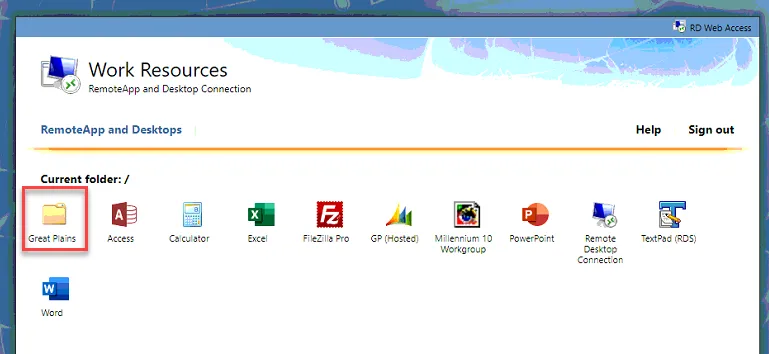
- Have the user login to https://rds01.alc.com with their Adstra Domain Credentials
- Open the Great Plains folder
-
If the folder does not appear you can run the CMD command from DC you used in Step 1:
-
repadmin /syncall /AdePq
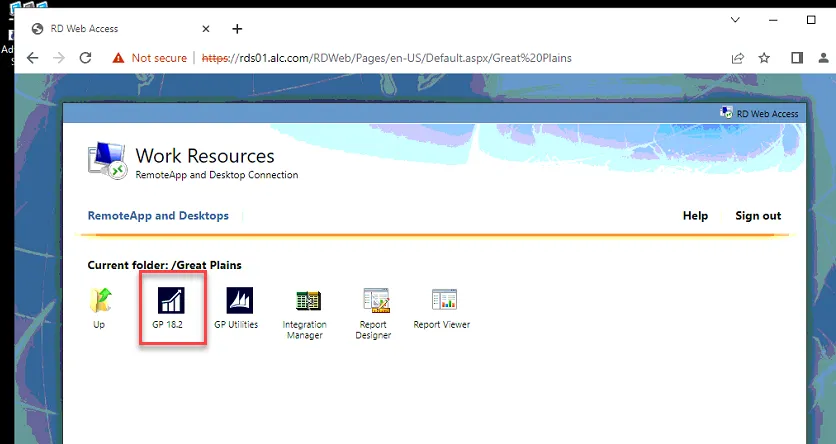
- Click on GP 18.2 and it will download an RDP Link to the RDS App
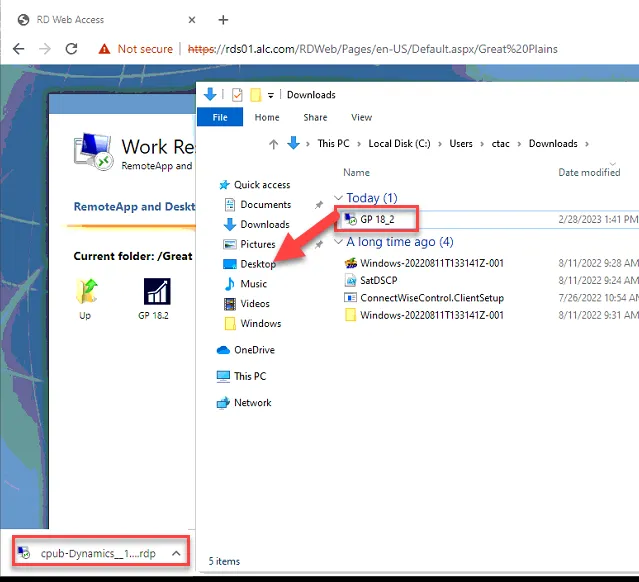
- Rename the RDP Link to GP 18_2 and move it to the user’s \Desktop
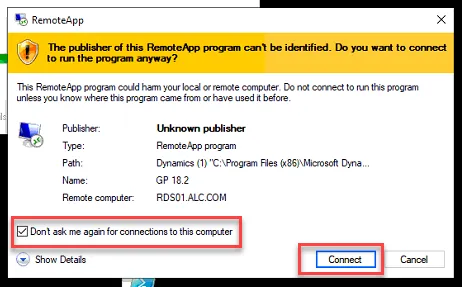
- Open the GP 18_2 RDP Link and select “Don’t ask again for connections to this computer”
- Verify End-User can log into GP / MS Dynamics PBA with their Adstra Domain Credentials
FAILURE NEXT STEPS
- Contact Adstra vITM
REFERENCES
NA