PROCEDURE Please use this VPN Troubleshooting Guide if you receive a call from WP or DWP (Arizona office locations) users unable to access VPN Services.
Overview:
-
Western Pump has two segments to their business but both use the same VPN Group in WP’s AzureAD
-
WP = @westernpump.com (assigned to F-Street, E-Street, & Rancho Cucamonga Offices)
-
DWP = @doehrman.com (assigned to 1432, 1450, & 2324 Offices in Arizona)
REQUIREMENTS
-
IMPORTANT: Client POC approval for access requests
-
1Password > WP MS O365 Admin Account (WP’s M365 Admin Account)
-
Licensed M365 Account
-
AzureAD VPN Group:
-
WP & DWP: WP/DWP VPN Group STEPS
- Verify if user is in the appropriate AzureAD Group (See References Section for visual)
- WP/DWP VPN Group
- IMPORTANT: If not, one of the client POCs listed in Halo must approve to be added
- All NCentral managed devices will receive Cisco Anyconnect Secure Mobility Client pushed out
- If you need an installer for an approved Consultant or cannot get Anyconnect pushed out from NCentral you can download the Anyconnect installer from the Western Pump Meraki Dashboard
- Once Anyconnect is installed, you need the appropriate VPN Profile installed on the user’s computer.
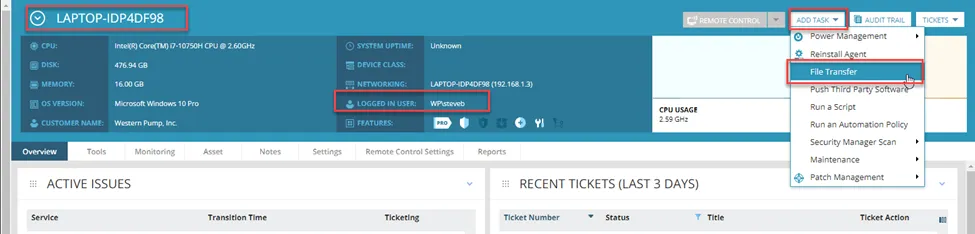
- Find computer object in NCentral
- Click Add Task > File Transfer
- On the Details tab of the scheduled task, verify Location is From File Transfer Repository
- From the Repository Item: drop-down select the appropriate VPN Profile: WP/DWP AnyConnect VPN Profile
- In the File to be Transferred section verify the following settings:
- Location: From File Transfer Repository
- Repository Item: [Appropriate VPN Profile]
- Remote File Options: Overwrite
- Remote Location: C:\ProgramData\Cisco\Cisco AnyConnect Secure Mobility Client\Profile
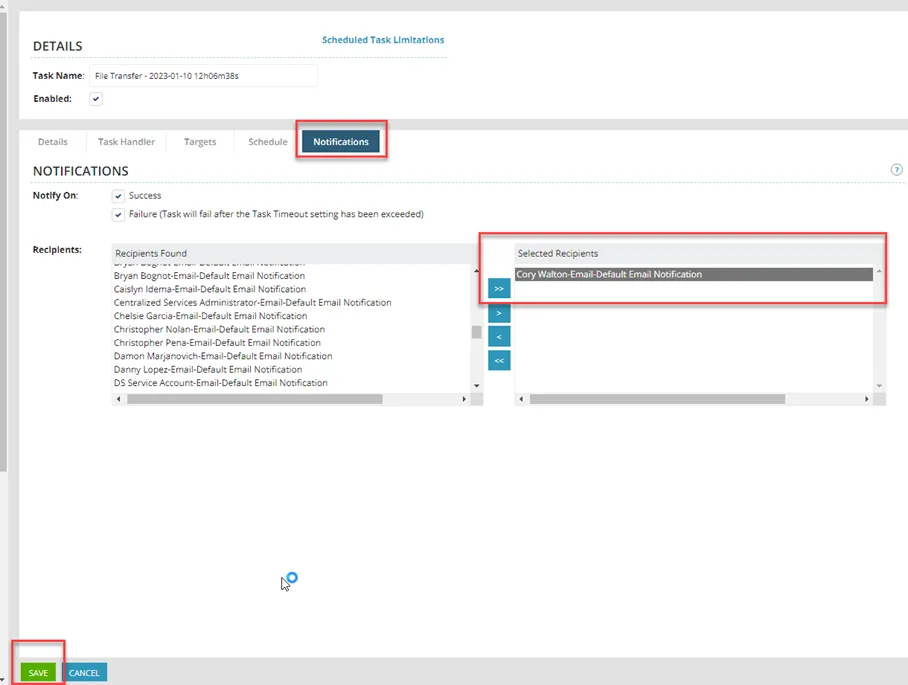
- To receive notification of failed or successful push:
- Go to the Notifications tab
- Notify ON: (Check both Success and Failure)
- Find your recipient’s name(s)
- Click Save to Execute the task