AtaCor Medical - WI - PC Provisioning
Section titled “AtaCor Medical - WI - PC Provisioning”NOTE: An Immy.Bot Provisioning Package is available for device onboarding. Load it onto the root of a USB drive and follow the Immy.Bot Provisioning Steps KB00038353.
Section titled “NOTE: An Immy.Bot Provisioning Package is available for device onboarding. Load it onto the root of a USB drive and follow the Immy.Bot Provisioning Steps KB00038353.”Return to this KB for the Atacor Specific setup steps
Section titled “Return to this KB for the Atacor Specific setup steps”Requirements:
Section titled “Requirements:”-
Device Name: PC should be named using the following convention: AC-{{serialnumber}}
-
Domain: Entra/Intune Join
-
Create localuser account with the localuser Password within 1Password
-
N-Central Agent
-
SentinelOne, Installation Key: eyJ1cmwiOiAiaHR0cHM6Ly91c2VhMS1zd3ByZDUuc2VudGluZWxvbmUubmV0IiwgInNpdGVfa2V5IjogIjFhYWRmMjQ1ZmYwZTc5ZmYifQ==
-
Azure VPN - relates to QCDB below
-
Cisco Secure Client
-
Cisco Secure Umbrella Module (Azure VPN will not work without these)
-
QCBD (Installation Steps below)
-
Acrobat Reader/DC depending on user licensing, confirm with Rick. Note that you must install QCDB before Acrobat or it will cause an error)
-
Chrome: https://www.google.com/chrome/
-
Zoom Desktop - https://zoom.us/client/latest/ZoomInstallerFull.msi
-
Zoom Outlook Extension: https://support.zoom.us/hc/en-us/articles/207373866-Zoom-Installers
-
Egnyte: https://helpdesk.egnyte.com/hc/en-us/articles/205237150-Desktop-App-Installers
Setup Steps:
Section titled “Setup Steps:”AzureAD Join the device with the user credentials
Section titled “AzureAD Join the device with the user credentials”-
Navigate to Settings
-
Navigate to Work or School settings
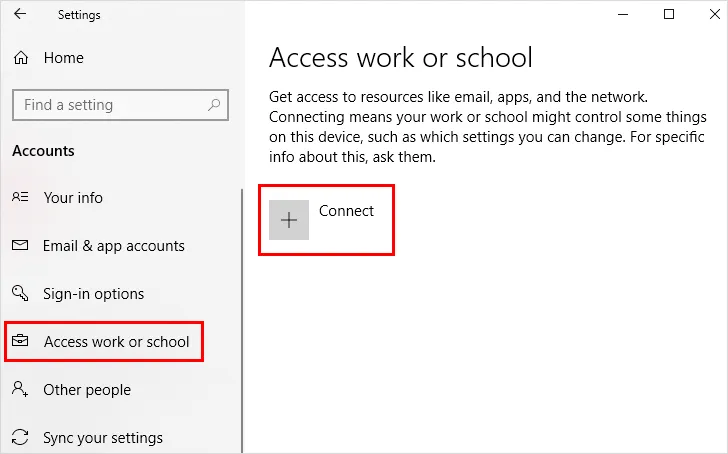
- Select “Sign-In” to work or school
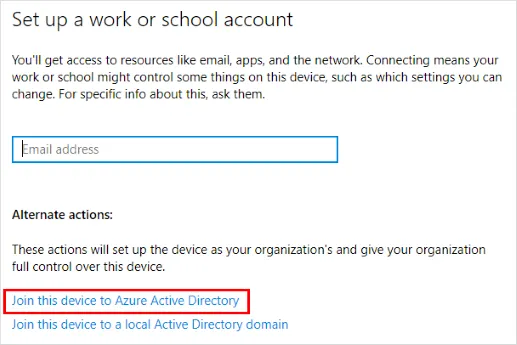
-
Once the Microsoft sign-in panel appears, select the blue “EntraID/AzureAD Corporate Sign-in” link
-
Sign in with the user’s Microsoft credentials
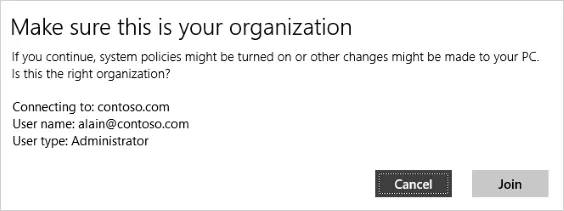
- Agree to join the organization
-
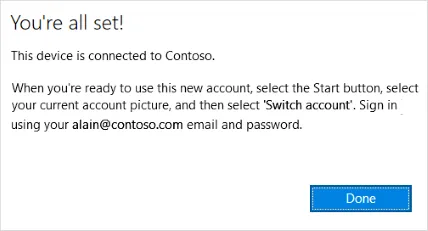
Navigate to the start menu and select switch user.
-
Sign in with the user’s Microsoft 365 e-mail and password.
-
The user will likely be required to set up a PIN, FaceID, or fingerprint.
-
Users can forgo biometrics but must have a PIN. usually 6 digits.
QCBD Installation
Section titled “QCBD Installation”-
Note that you must install QCDB before Acrobat or it will cause an error)
-
Download the Azure VPN Client from the Microsoft Store
-
Import the Azure VPN Profile connection file from
-
Run and pin the Azure VPN Client to the taskbar
-
Connect to AtaCor Azure VPN
-
Browse to \\fs01.atacor.cloud
-
Authenticate using the following:
-
Username: fs01access@atacor.com
-
Password: in 1password
-
Save the credentials
-
Browse to the \\fs01.atacor.cloud\QCBD_Public share
-
Browse to \\fs01.atacor.cloud\QCBD_Public\WorkstationInstallation folder
-
Run and next, next through the QCBD_wi.exe installer
-
Browse to BCL \\fs01.atacor.cloud\QCBD_Public\WorkstationInstallation\EasyPDF
-
Run the QCBD_PDF64.msi installer
-
Run the QCBD Premier shortcut on the desktop and confirm that it successfully reaches the login screen without error (the VPN must be connected first)
Profile Setup
Section titled “Profile Setup”-
Office
-
Teams,
-
OneDrive
-
Pin Chrome, Teams, Outlook, QCBD, and Azure VPN to the Taskbar.
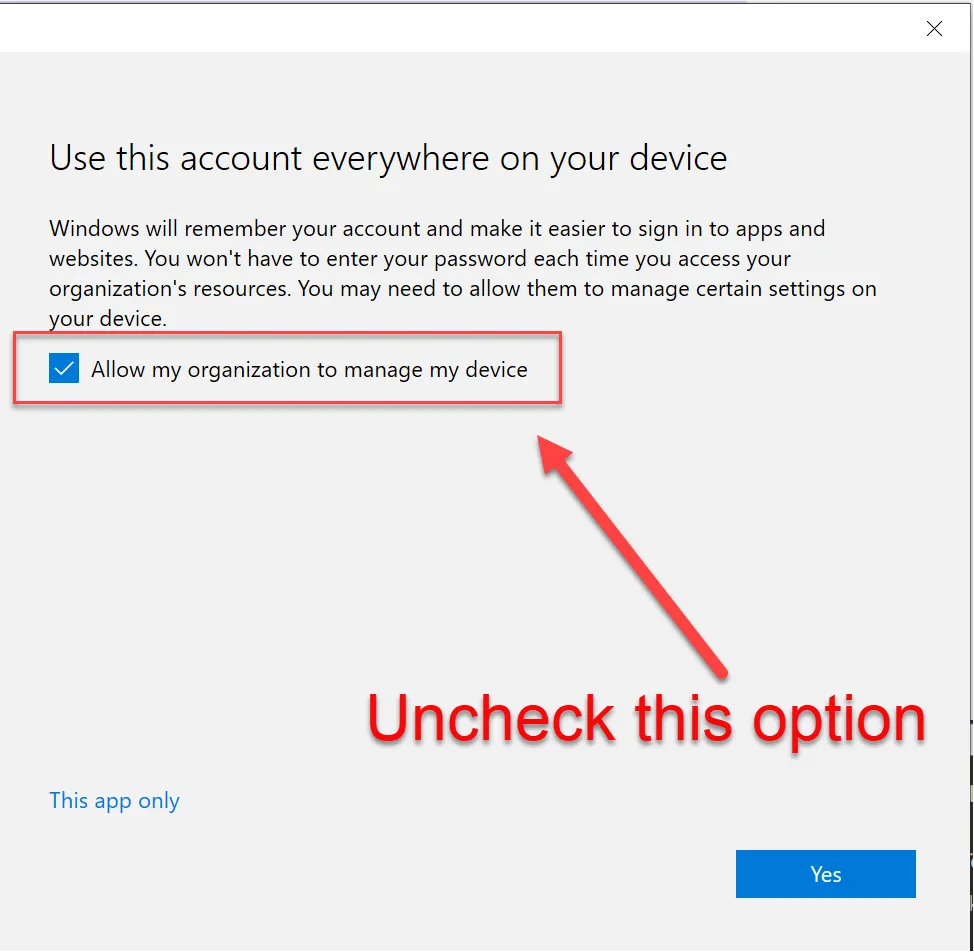
- When presented with this screen, uncheck the box that “Allows this organization to manage my device” as it tends to cause authentication issues with TPM.
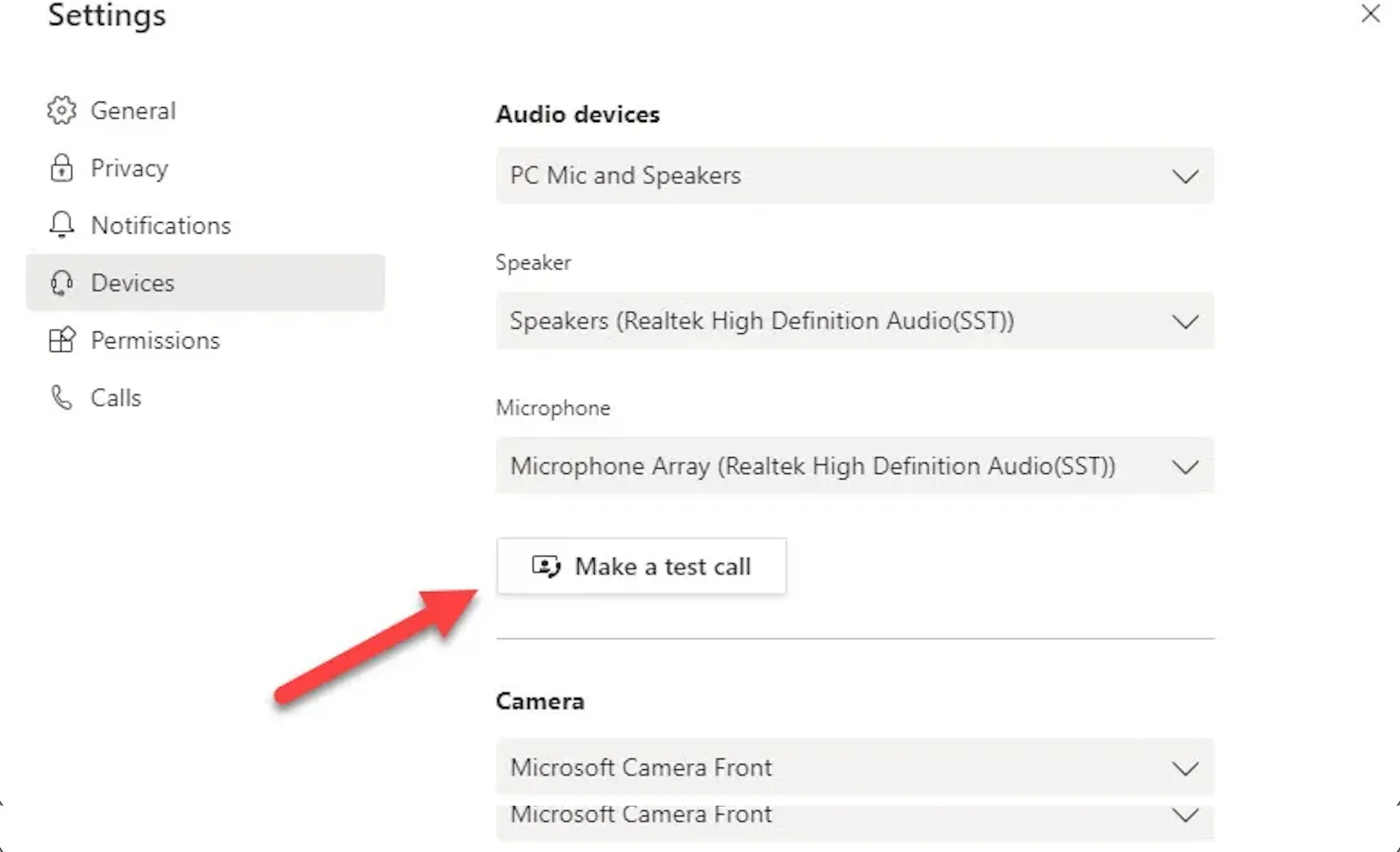
- Set up Teams, and perform a test call to ensure the camera and mic work and that no network authentication message pops up during the user’s first meeting.
Bitlocker:
Section titled “Bitlocker:”- Navigate to the Control Panel
- Select “Backup your recovery key”
- Save to your Azure AD account
-
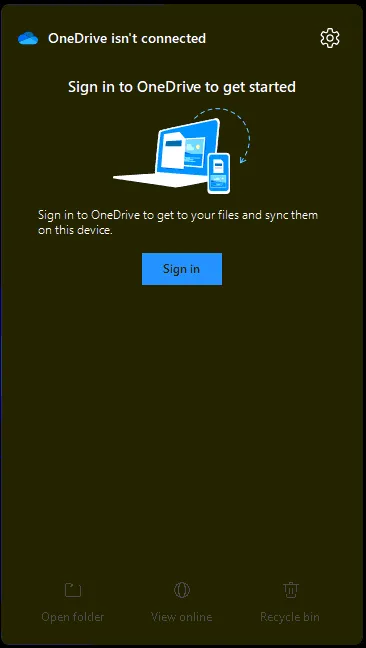
Setup OneDrive from the taskbar shortcut
-
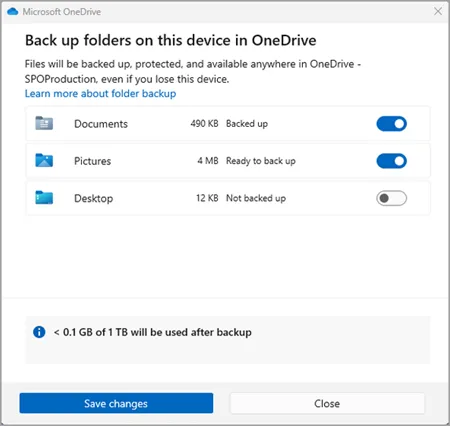
Ensure that OneDrive is backing up Desktop, Documents, and Pictures
-
Enable Backup for Desktop, Documents, and Picture Backup within OneDrive
-
Set App defaults within Settings
-
Uninstall bloatware
-
Clean up the taskbar and Start menu bloat
-
Remove Widgets, CoPilot, Shrink the Search menu
-
Pinned taskbar apps: File Explorer, Chrome, Teams, Outlook, QCBD, and Azure VPN to the
-
Set System sleep times 15-30-30-1Hr.
-
MAKE SURE REQUESTED SHAREPOINT SITES ARE SYNCED TO ONEDRIVE