-
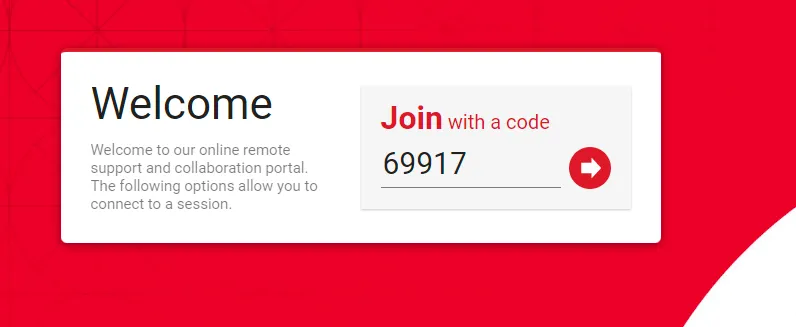
Visit https://support.centrexit.com
-
Enter the code provided by the help desk agent in the “Join with a Code” field. The code will be different for every session, so please ensure to get the proper code from the help desk agent.
-
Press the arrow icon to join the session.
-
-
Select “Download the App” as shown below.
-
The app will begin downloading as a zip file. Open the zip file from your Downloads page in Finder.
-
This should create a new Application in Finder called “ConnectWise Control Client”. Please open the application.
- You may get a prompt that looks like the following: please press “Open”.
The Help Desk technician should now be able to see your screen, but will need to be able to move the mouse and use the keyboard. To enable that, please do the following:
- Open the Apple menu in the top-left of the screen, and select “System Preferences…”
-
Open “Security & Privacy”
-
Open the Privacy tab.
-
Click the lock icon in the bottom-left of the screen (see above), and sign in with your Mac’s username and password.
-
Open “Accessibility” and check ConnectWise Control Client
-
If it is not there, press the “+” symbol and select the application from the Downloads folder
-
Open “Full Disk Access” and press the “+” symbol and select the application form the Downloads folder.
-
You will be asked to restart ScreenConnect; press “Quit & Reopen
-
Open “Screen Recording” and check ConnectWise Control Client
-
If it is not there, press the “+” symbol and select the application from the Downloads folder
You should now be connected to ScreenConnect and a Help Desk technician should be able to see your screen and control your computer for the duration of the session.