Phase Sci Provisioning Guide:
Section titled “Phase Sci Provisioning Guide:”Standard Hardware: Thinkpad
Naming Schema: “PS-ServiceTag” i.e. PS-PF3W3P5F
Operating System: Windows 10 or Windows 11 Pro
Domain: phasesci.com
Immy.bot Configuration: Configured, Ready to Deploy to skip Out-Of-Box-Experience+Software and localuser configuration. Ref: KB00038353
Completion Criteria:
Section titled “Completion Criteria:”-
The Device is joined PhaseSci’s Domain Tenant
-
The Device has been renamed PS-SerialNumber
-
The user is signed in with Domain Credentials
-
User’s Office apps, Outlook, Teams, and OneDrive are signed in
-
OneDrive Backup is enabled for Desktop, Documents, and Pictures
-
Cisco Secure is setup with VPN XML
-
Default Apps Set: Mail: Outlook, Browser: Chrome, PDF: Adobe Reader
-
Apps and Utilities loaded onto the device: per client WI
-
N-Able Windows Agent Take Control Tested
-
Device and drivers have been updated (Windows Update, Lenovo Vantage/System Update)
-
Perform Mic and Camera check with a Teams test call
-
Perform quality checks against the manager’s request and the provisioning Work instruction
Software:
Section titled “Software:”-
NCentral agent
-
Cisco Secure Client
-
Google Chrome
-
M365 Office Apps for Business
-
Microsoft Teams
-
OneDrive
-
Fishbowl
Setup Steps:
Section titled “Setup Steps:”-
Create “localuser” account with the credentials within 1Password.
-
Setup the VPN and connect with admin creds
-
Add manual DNS 10.1.0.11 & 10.1.0.12
-
Rename device and join the device phasesci.com using admin AD creds in PWstate
-
Restart the device
-
Setup user as local admin
Domain User-Add
Section titled “Domain User-Add”-
Activate the vpn
-
Switch user accounts
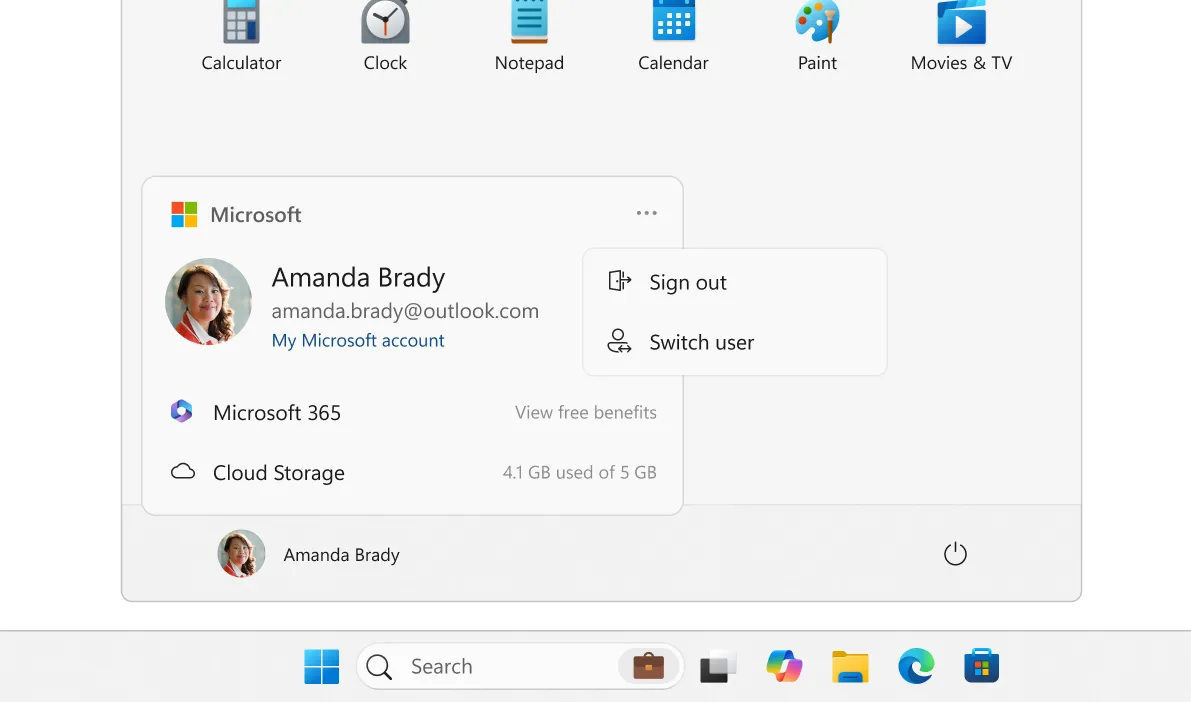
- Have the user sign in with their domain credentials.
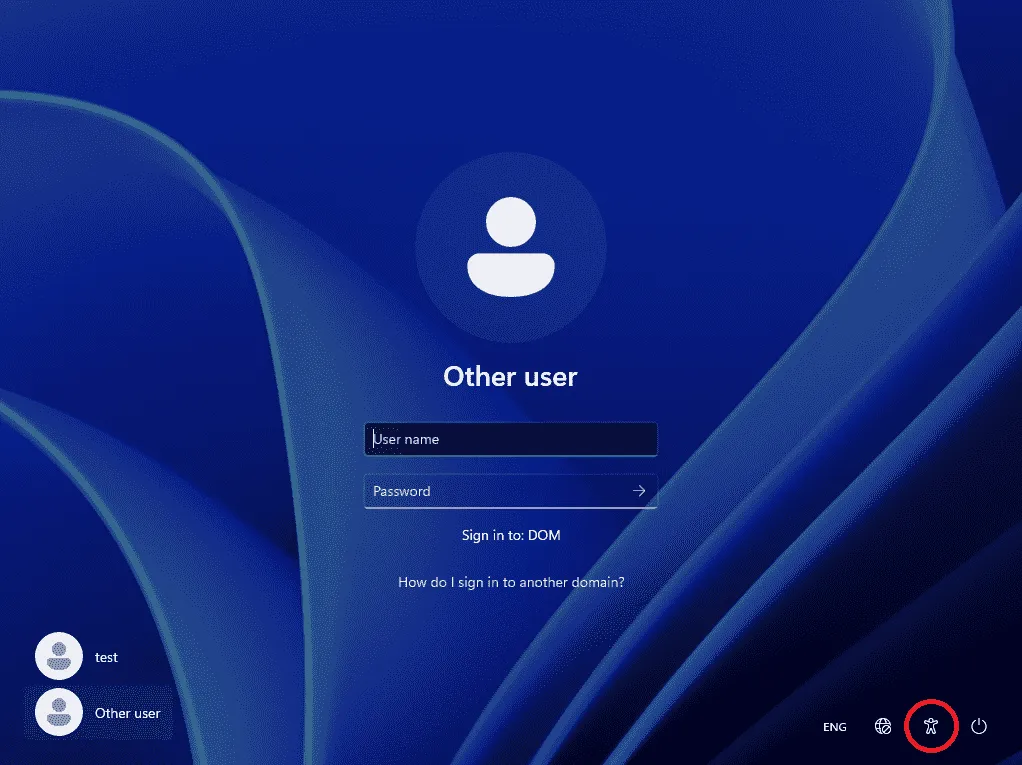
-
Once you are signed into the user account, launch task manager as admin
-
Switch to the signed-in user’s tab, right-click on localuser, and select Sign off.
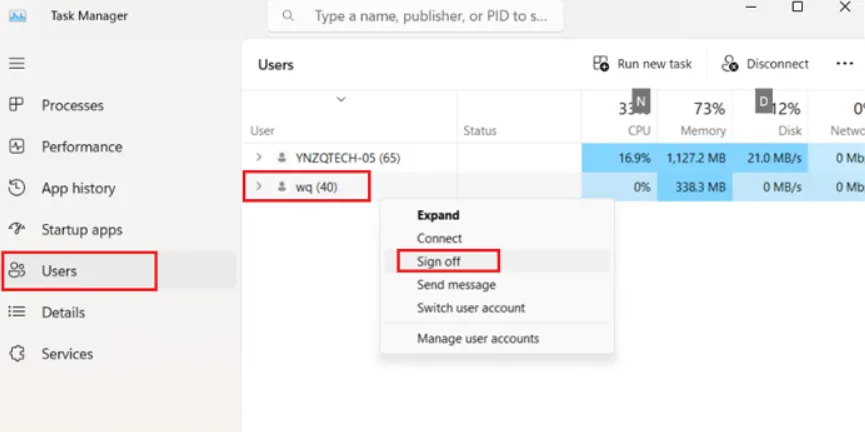
-
You can now launch the VPN and sign in with the user’s credentials
-
Sign in to the VPN before attempting Microsoft 365 apps sign-ins.
Once the user is signed in:
Section titled “Once the user is signed in:”-
Setup the user profile
-
Sign in to Outlook, pin it to the taskbar
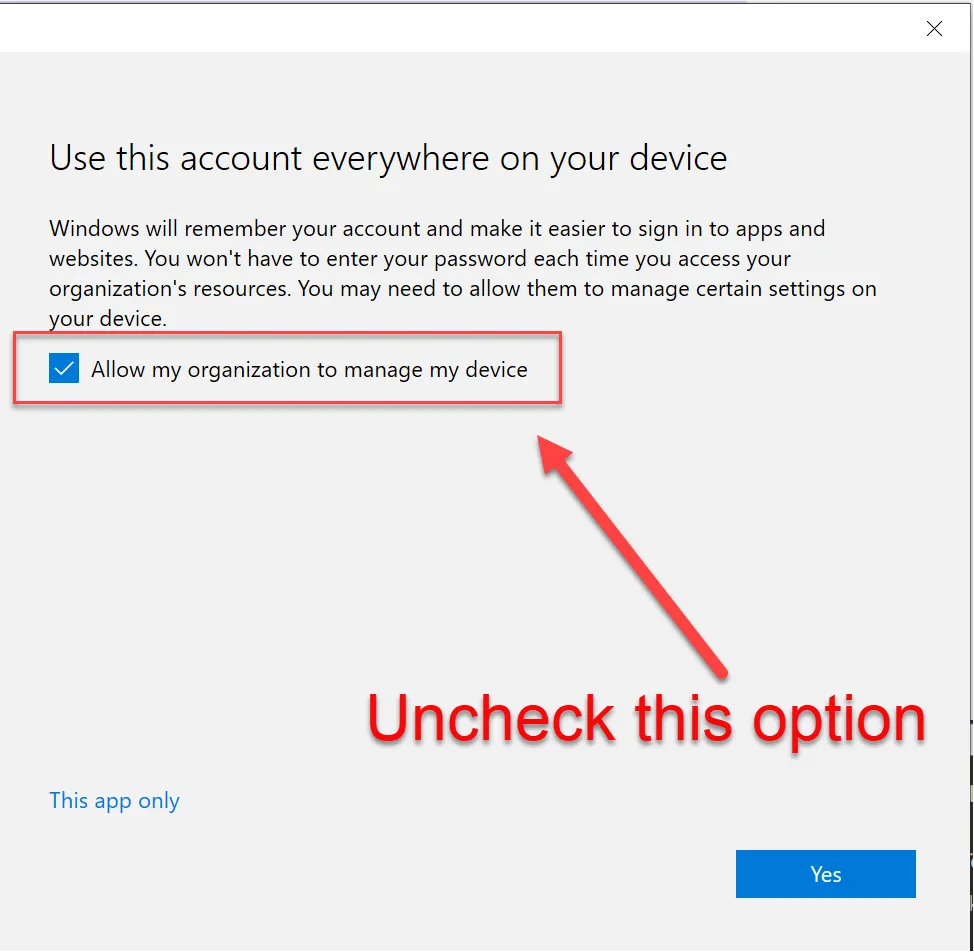
- When presented with this screen, uncheck the box that “Allows this organization to manage my device” as it tends to cause authentication issues with TPM.
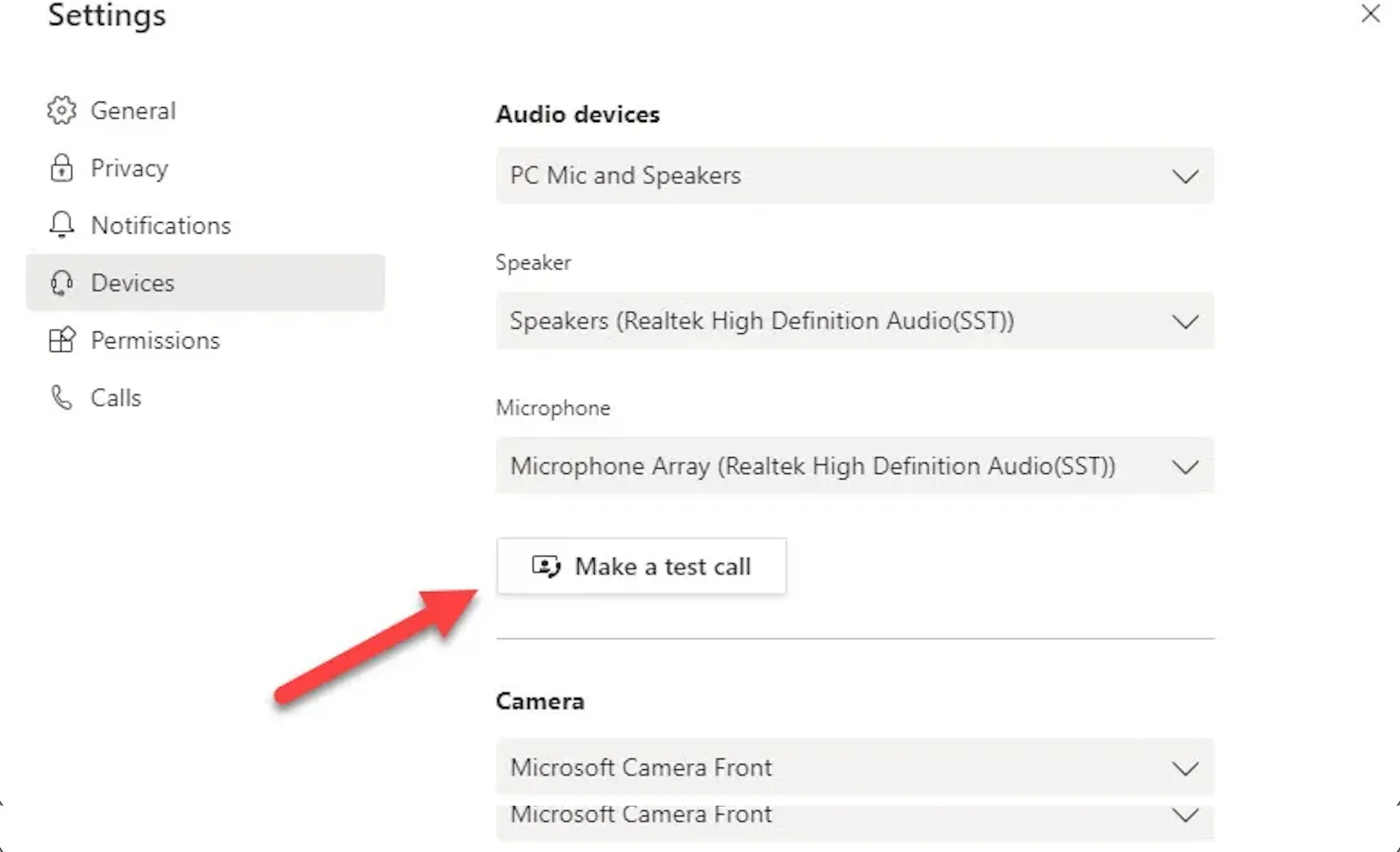
- Set up Teams, perform a test call to ensure the camera and mic work and that no network authentication message pops up during the user’s first meeting.
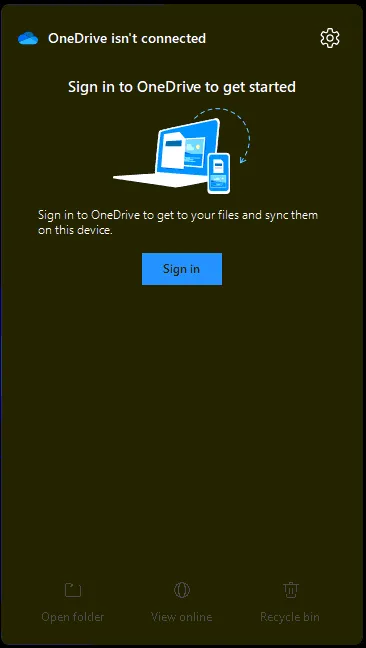
- Setup OneDrive from taskbar shortcut
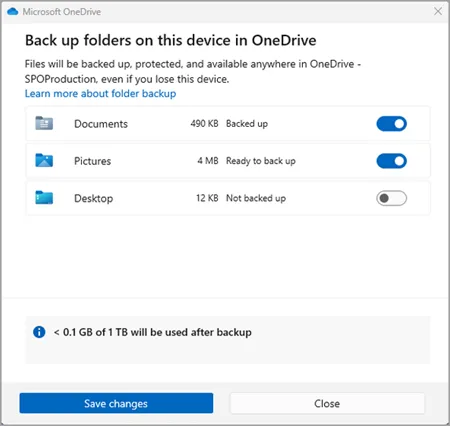
-
Enable Backup for Desktop, Documents, and Picture Backup within OneDrive
-
Set App defaults within Settings
-
Uninstall bloatware
-
Clean up the taskbar and Start menu bloat
-
Remove Widgets, CoPilot, Shrink the Search menu
-
Pinned apps: File Explorer, Google Chrome, Outlook, Teams, Fishbowl
-
Set system sleep times 15-30-30-1Hr.