PROCEDURE
WI to assist handling requests to install OnBase’s Outlook Integration Add-On. This plug-in is licensed per user so approval is necessary (Check Requirements Section)
Authorizing POC: Vania DeFrates
Vendor: TSC - Hyland OnBase Integration Partner (tsc-ecm.com)
Vendor Contacts: Check Client’s Vendors in Pzzle/ITSM
REQUIREMENTS
- Onboarding and New Computer Request Forms Authorize PBA install.
- Ad-hoc installs require Authorizing POC approval
- Verify if user is running 64 or 32bit Office
STEPS
- Connect to the installation media on the End-User’s computer and connect to \\OnbaseTestServ\OBSupport\centrexIT\Outlook Add-On
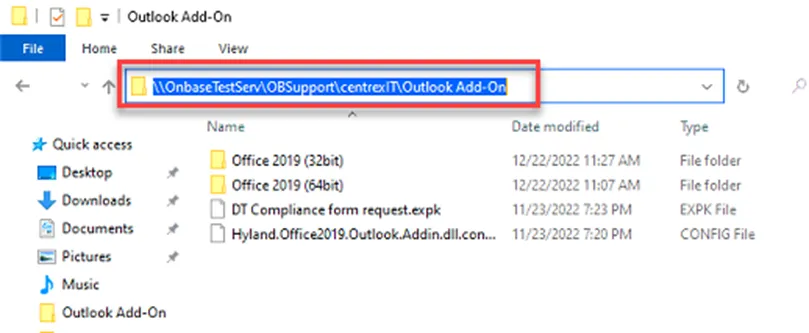
- Open the appropriate Office 2019… Folder based on their MS Office version (64 or 32bit)
- Run setup.exe as an Administrator
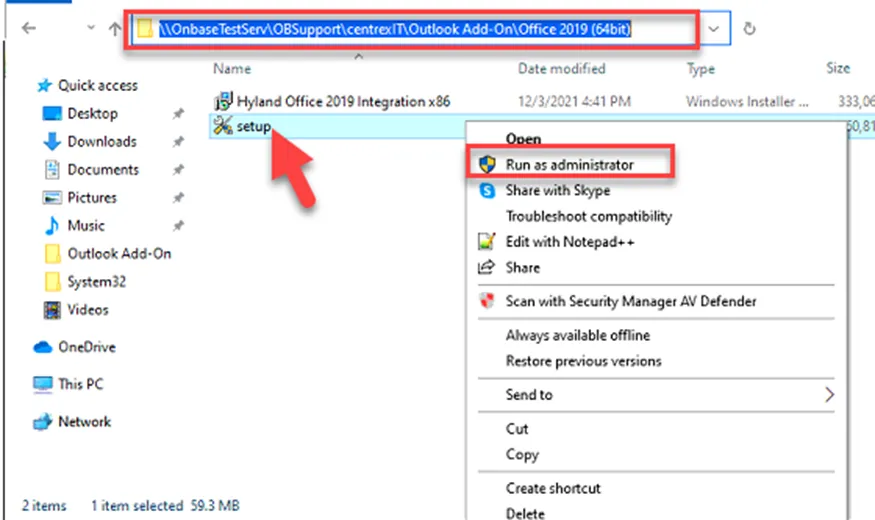
- Install any required Microsoft Visual components if prompted
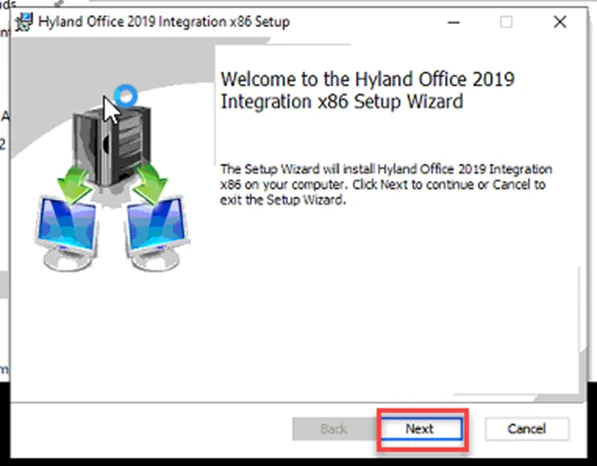
- Click Next in the Client Setup Wizard
- Install Outlook Integration on local drive and click Next
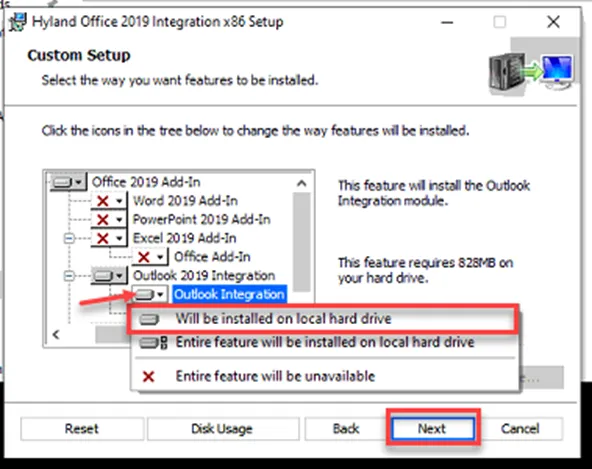
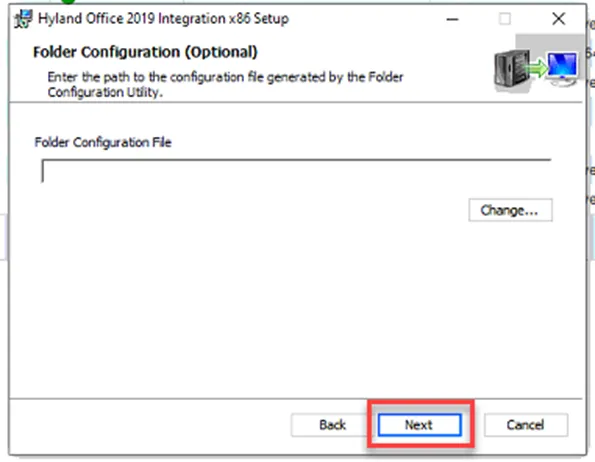
- Click Next
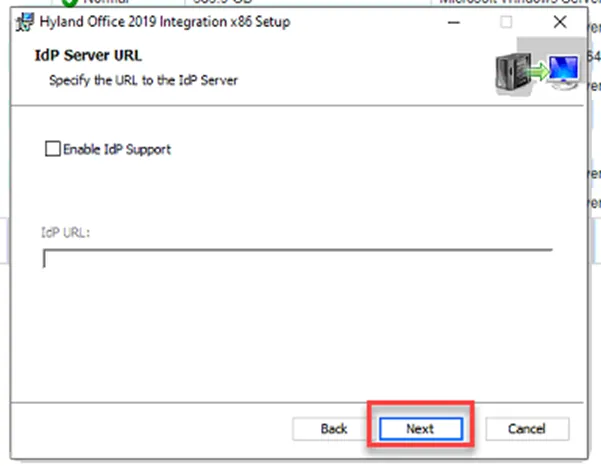
- Click Next
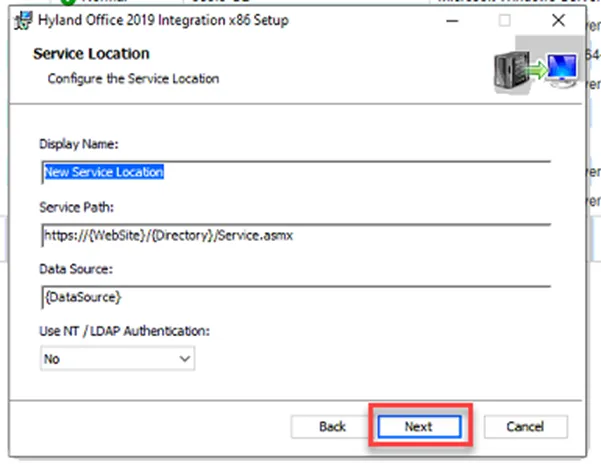
- Click Next
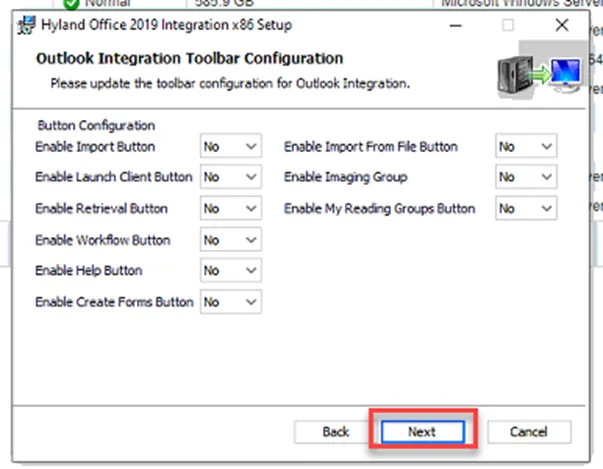
- Click Next
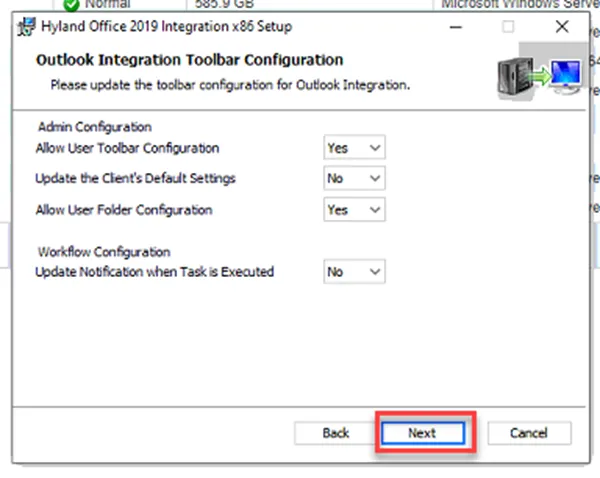
- Click Next
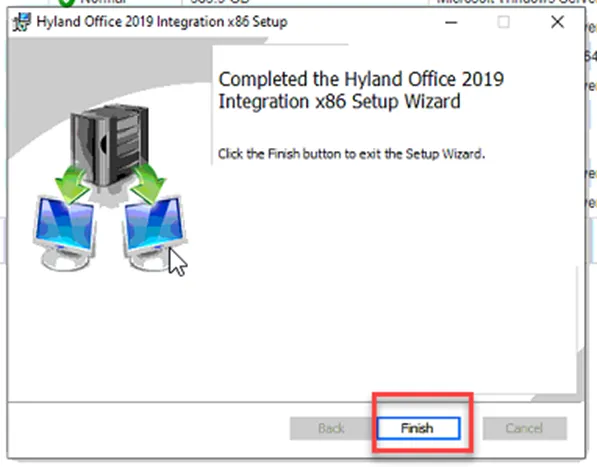
- Click Finish
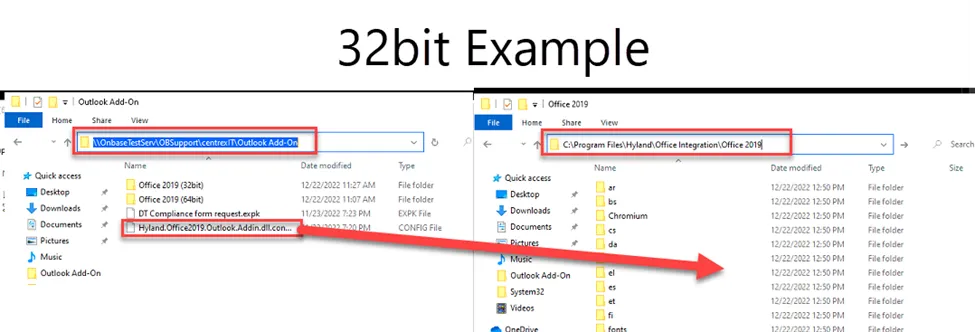
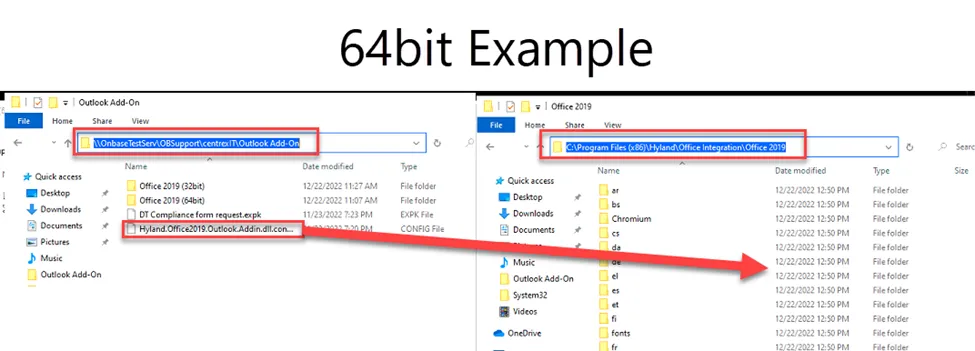
- Copy the Hyland Office Outlook config file to the appropriate Program File (see table and screenshots below)

SUCCESS: User will test Outlook Add-On integration.
FAILURE/NEXT STEPS**:**
· If user has questions about using the Add-on they can reach out the client POC or TSC Vendor support located in Pzzle > ITSM > Client Vendors
REFERENCES
- KB00001901 - Western Pump - PBA - OnBase/Unity/Hyland Install Requests