This KB with teach you how to send a Client Alert/Notification using a custom centrexIT template in HubSpot.
The templates we’ve set up in Hubspot help give us the base content needed for a particular kind of alert or notification email. Specific details about the situation should be added before the the email is sent. Additional alert and notification templates can be added to Hubspot at the need arises.
Hubspot Templates (as of Q4 2022)
AWS Outage
centrexIT Holiday Schedule
Cyber Attack Partner or Supplier
Cyber Attack centrexIT or Partner
Phone system outage
San Diego Storms
Scheduled Maintenance Notification
Scheduled Maintenance Completion
Instructions
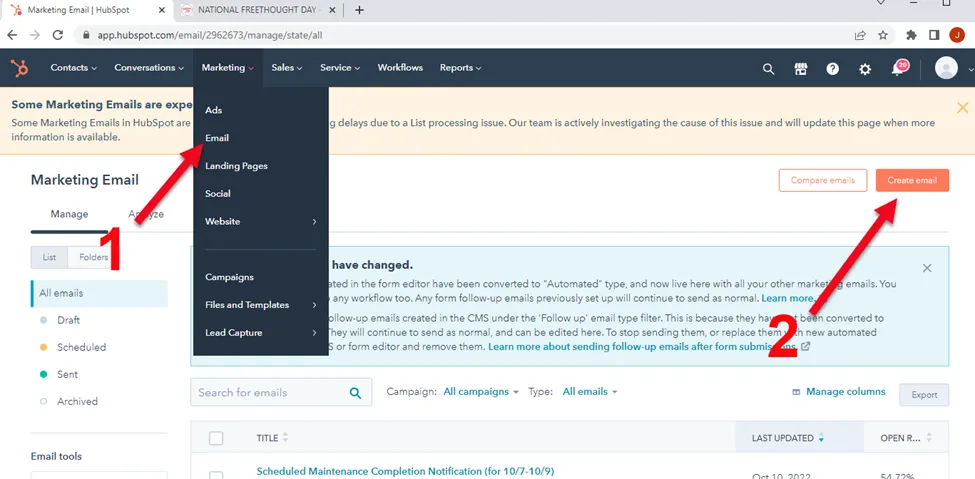
Section titled “Instructions”- In Hubspot, access the Email section under the “Marketing” tab. Then click “Create Email”
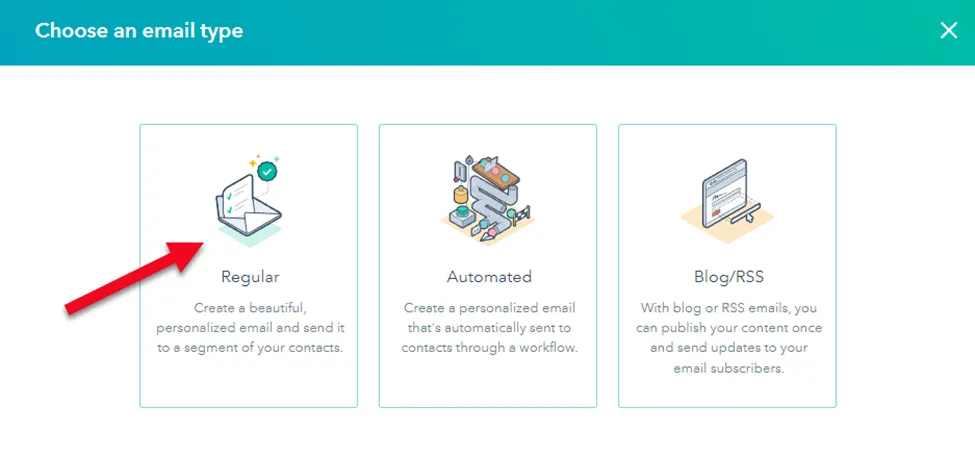
- Select “Regular Email”
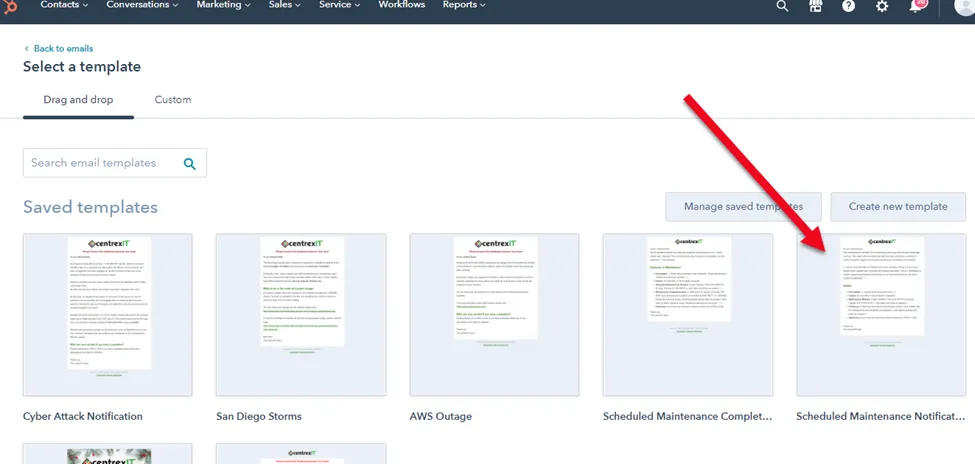
- Now you have the option of selecting a Template. For this example, we’re going to select “Scheduled Maintenance Notification.
- Start by naming your new email at the top with the type of notification and the date so it’s easy to find later.
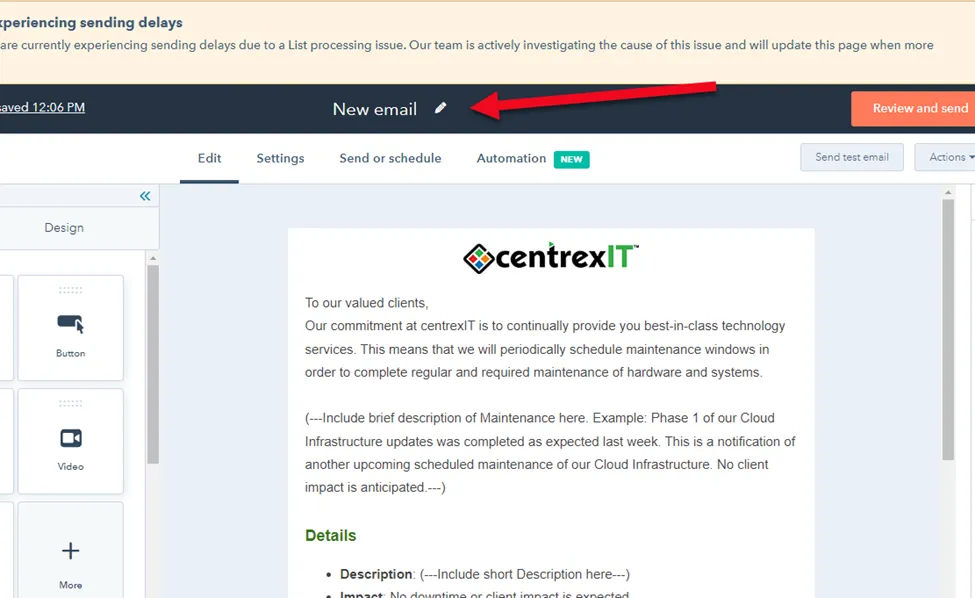
- Modify the email content as appropriate for your notification.
- Under the “Settings” tab, change the details to the following.
From name
Sean Ernst
From address
Reply-to address
Subject (modify as appropriate for your content)
centrexIT Scheduled Maintenance Completion Notification
Preview text (modify as appropriate for your content)
Our scheduled Cloud infrastructure updates were completed successfully
7. Under the “Send or Schedule” tab use the “NPS Survey Contacts” list. This list has all of the client POCs. Also add any centrexIT employee who you want to have a copy of the email.
IMPORTANT: Always send a test email for final review and approval before sending the notification email to our clients.