Sometimes you just need a quick video file of yourself talking, and MS Teams makes it easy.
This is an overview about how to record a video in Microsoft (MS) Teams and download the file so it can be posted in a different location (note that you can also send a person the cloud recording link if they want to download it directly).
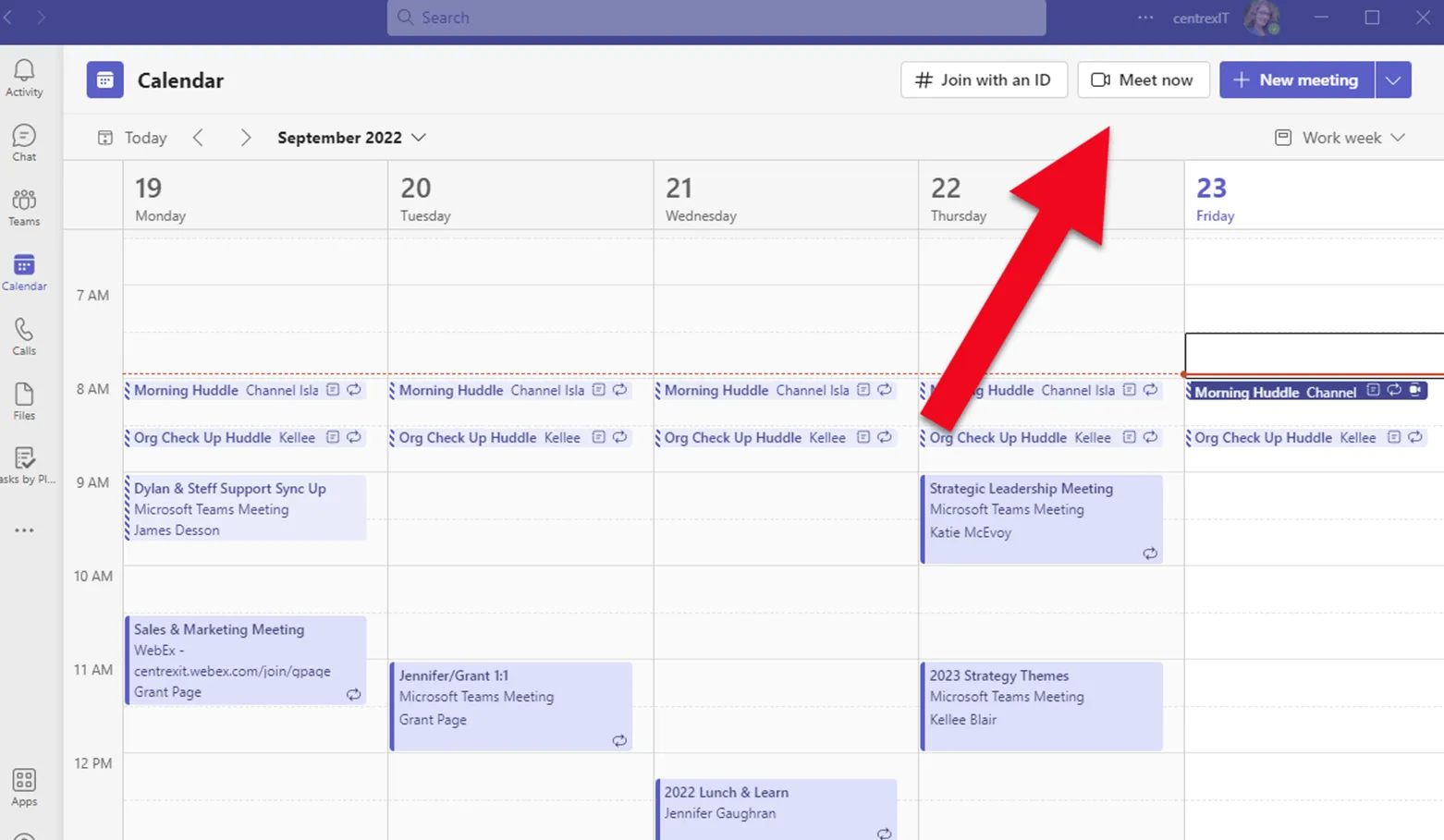
- Open up the MS Team App, select “Calendar on the left side, then select “Meet Now”
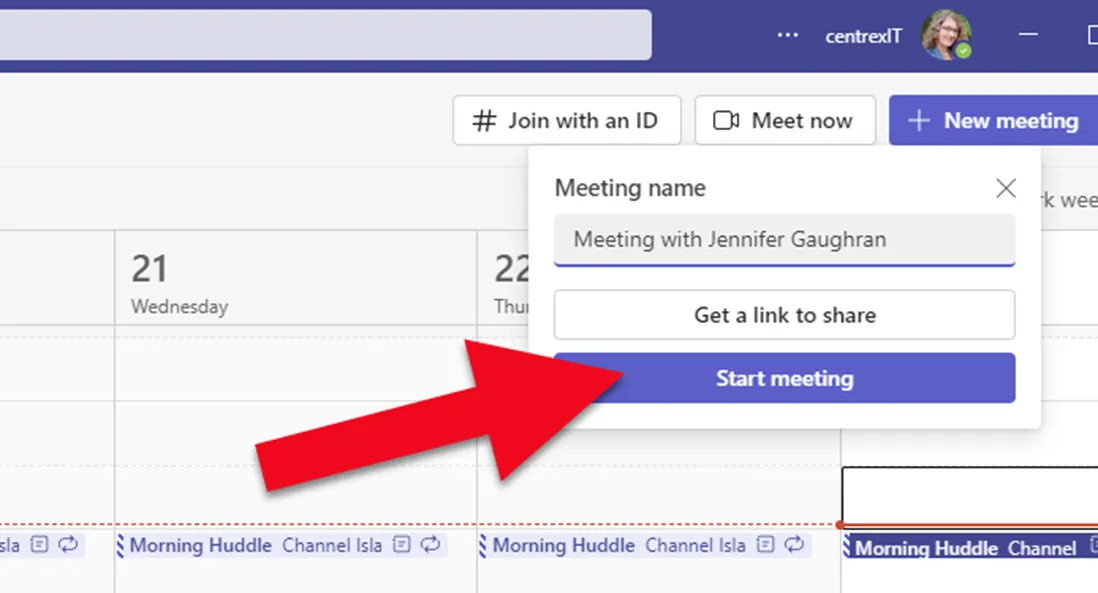
- Select “Start Meeting”
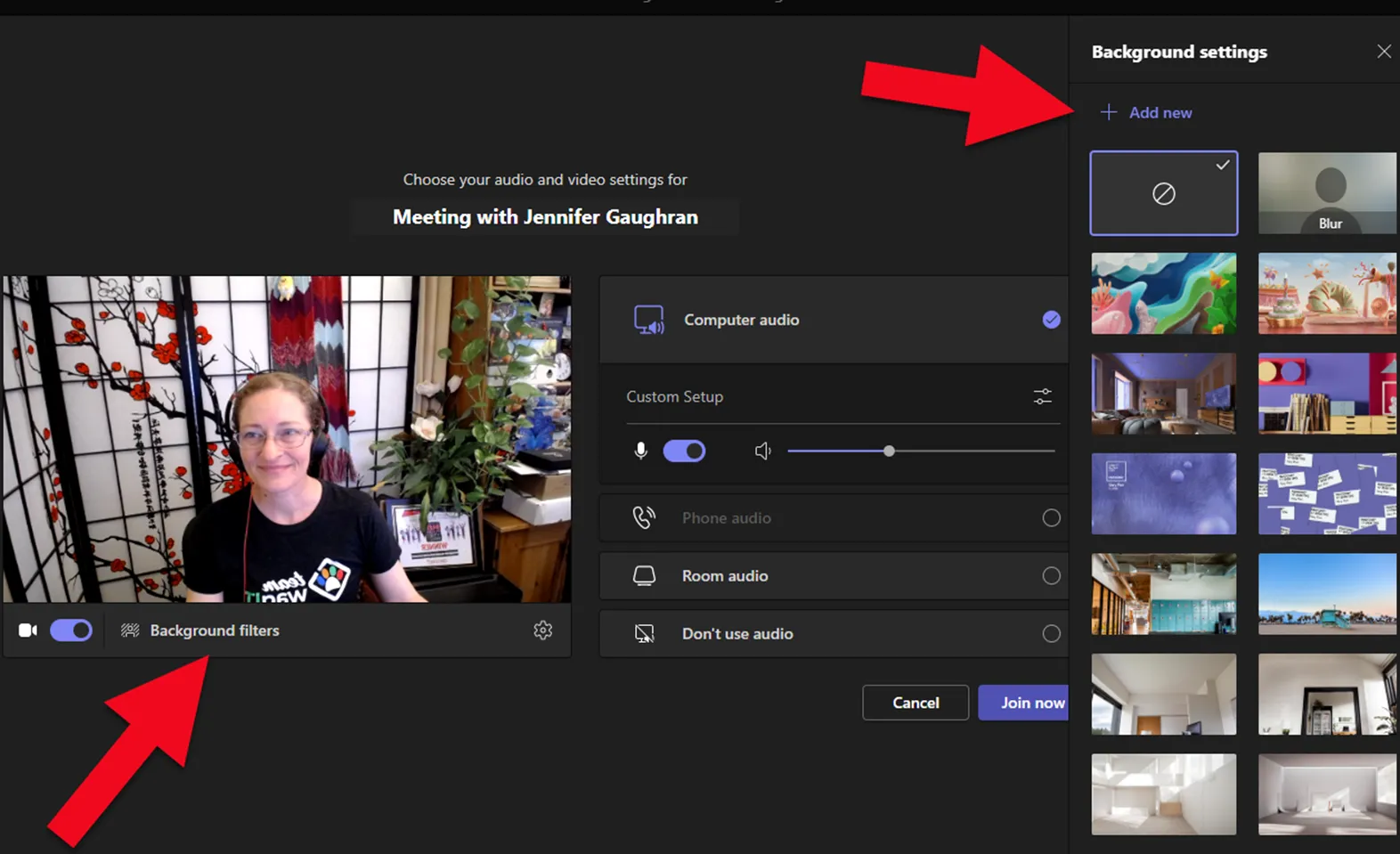
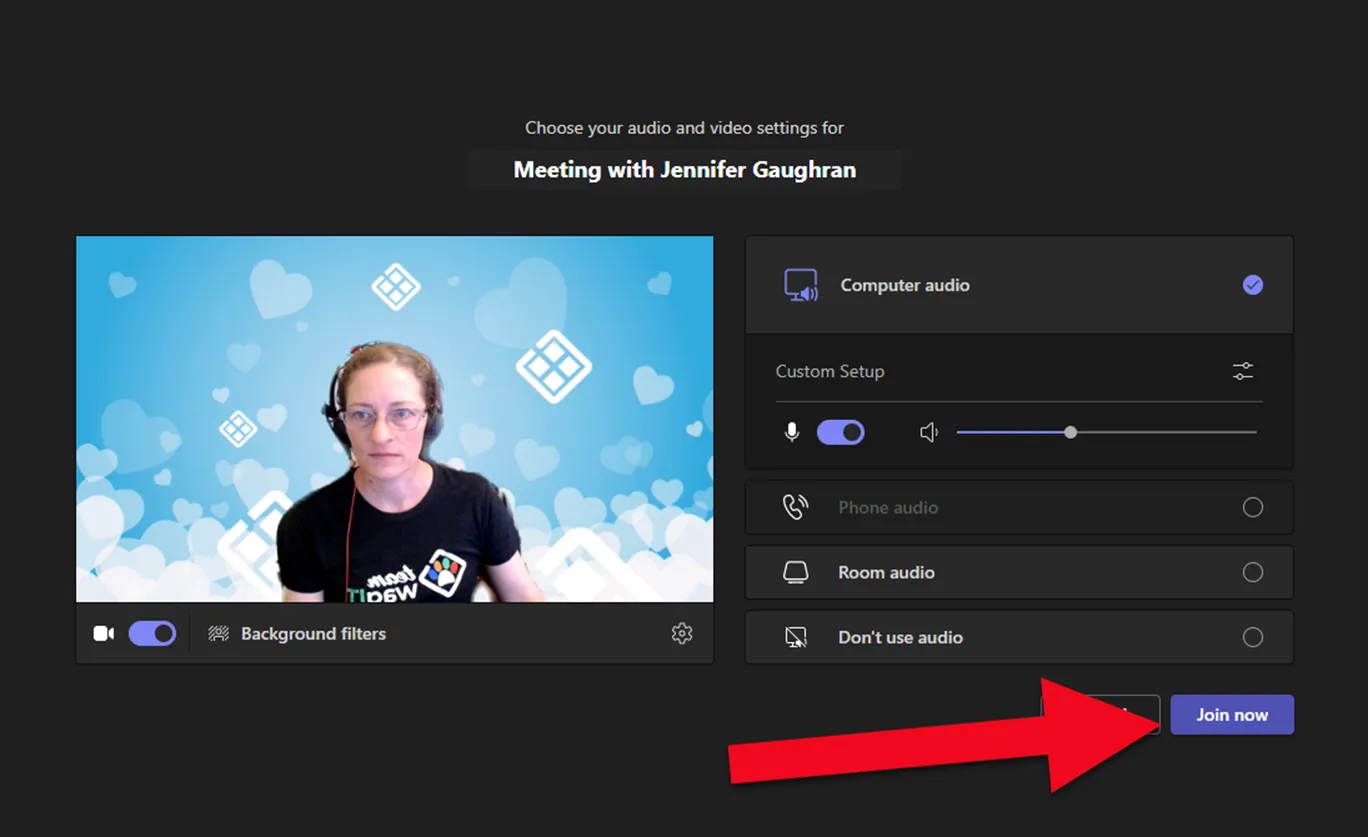
- You have the option to change your background. Select “Background Filters” and either “Add New” or select a pre-loaded background. Apply the background when you have made your selection.
- You’ll see a preview of yourself with the new background. Select “Join Now”
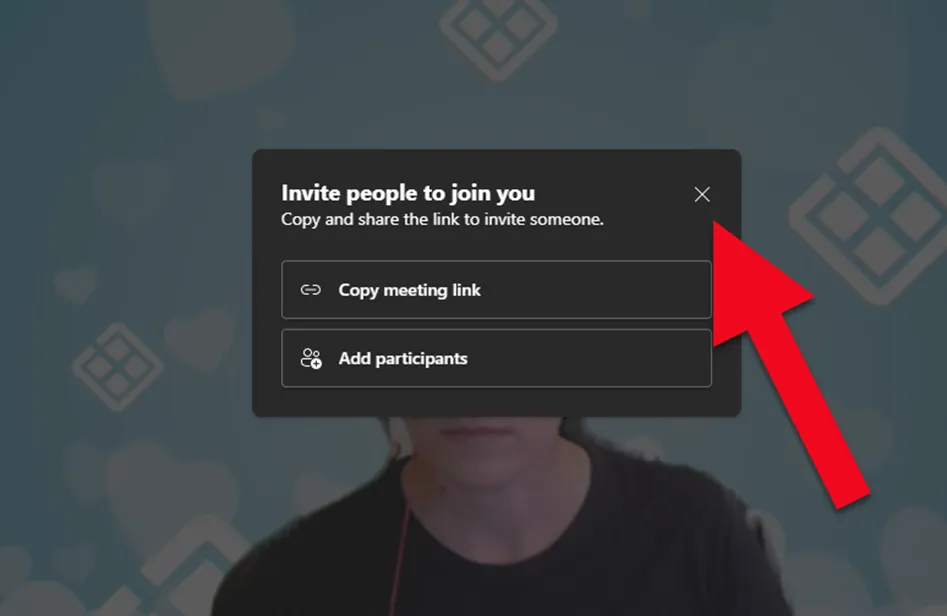
- Don’t worry about adding participants if you are just recording yourself
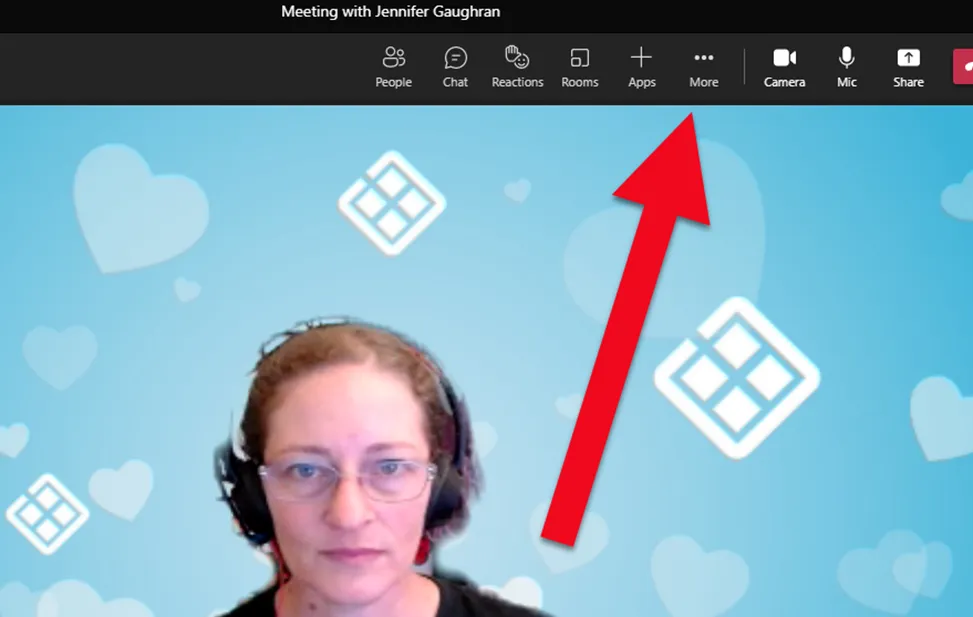
- To record the video, click the ”…” menu at the top and select “Start Recording” from the pull-down menu.
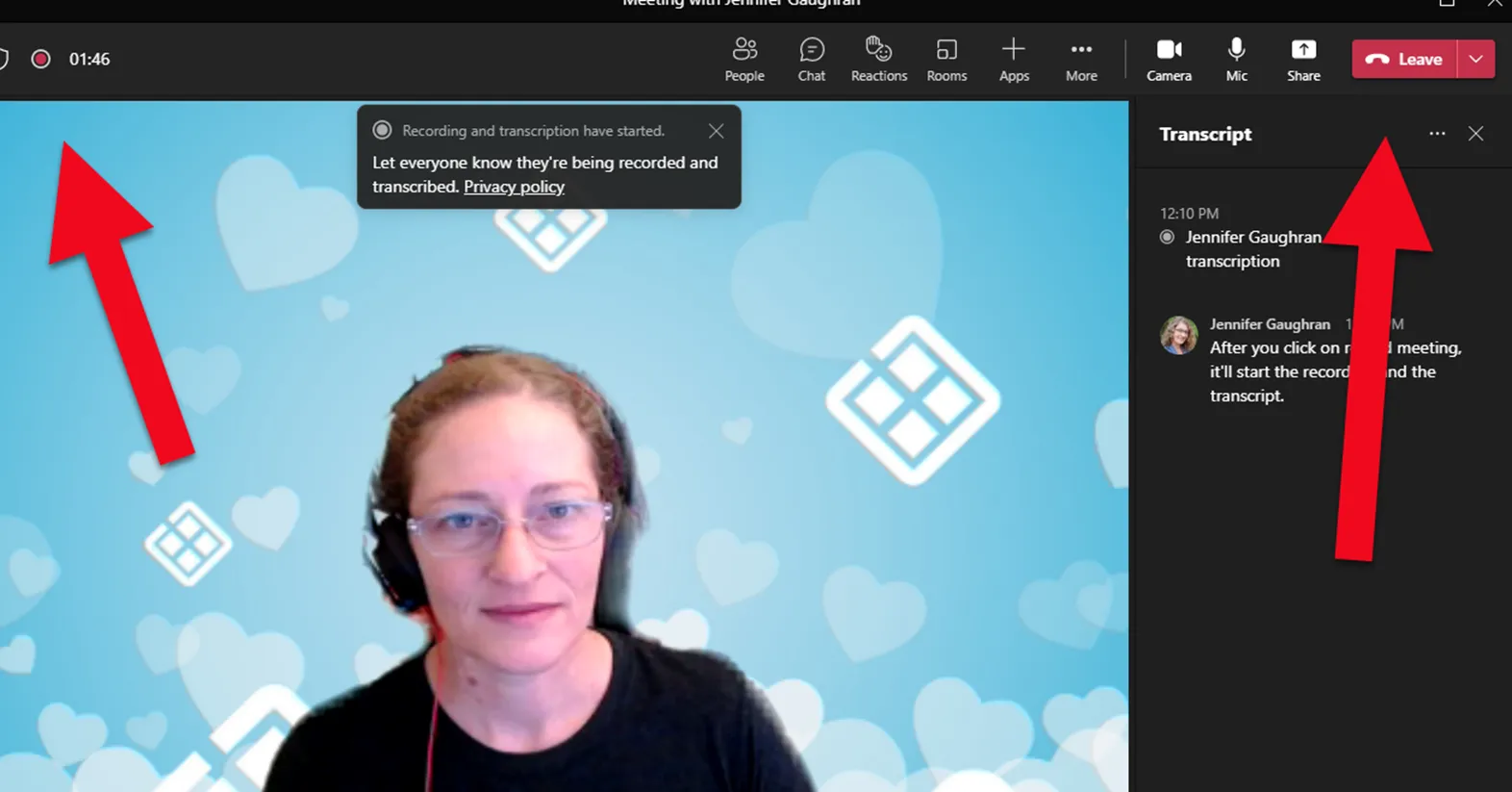
- There will be a slight delay between the time when you click the button and start the recording. Give yourself a little bit of a pause then state your message. If the video footage is going to be edited later, record your message multiple times so the editor can select the best version. Remember to smile before you start talking and when you are finished talking. When you are done recording, click the “Leave” button.
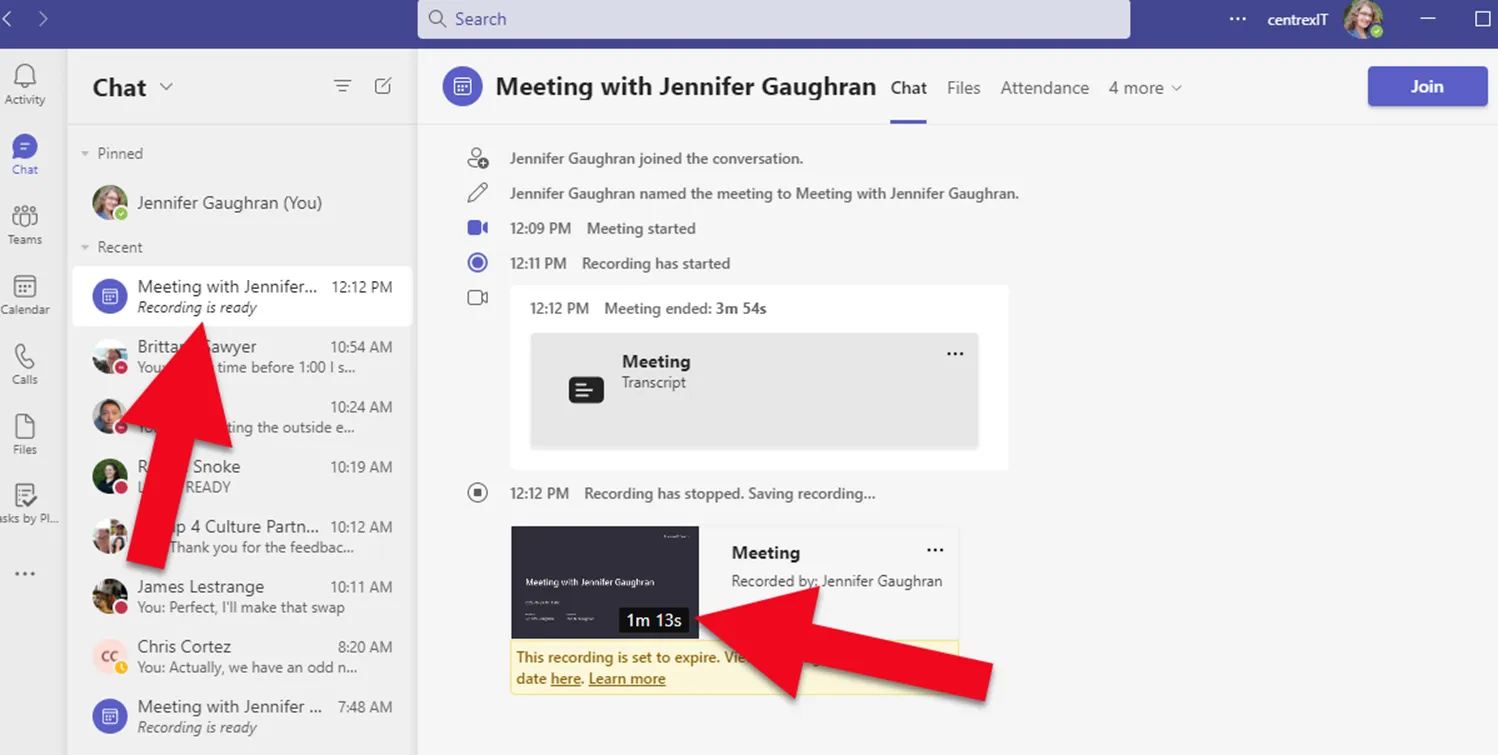
- Your recording will be available in the MS Teams App chat space. It will say “recoding is ready” when the recording has been process and loaded to the cloud. You can click on the meeting recording to view it on the cloud Stream site.
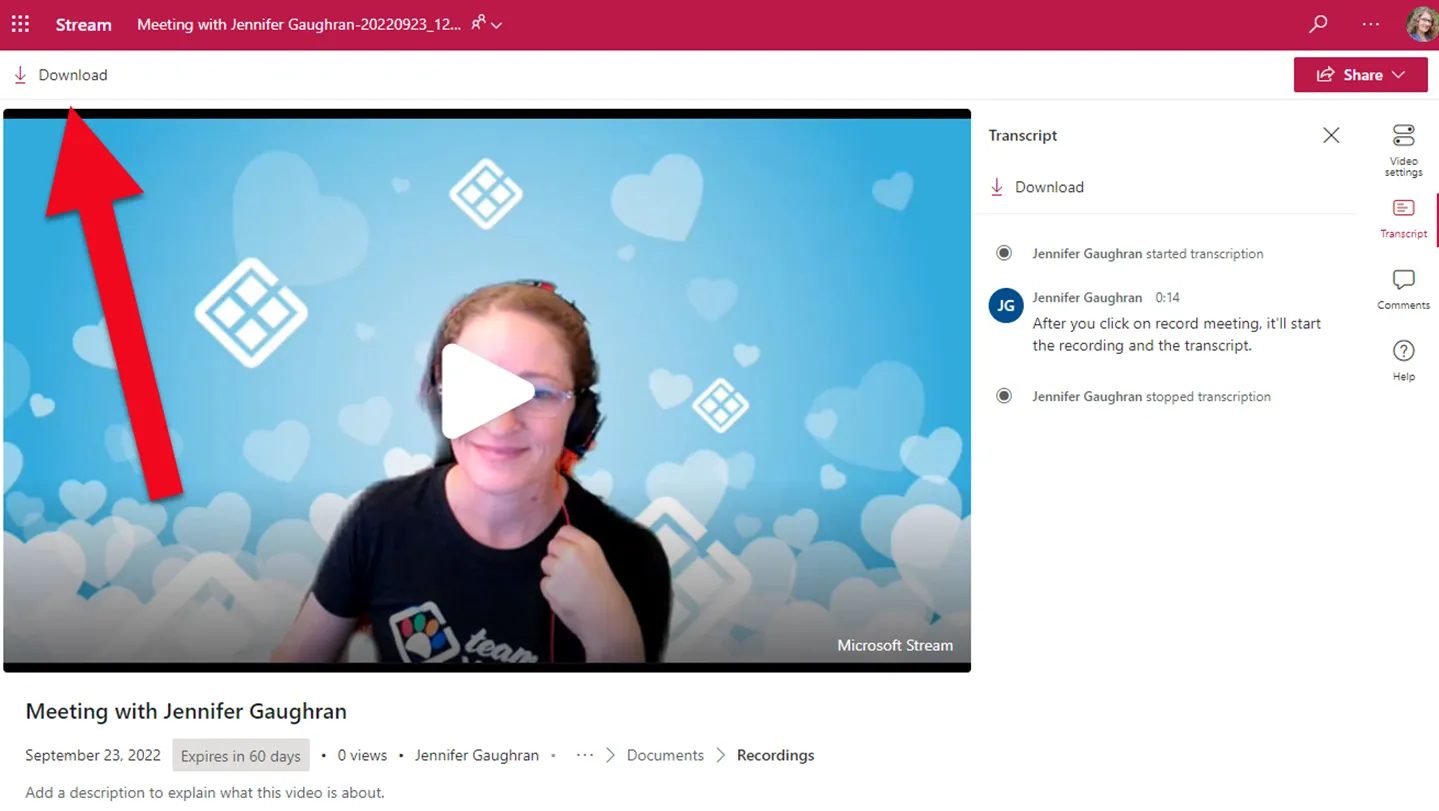
- You have the option of sharing the link from the cloud Stream page, or you can download the file. To download the file (for instance, if someone needs it for editing), click on the “Download” button in the top left.
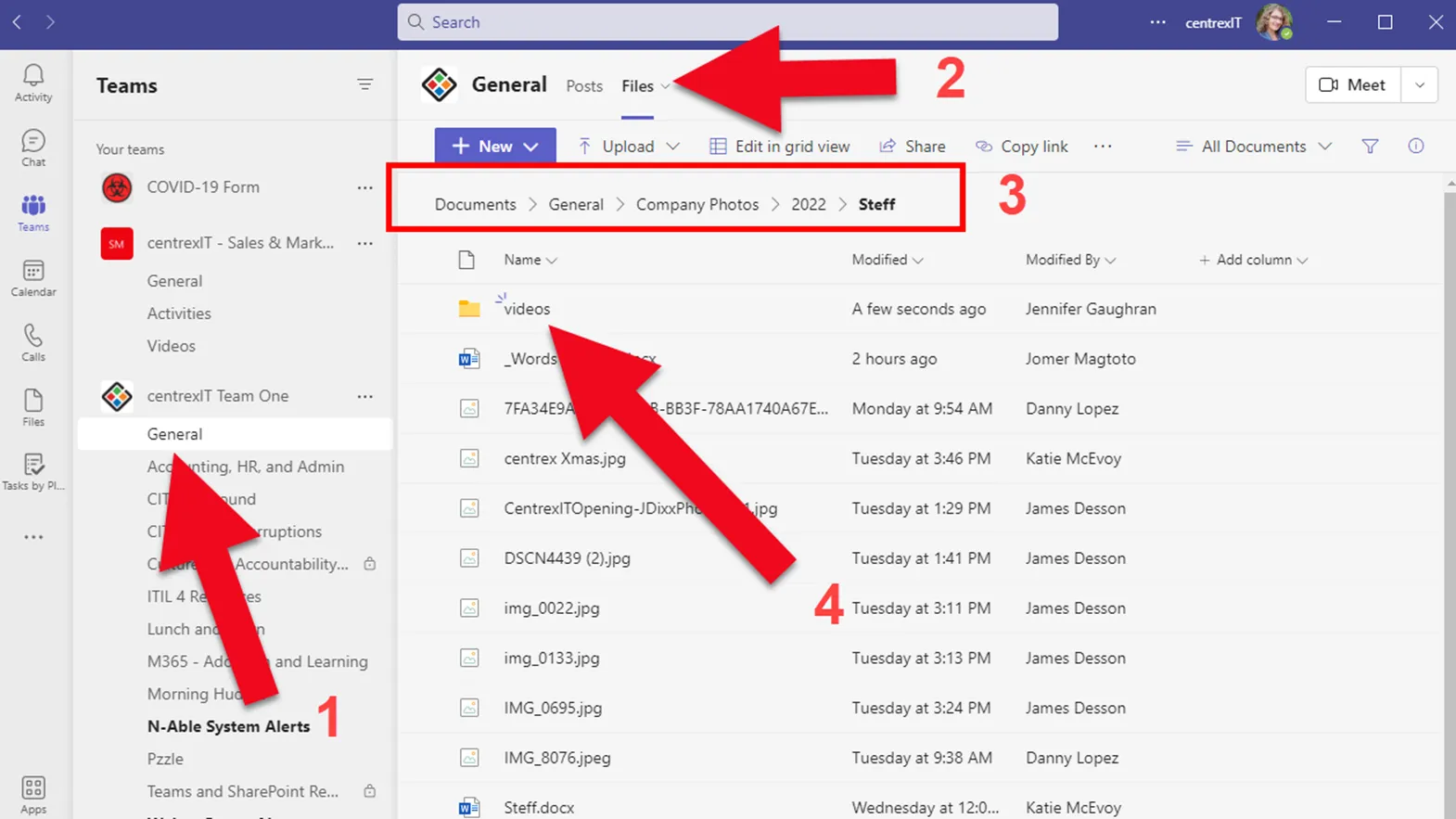
- For our special video “Get Well” card for Steff, please download the file and drop it into the videos folder in Steff’s folder. To access that folder, please follow the steps below: