JGD and Associates PC Setup Guide
Section titled “JGD and Associates PC Setup Guide”Default naming schema: JGD-(serial number)
Domain: jgdnet.com
VPN: JGD_VPN XML profile will auto-deploy. File attached if needed.
Immy.bot Configuration: Configured, Ready to Deploy to skip Out-Of-Box-Experience+Software and localuser configuration. Ref: KB00038353
Completion Criteria:
Section titled “Completion Criteria:”-
The device runs Windows 11
-
The Device join to JGD’s Domain (JGDNET.COM)
-
The device has been renamed JGD-SerialNumber
-
The user signed in with Domain Credentials
-
Cisco Anyconnect VPN Configured with JGD VPN XML file.
-
Umbrella module configured with OrgInfo.json
-
User’s Office applications licensed. Outlook, Teams, and OneDrive are signed in.
-
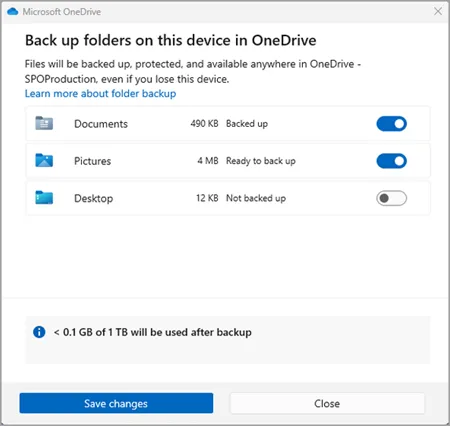
OneDrive Backup is enabled for Desktop, Documents, and Pictures.
-
Default Apps Set: Mail: Outlook, Browser: Chrome:, PDF: Adobe Acrobat. ( check new user form if assigned license)
-
Apps and Utilities loaded onto the device: per client WI.
-
N-Able Windows Agent Take Control Tested.
-
Device and drivers have been updated (Windows Update, Lenovo Vantage/System Update)
-
Perform Mic and Camera checks with an MS Teams test call.
-
Perform quality checks against the manager’s request and the provisioning Work instruction.
-
Ensure all requested software is installed and that Desktop Shortcut is present
Setup Steps:
Section titled “Setup Steps:”-
Create “localuser” account with the credentials within 1Password.
-
Rename device
-
Setup the VPN and connect with admin credentials.
-
Add the device to thejgdnet.com domain
-
Restart the device
-
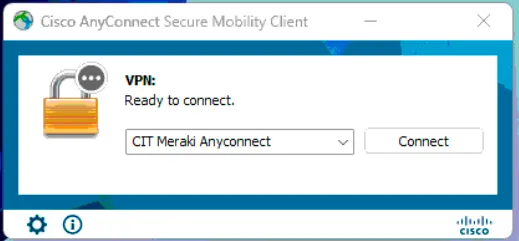
Activate the VPN (Should display JGD_VPN)
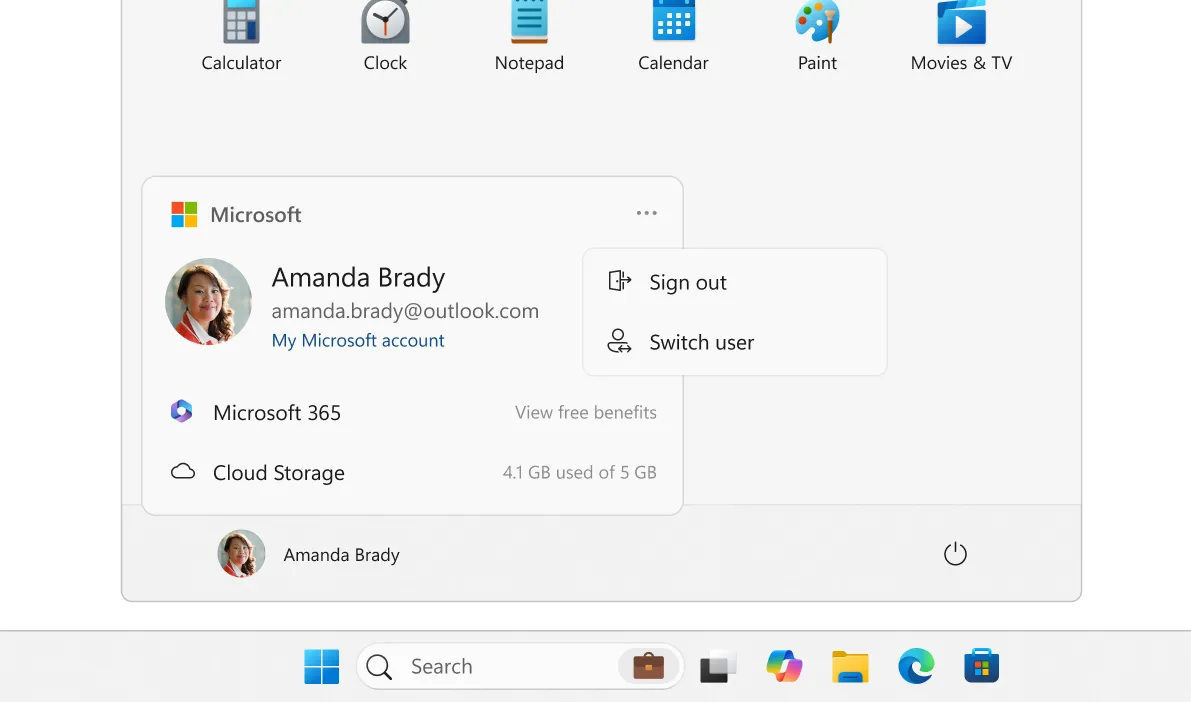
- Switch user accounts
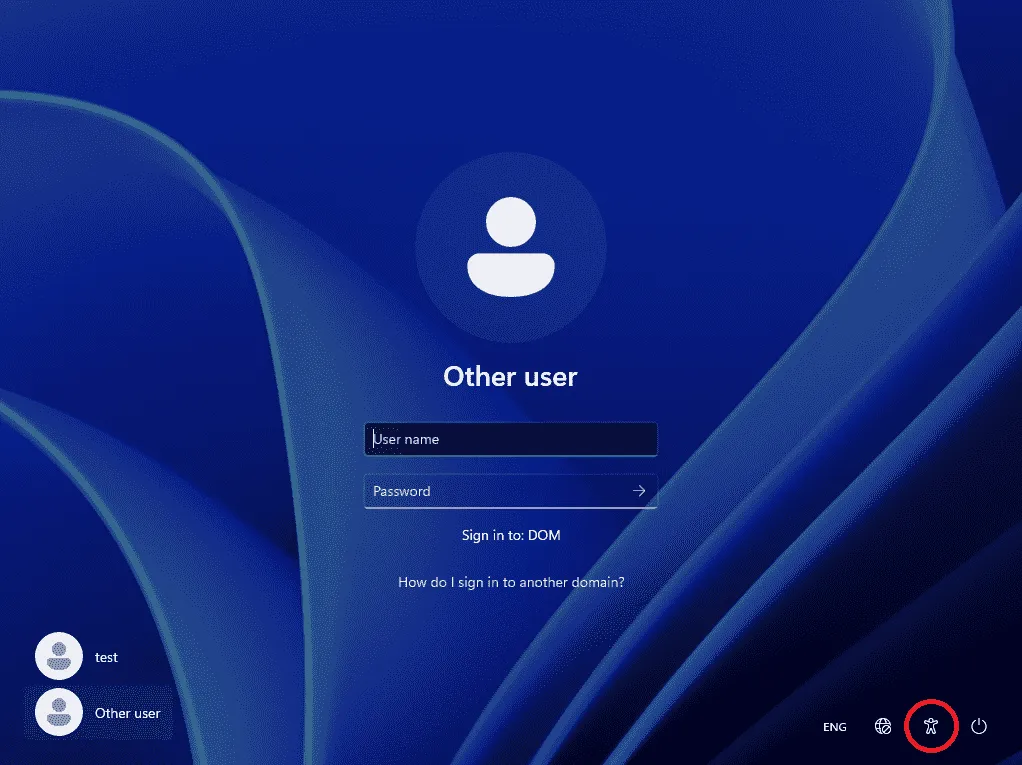
- Have the user sign in with their domain credentials.
-
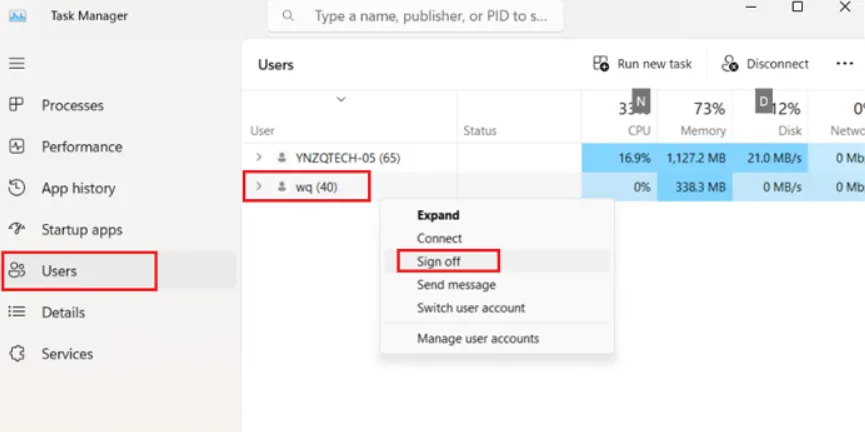
Once you are signed into the user account, launch task manager as admin
-
Switch to the signed-in user’s tab, right-click on localuser and select Sign off.
-
You can now launch the VPN and sign in with the user’s credentials
-
Sign in to the VPN before attempting Microsoft 365 app sign-ins.
Setup the user profile
Section titled “Setup the user profile”- Sign in to Outlook, pin it to the taskbar
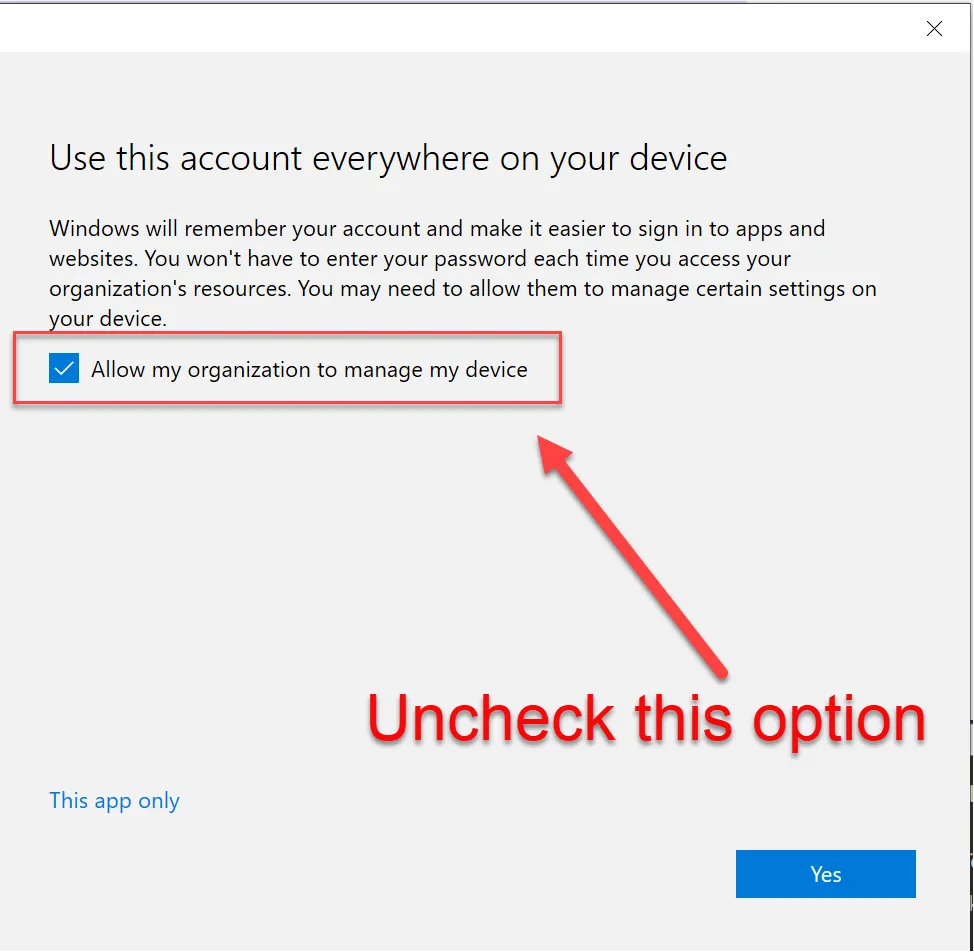
- When presented with this screen, uncheck the box that “Allows this organization to manage my device” as it tends to cause authentication issues with TPM.
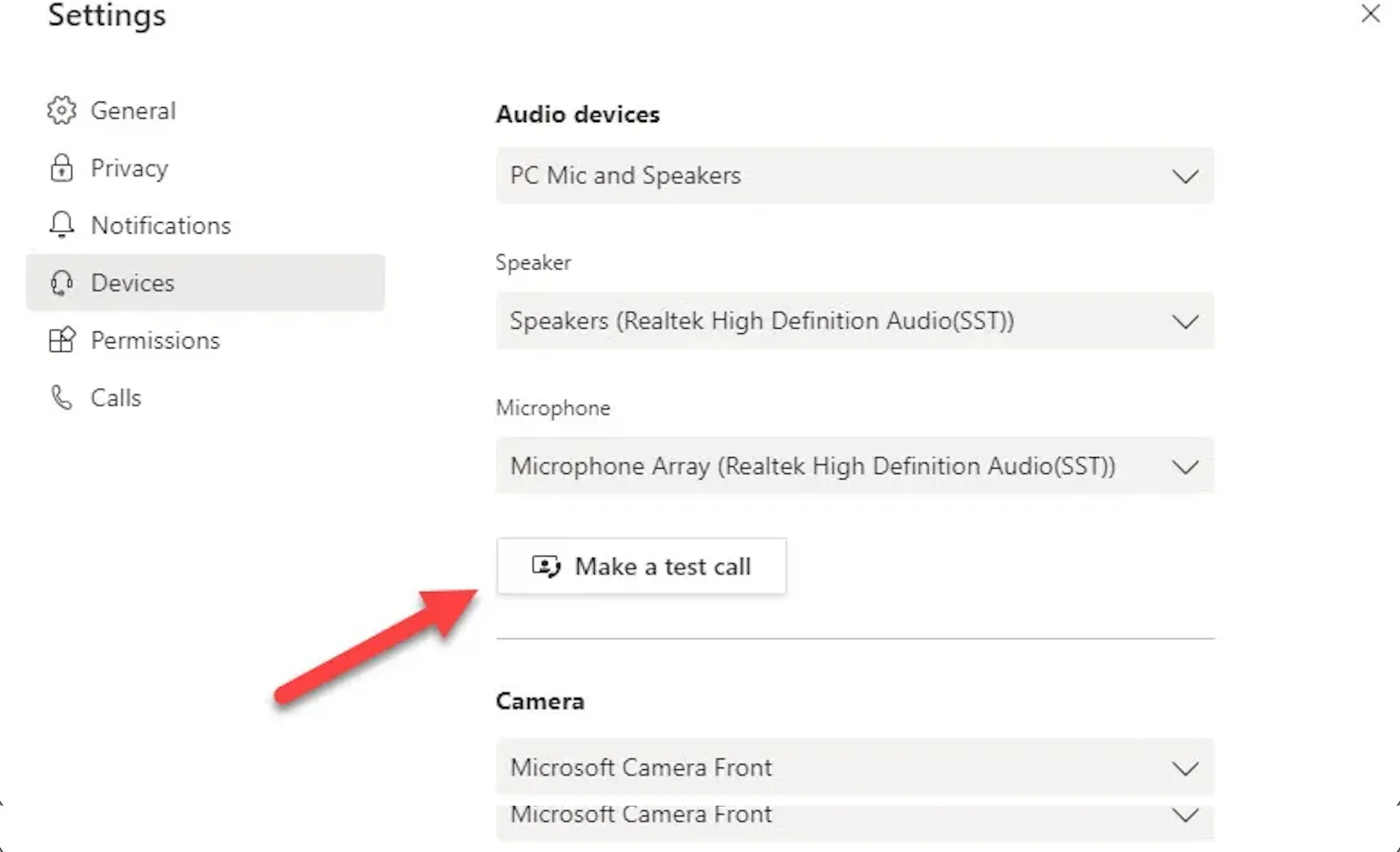
- Set up Teams, and perform a test call to ensure the camera and mic work and that no network authentication message pops up during the user’s first meeting.
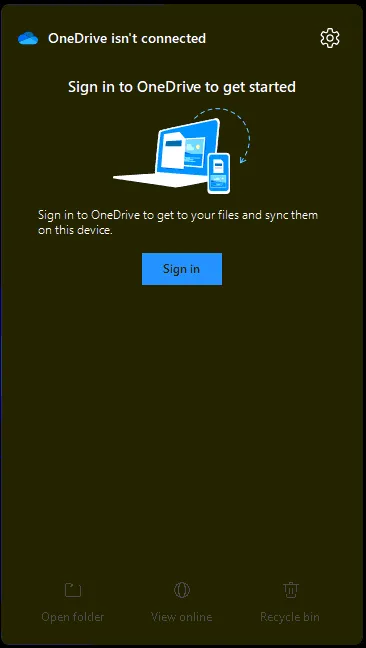
- Setup OneDrive from the taskbar shortcut
-
Set App defaults within Settings.
-
Uninstall bloatware.
-
Clean up the taskbar and Start menu bloat
-
Remove Widgets, CoPilot, Shrink the Search menu
-
Pinned apps: File Explorer, Google Chrome, Outlook, Teams
-
Set system sleep times 15-30-30-1Hr.
-
Grant domain users local admin rights
-
All new JGD systems need their hosts file replaced with the attached host file.
-
Run All Lenovo Vantage updates
-
All Windows updates/patches
Software:
Section titled “Software:”-
N-Able Windows Agent
-
Cisco Secure Client
-
Cisco Umbrella Agent
-
Microsoft Office 365 Apps for Business - portal.office.com
-
Microsoft Teams - https://www.microsoft.com/en-us/microsoft-teams/download-app
-
Google Chrome - https://www.google.com/chrome/
-
Adobe Acrobat DC 64-Bit - https://helpx.adobe.com/in/acrobat/kb/acrobat-dc-downloads.html
-
Turn off protected mode in Adobe. For steps, please refer to the following Adobe articles:
-
Adobe > Edit > Preferences > Security (Enhanced)
-
Under “Sandbox Protections” > uncheck Enable Protected Mode at Startup (preview)”
-
Under “Enhanced Security” > uncheck “Enable Enhanced Security”
-
CCH ProSystem Engagement:
-
\\jgd-ENGMT01\Engagement CD Image\Setup.exe
-
See Attached Work instruction for additional setup steps
-
CCH Practice Management:
-
\\jgd-pm2023\cpas\setup\vpm\Setup.exe
-
See Attached Work instruction for additional setup steps
-
PDFlyer:
-
\\JGD-PSYSTEMSCAN\Workstation
-
Make sure a license is free before attempting to install PDFlyer
-
CheckPoint Installer:
-
V:\RIA Checkpoint\setup.exe - *Work instruction Attached
-
CCH Axcess
-
https://download.cchaxcess.com/iugatewaymanager/clientdownload.aspx
-
See Attached Work instructions for additional setup steps
If Requested:
-
BNA Tax Planner**:**
-
Open Run window, copy, paste, J:\winapps\BNAEstate\Net\setup.exe
-
Hit enter and follow prompts, leave valves with defaults.
REFERENCE GUIDES
- KB00003711 - JGD - WI - New User Onboarding Guide