Entos PC Setup Guide
Section titled “Entos PC Setup Guide”Standard Make & Model: Lenovo (model N/A)
Alternate Make & Model: Dell (model N/A)
Default naming schema: ENTOS-(SN)
Domain: Intune
VPN: N/A
Software:
Section titled “Software:”-
N-Central Agent link: https://ncentral.centrexit.com/downloadAgentOrProbeSoftwareDownloadAction.action?customerId=545&softwareId=101&ncentralTabId=1658848753528
-
AV Defender
-
Cisco Umbrella
-
Google Chrome
-
Dropbox client
-
Adobe Reader
-
Slack client https://slack.com/downloads
-
M365 Apps for Business
-
Microsoft Teams
Setup Steps:
Section titled “Setup Steps:”-
Setup a localuser admin account with the credentials within 1Password
-
Remove Bloatware
-
Confirm that the latest Windows updates have been installed
-
Driver Updates with Lenovo System update, Vantage, or Dell Command Update
-
Create a general Entos local account, as admin.
-
Register the device with Work or School EntraID Sign-In.
-
Navigate to Settings
-
Navigate to Work or School settings
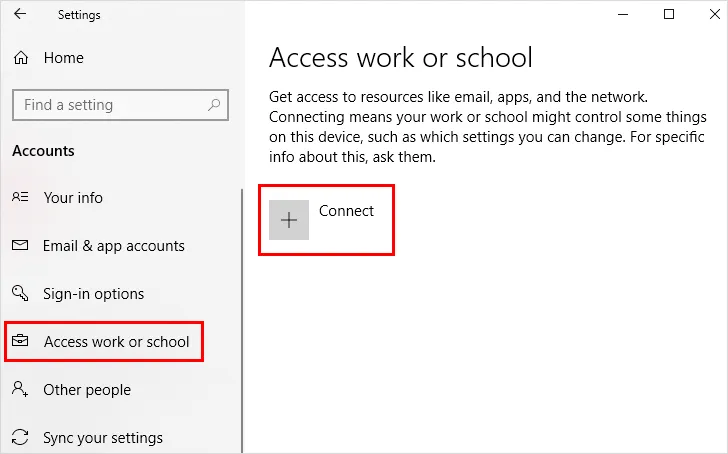
- Select “Sign-In” to work or school
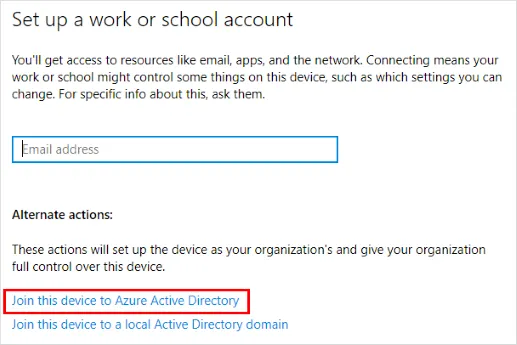
-
Once the Microsoft sign in panel appears, select the blue “EntraID/AzureAD Corporate Sign in” link
-
Sign in with the user’s Microsoft credentials
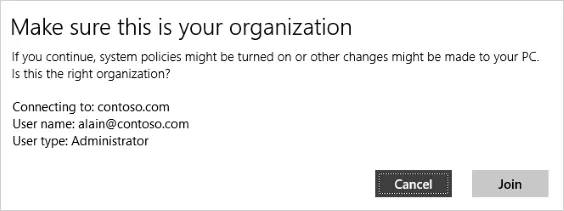
- Agree to join the organization
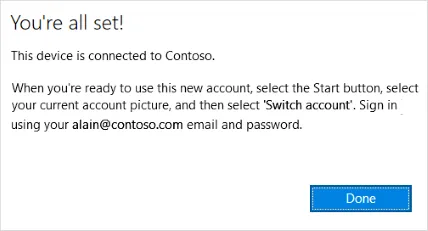
-
Navigate to the start menu and select switch user
-
Sign in with the users Microsoft 365 e-Mail and password
-
The user will likely be required to setup a pin, faceID, or fingerprint.
-
Users can forgo biometrics but must have a pin. usually 6 digits.
User Profile Configuration
Section titled “User Profile Configuration”-
Setup the user profile
-
Sign in to Outlook, pin it to the taskbar
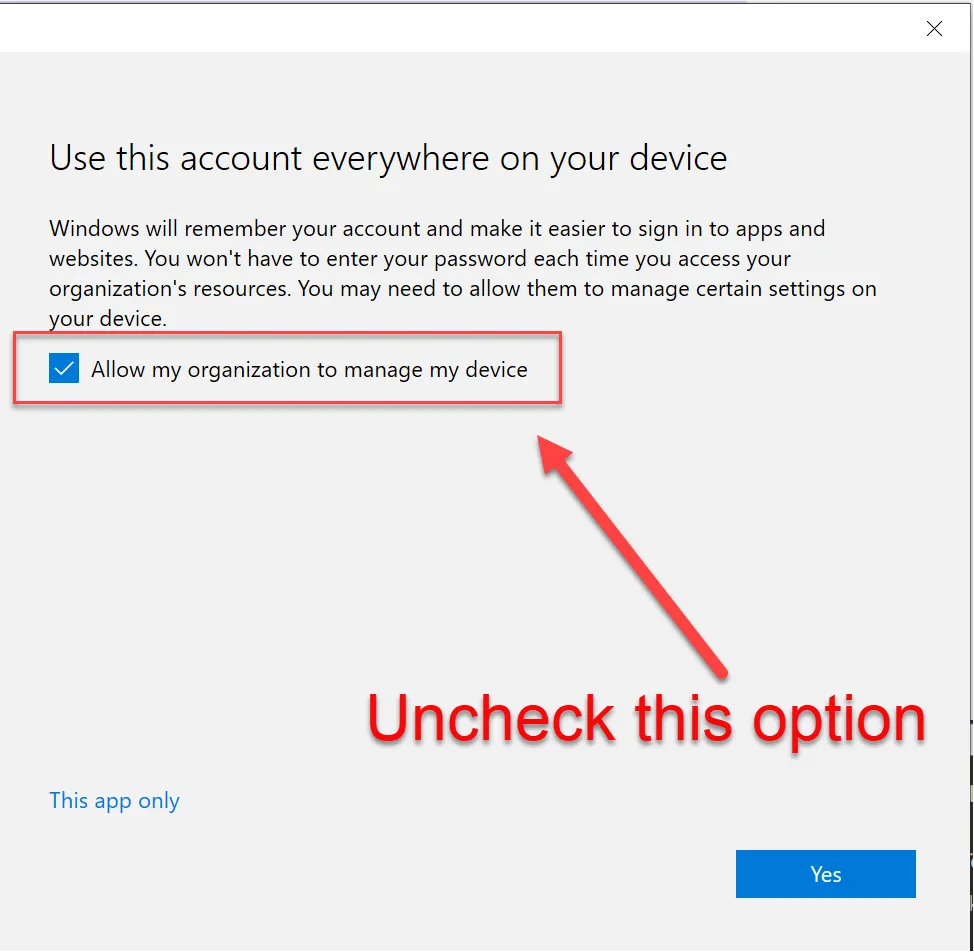
- When presented with this screen, uncheck the box that “Allows this organization to manage my device” as it tends to cause authentication issues with TPM.
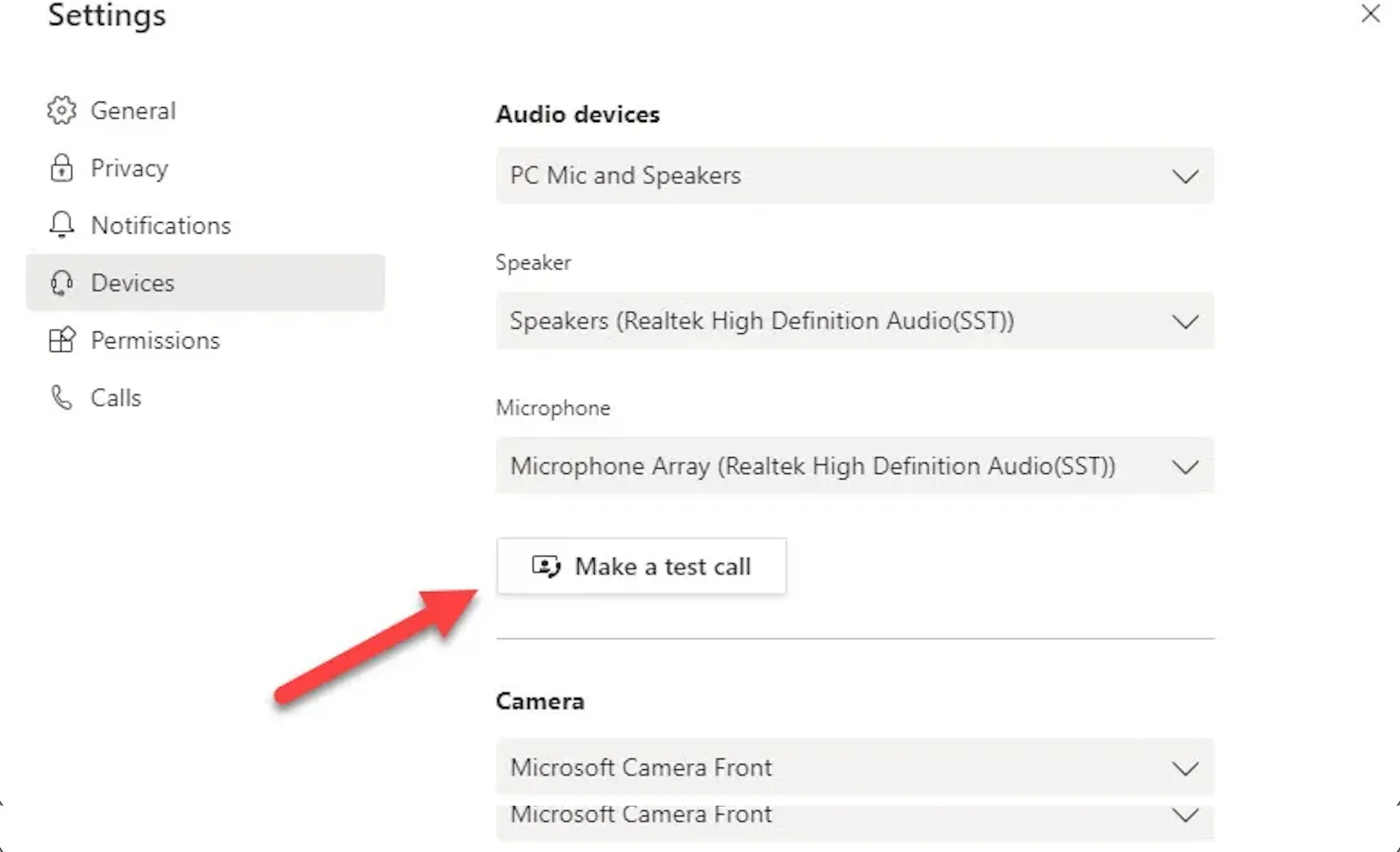
- Set up Microsoft Teams, and perform a test call to ensure the camera and mic work and that no network authentication message pops up during the user’s first meeting.
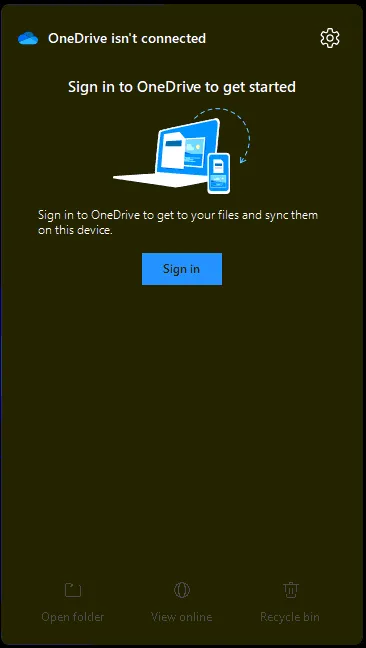
- Setup OneDrive from the taskbar shortcut
-
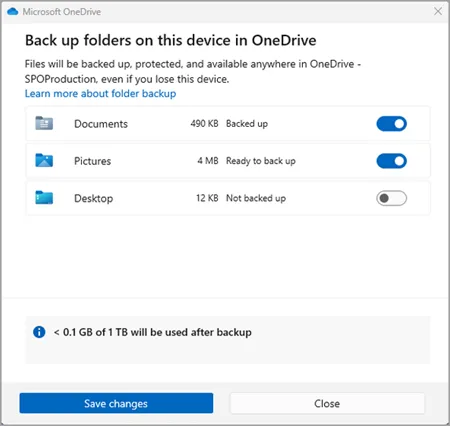
Set OneDrive to Backup Desktop, Documents and Pictures
-
Set App defaults within Settings
-
Uninstall bloatware
-
Clean up the taskbar and Start menu bloat
-
Remove Widgets, CoPilot, Shrink the Search menu
-
Pinned apps: File Explorer, Google Chrome, Outlook, Teams
-
Set system sleep times 15-30-30-1Hr.
-
Coordinate pickup, drop-off, or shipment with the client