NALU User Offboarding
Section titled “NALU User Offboarding”Note: you will need to connect to the terminated user’s device to delete and save their local data.
Section titled “Note: you will need to connect to the terminated user’s device to delete and save their local data.”If the device will not show up for another week or longer, please request the POC reach out upon receiving the device in a new ticket to pull the data.
Section titled “If the device will not show up for another week or longer, please request the POC reach out upon receiving the device in a new ticket to pull the data.”User Offboard
Section titled “User Offboard”-
Connect to NALUS1 via ScreenConnect / NCentral. (ctac, credentials in PWState)
-
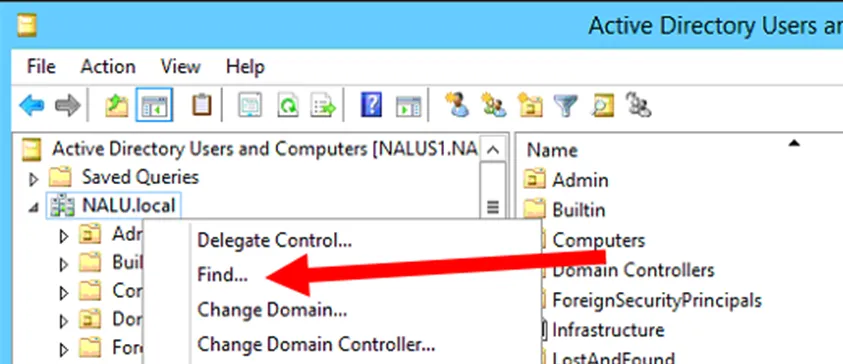
Start with Active Directory (AD), locate the terminated user by right clicking the domain and selecting find.
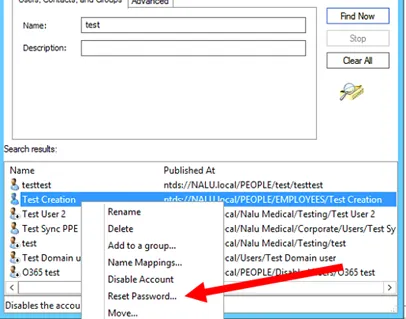
- Search for the user, then right-click their name, and hit reset password. Reset the password to T3rm!n@tedUser4$
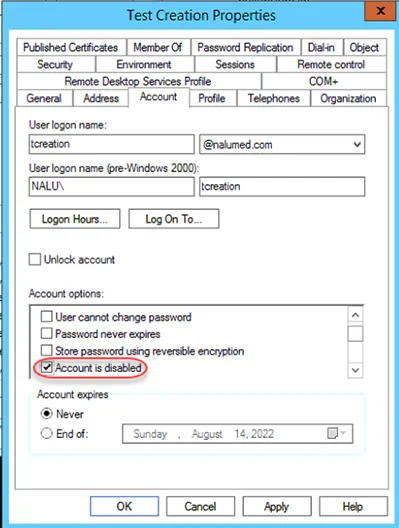
- Once reset, double-click the user’s name, then go to the Account tab. Under account options, check the “Account is Disabled” selection. Hit Apply, followed by OK to close out of the user’s AD Profile.
- Run ADSync via Powershell as administrator.
- Start-ADSyncSyncCycle -PolicyType Delta
-
Log onto Portal.office.com with the O365 – Email Admin credentials provided in PWState (ctac@nalumed.com) Then navigate to the admin console.
-
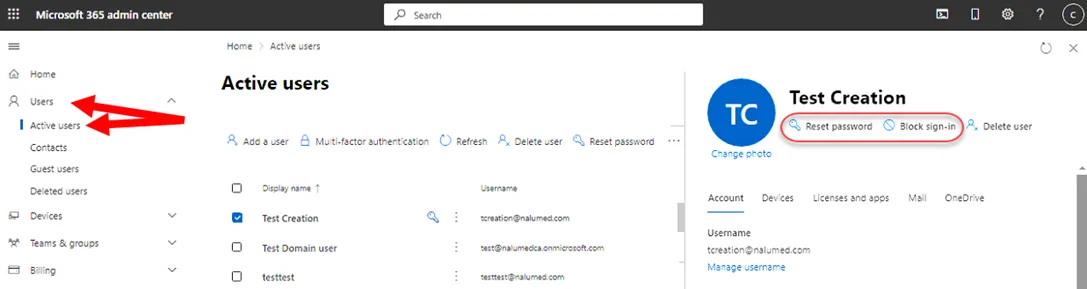
Navigate to Users > Active Users then search for the terminated user. From the user’s profile, reset the password to T3rm!n@tedUser4$ and select Block sign-in.
- Under the Mail tab, ensure any requested automatic replies, forwards, and delegations have been granted on this terminated user’s mailbox based on the User Offboarding Request.
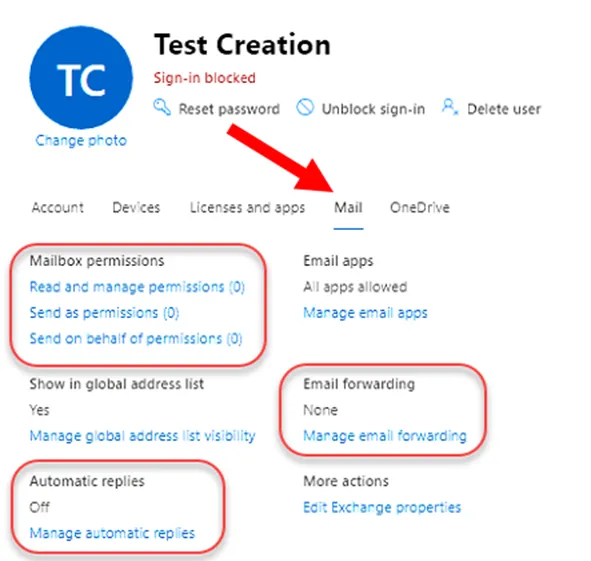
-
Connect to NALUS1 via ScreenConnect / NCentral. (ctac, credentials in PWState)
-
Open Active Directory (AD) and locate your user from their respected OU. (NALU.local > PEOPLE > EMPLOYEES/CONSULTANTS)
-
Under the Account tab, verify the user’s account is still checked as “Account is disabled.”
-
Go to the Organization tab, then under the Manager field, hit Clear, then Apply to save.
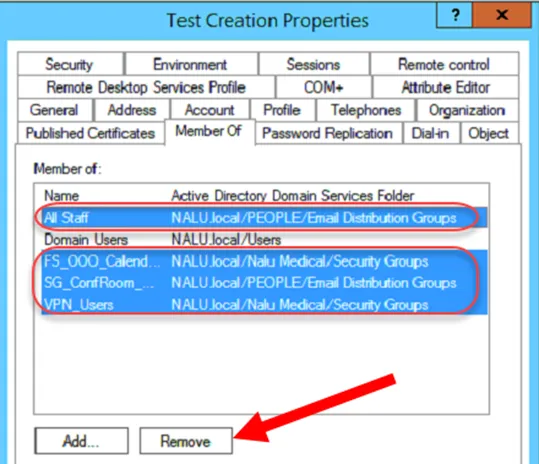
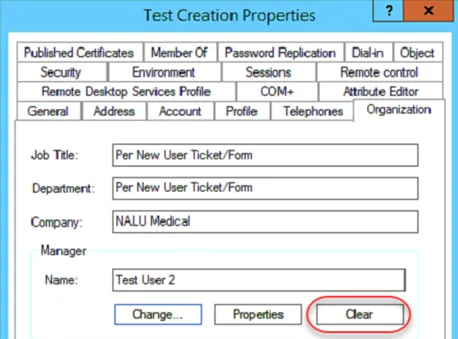 Next, go to the Member Of tab, select all security groups and hit Remove (Remember to record each group within the offboarding ticket). Hit Apply once complete. Example below:
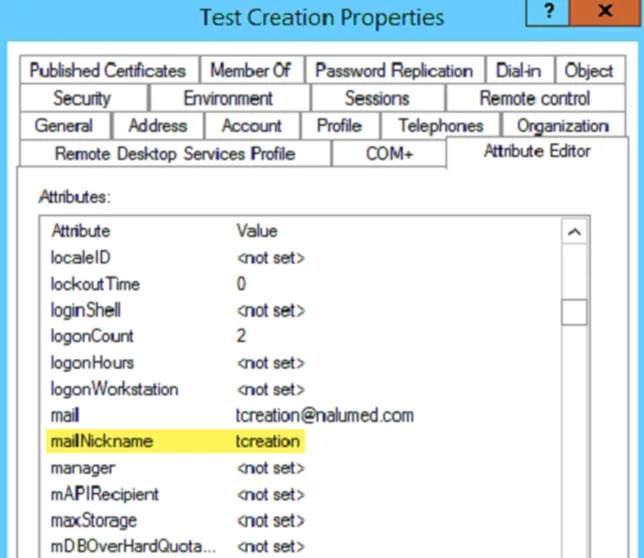
Next, go to the Attribute Editor tab, start with searching for mailNickname and verify it is updated to the username of the terminated account. If not, update to username.
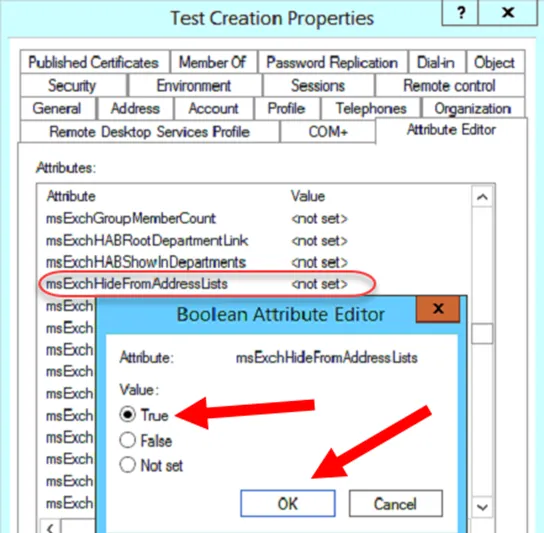
Next, search for msExchHideFromAddressLists then set the value to True. Hit OK, Apply, then OK again to close out of the user’s AD Profile.
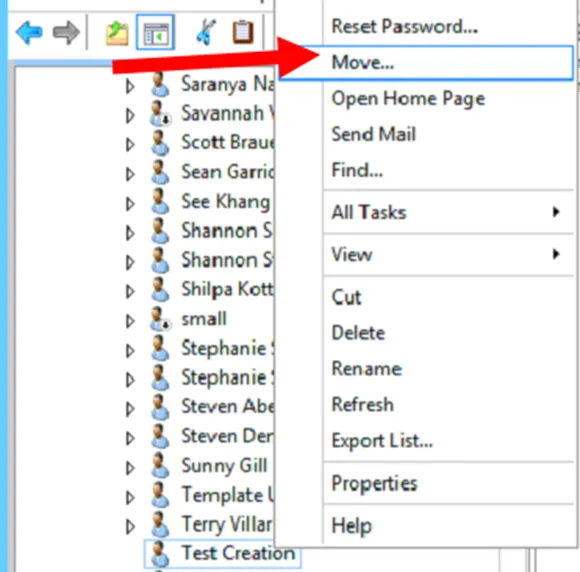
Right-click the Name of your Terminated User, then select Move.
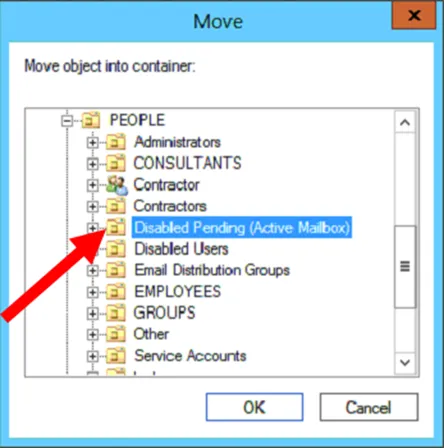
Relocate the User’s profile to the OU of NALU.local > PEOPLE > Disabled Pending (Active Mailbox). Hit OK once complete.
Run ADSync via Powershell as administrator.
- Start-ADSyncSyncCycle -PolicyType Delta
Log onto Portal.office.com with the O365 – Email Admin credentials provided in PWState (ctac@nalumed.com) Then navigate to the admin console.
On the left-hand side of the page, navigate to the Azure Portal.
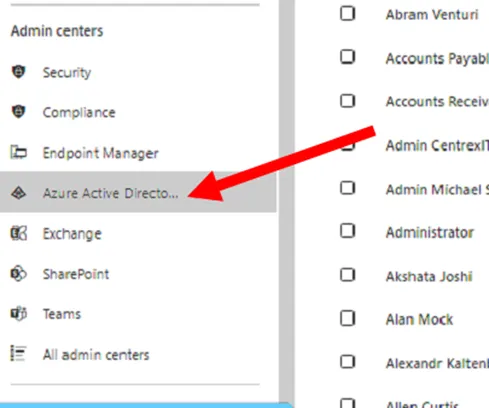
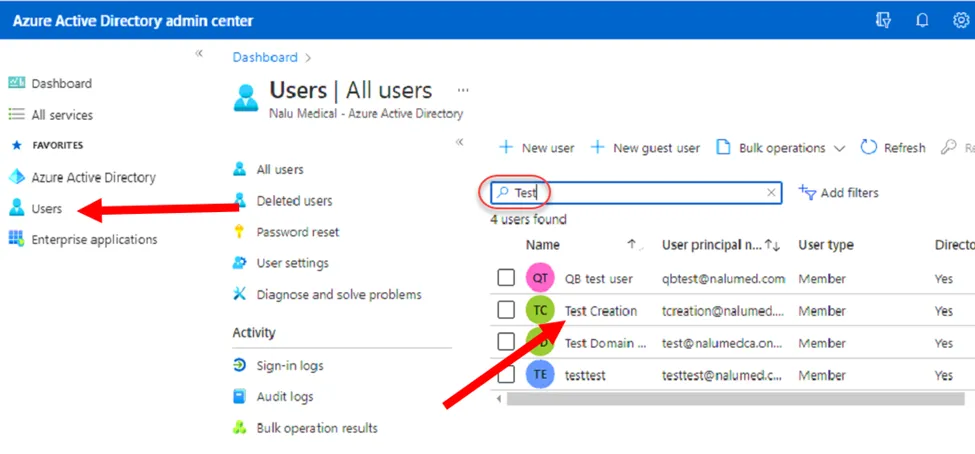
From the Azure portal, go to the Users tab on the left-hand side, then search and select the terminated User.
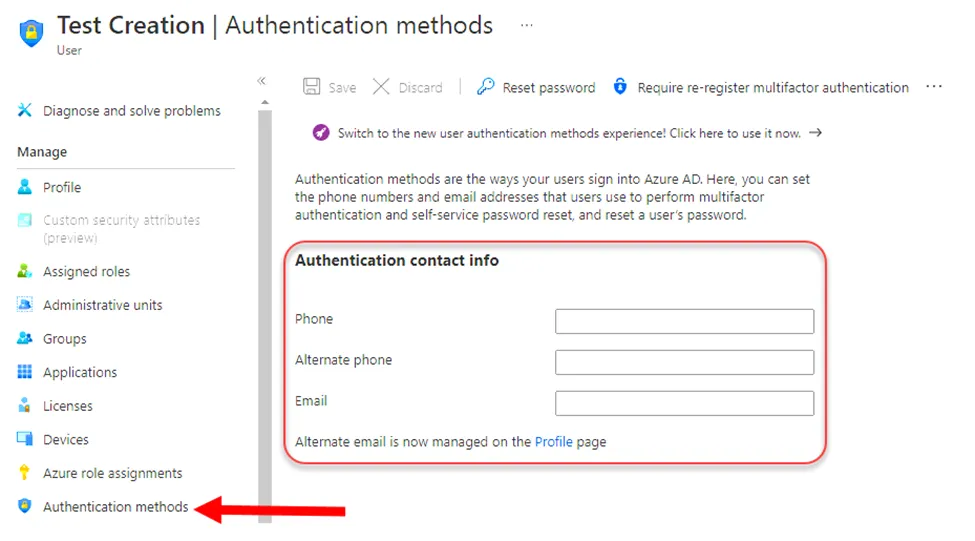
From the User’s page, select Authentication Methods on the left-hand side. Verify all contact information is removed and recorded in the offboarding ticket.
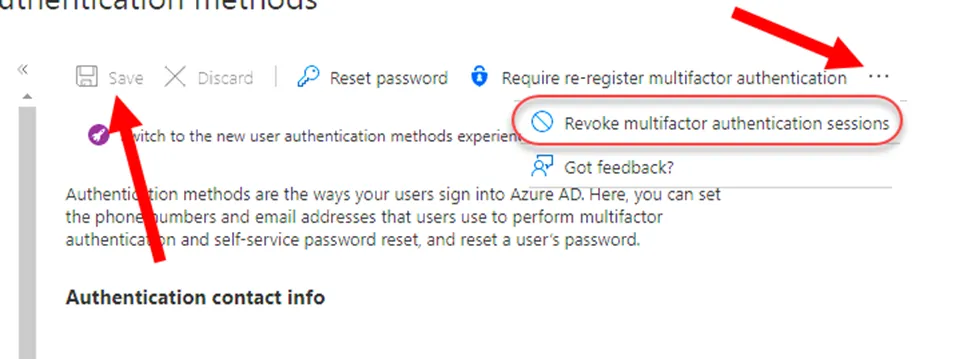
Select the 3 dots at the top, then select Revoke MFA Sessions. Hit Save once complete.
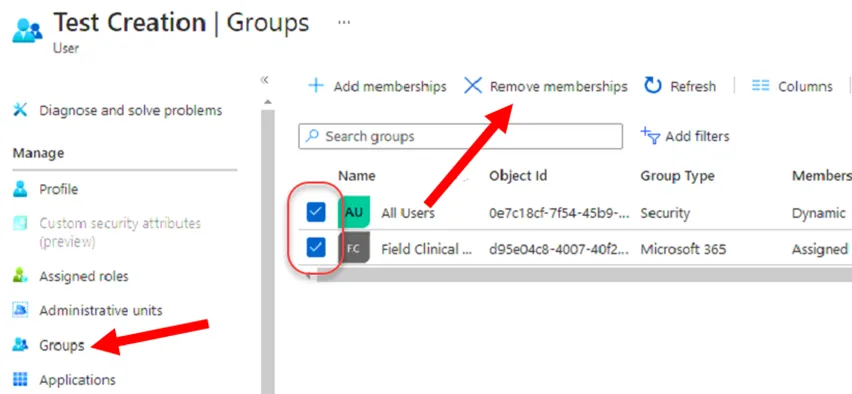
Navigate to the Groups tab on the left-hand side. Then check all groups (record them all in the ticket) and Remove Memberships. Close out of the Azure portal once complete. (All Users will not remove, this is okay)
26. Once back to the Admin page, select Exchange on the left-hand side.
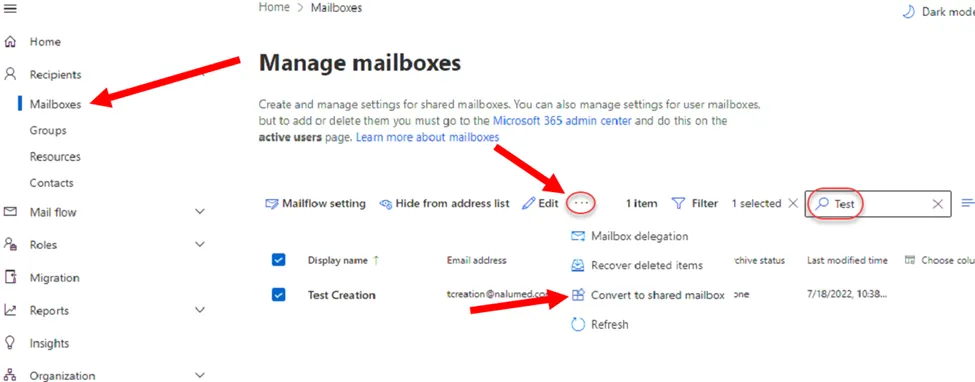
Under Recipients > Mailboxes search for the terminated user. Select the user, hit the 3 dots close to the search bar, and then hit Convert to shared mailbox. Confirm conversion.
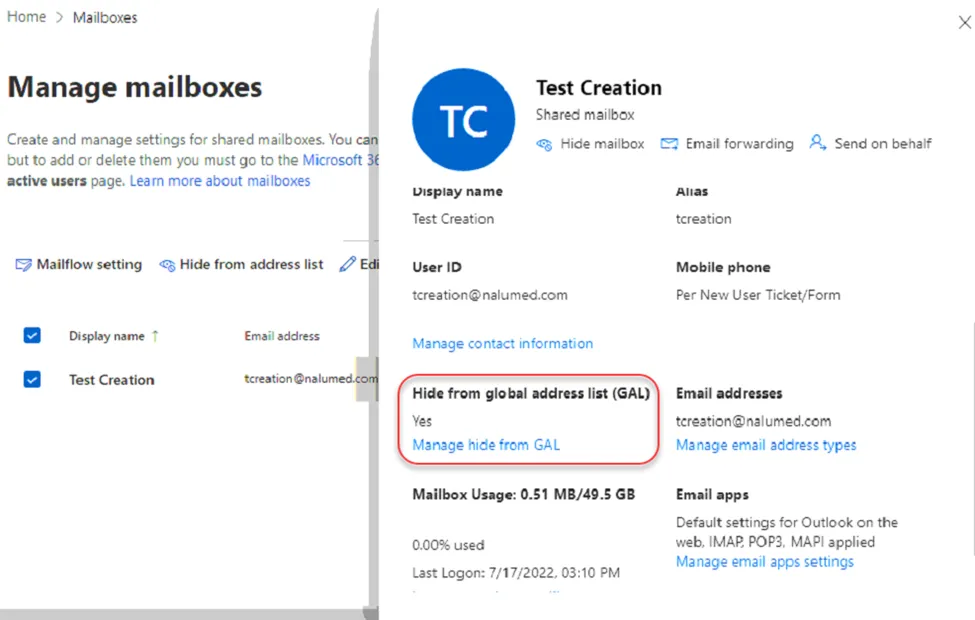
Refresh the page and relocate the user. Under the General tab, verify user is hidden from the GAL. (This is managed within AD, simply verifying 365 is updated properly, step 30)
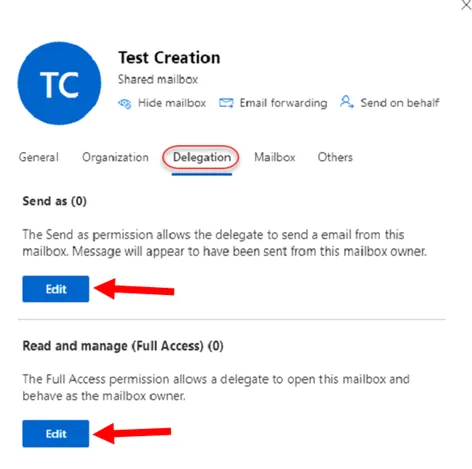
Next, confirm mailbox access under the Delegation tab based on the Offboarding Request/Ticket.
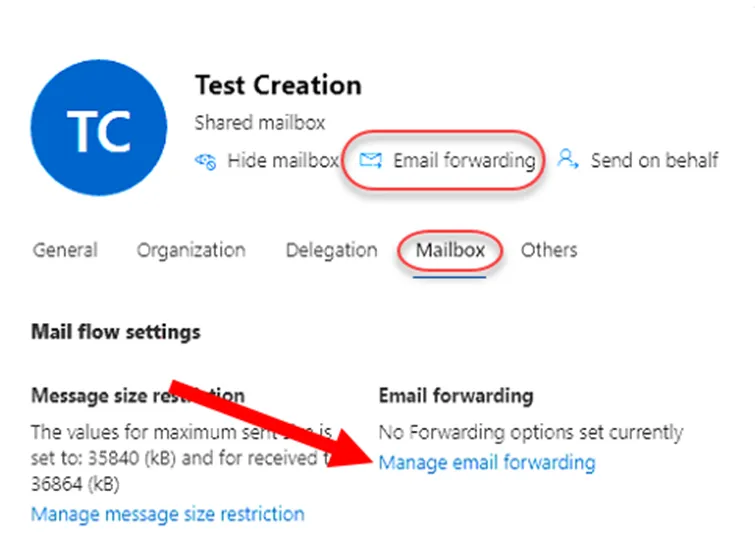
Under the Mailbox tab, or the Email Forwarding option, confirm email forwarding based on the offboarding request/ticket. Return to the Admin Portal once completed.
Refresh the Admin Portal, then search for the terminated user through Users > Active Users.
Under the Licenses and Apps tab, remove all licenses attached to the user. Make sure to hit Save Changes.
Laptop offboard:
Section titled “Laptop offboard:”If the Offboarding Form requests to archive a copy of the User Profile:
-
Connect to the terminated user’s computer once alerted by the POC.
-
If the device will not show up for another week or longer, please request the POC reach out upon receiving the device in a new ticket to pull the data.
-
Data from the local device needs to be saved within the Nalu Terminated Employee Repository
-
Sharepoint Site: https://nalumedca.sharepoint.com/sites/TerminatedEmployeeRepository
-
(This includes the local folders of their desktop, photos, documents, videos, one drive, and downloads if available)
-
Create a folder with the users name, move Onedrive files here as well
-
Delete the local data once complete.
OneDrive Backup Steps:
Section titled “OneDrive Backup Steps:”-
Navigate to the termed user within the Microsoft 365 Admin Center
-
Navigate to the OneDrive Tab within 90 Days of the user termination(license removal)
- Select “Create link to Files”
-
This will generate a link that will place you within the specified user’s OneDrive
-
Click the link, which will open in a new window.
- Select all items and click “Move To”
-
A menu will pop up. The CTAC Admin Account should have a shortcut to the Terminate Employee’s Repository Sharepoint site document folder
-
Select that location
- navigate through the directory: General>Term’d Users>Folders for each terminated user
- create a new folder with the name of your terminated user
-
Ensure that you are within that folder, and then select “Move here”
-
You will have completed the OneDrive backup.
Local Laptop backup
Section titled “Local Laptop backup”-
Within localuser, Navigate to the Sharepoint Site: https://nalumedca.sharepoint.com/sites/TerminatedEmployeeRepository
-
Log in with the CTAC 365 Admin Account
-
Manually upload a folder within the term’d user folder you have created with the local backup data from the user’s Desktop, Documents, Downloads, and Pictures/Videos
-
Confirm access from the original offboarding ticket and share the termed user sharepoint folder with the manager if needed