Phase Sci – WI – New User creation
Section titled “Phase Sci – WI – New User creation”- Log onto M365 (credentials in 1Password). Please note this is also setup with MFA. Code is sending to Pulse SMS
- Once log on, go to Admin Center > Users > Active Users
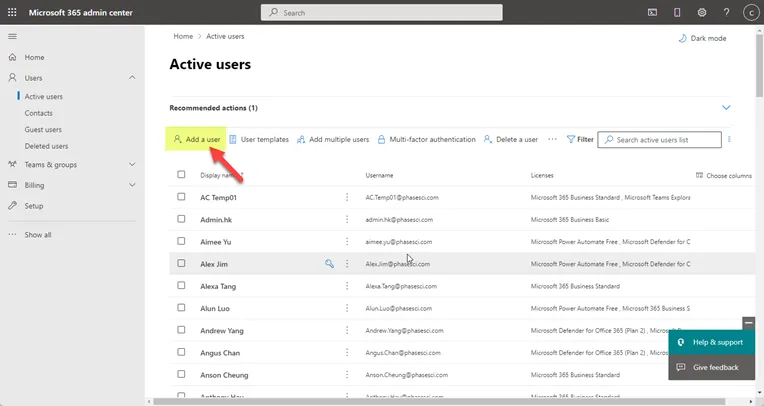
- Put in user’s first and last name
- Display name should be populated
- The username would be based on what the email address is asked for in the new user form. Normally, it should be firstname.lastname@phasesci.com
- Setup any other email address as specified
- Set password using the format PS2022##! (where ## is the initials of the user)
- Do not select “Require this user to change their password when they first sign in”
- Click Next
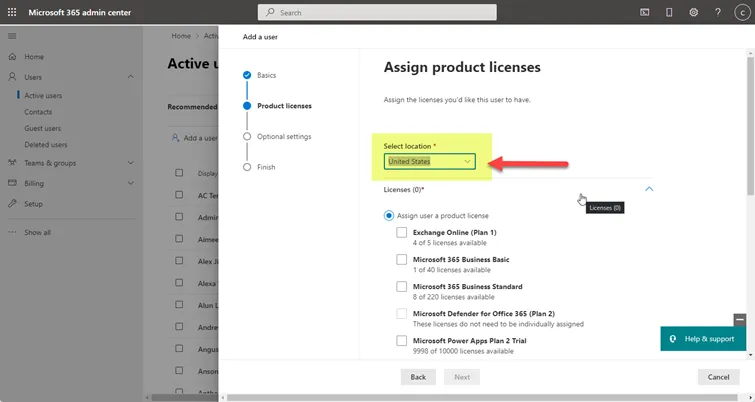
- Select the user’s location.
- ** “Should be United States” unless otherwise specified **
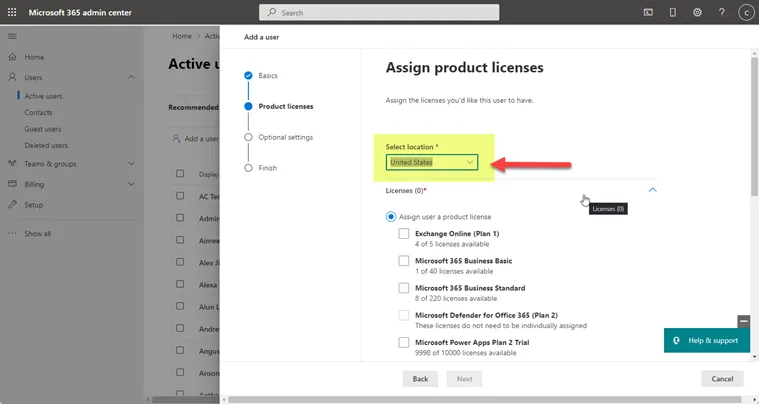
- Assign license for M365 suite (should be M365 Standard & Azure P1 unless otherwise specified)
- There should be no optional settings unless otherwise noted
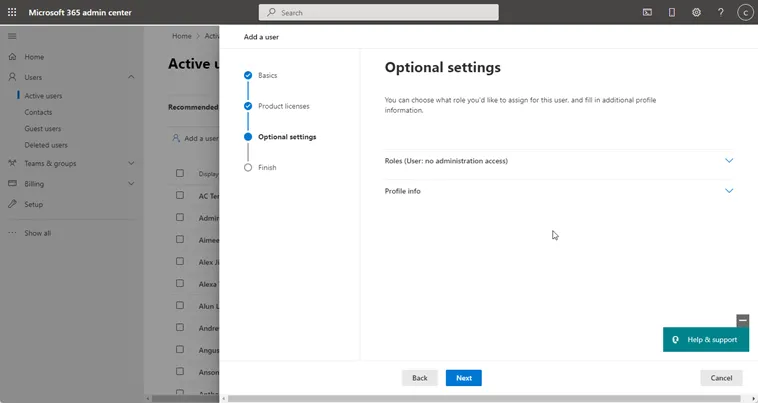
- Click on Finish adding and close
- Go back to Active User and look for the new user created and click on Manage Groups
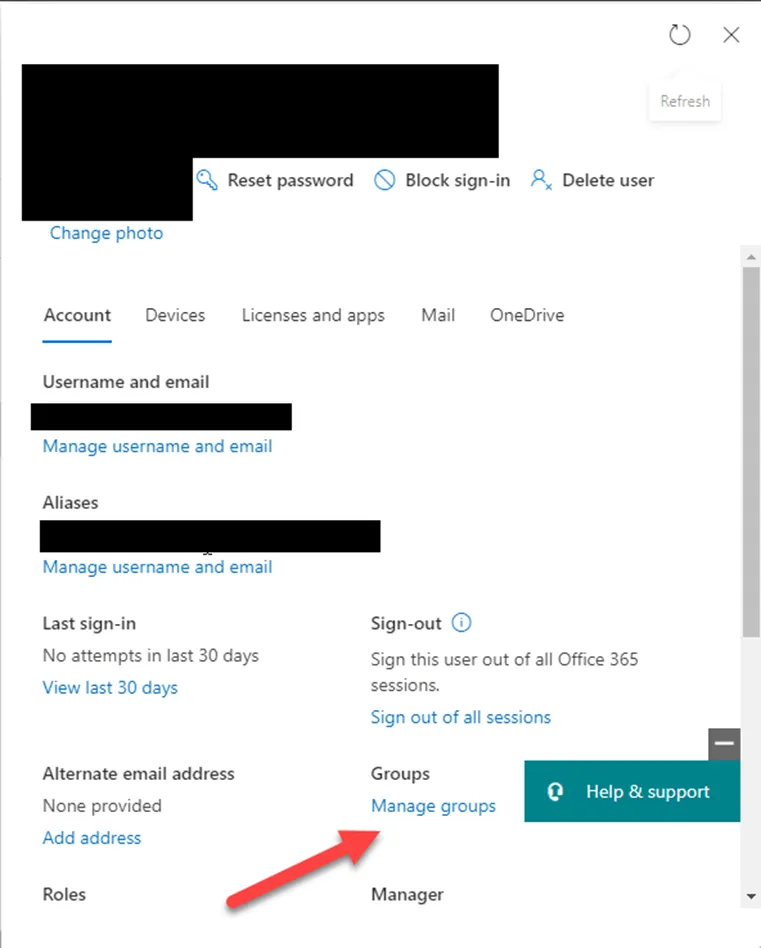
- Add the user to the groups mentioned
- If it needs to create new ones, please do so
- For the software setup, please see the below list:
- For Zoho, contact Chris Pham – chris.pham@phasesci.com – see KB00003197
- For Fishbowl, contact Richard Vargas – Richard.vargas@phasesci.com – see KB00003197
- IT - ITSupport@phasesci.com -see KB00003197