1. Log into the Dell Wyse Management Suite onto RCP-NOC-DC-1
2. Go to https://rcp-noc-dc-1.rcpinc.tld/ccm-web/
3. Sign in with creds in PWD State (Use highlighted for remote shadow)
4. Go to the “Devices” tab
5. Look for the thin client by one of the following:
a. Serial number
b. IP address
c. Last user that signed in
6. Click on the thin clients name that is in blue

7. Click on “More Actions” and then click on “Remote shadow (VNC)”
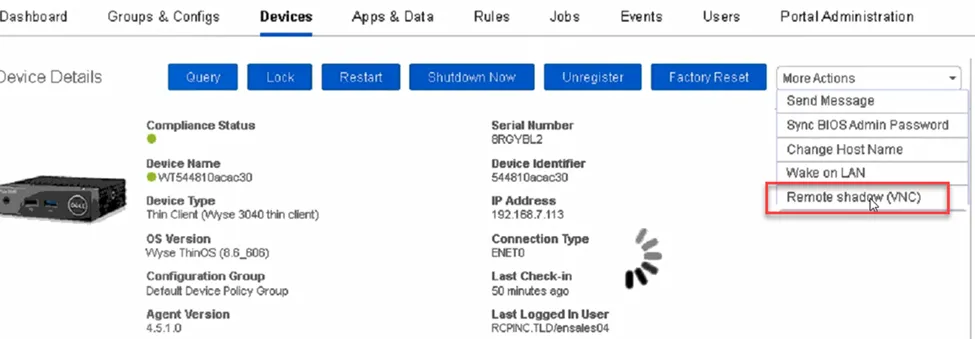
8. Click “Connect”
9. Enter the password for the admin account in PWD state
10. Click on “Admin mode”
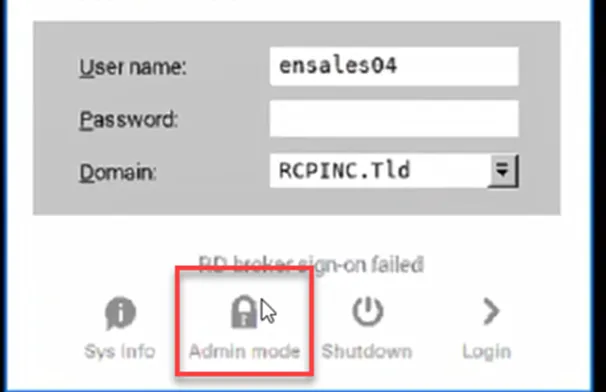
11. Click on “System Preferences”
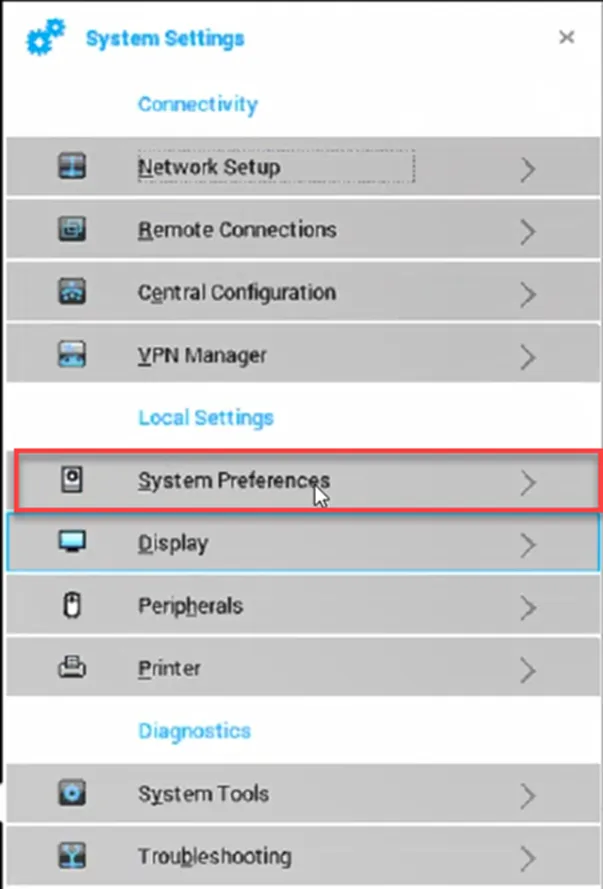
12. Click on “Time / Date” tab
13. Set the correct time zone and the time servers.
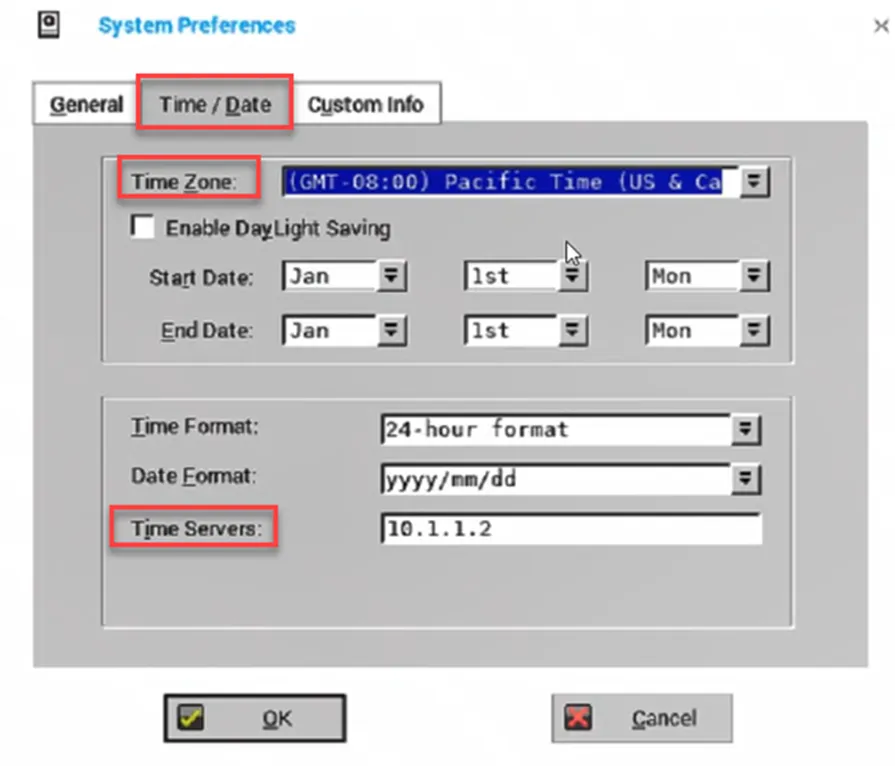
14. Time server IP is 10.1.1.2
15. Select OK
16. Close out of the window
17. At the pop up “Leave Administrator Mode” click OK
18. Have user sign in
19. If still getting the SSL error, Restart the maching from the management console
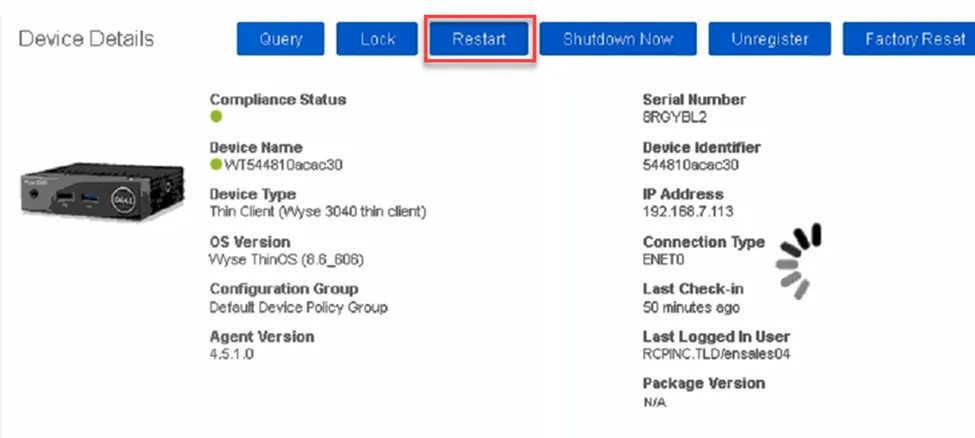
20. Do steps 7 on forward
21. If issue does not resolve, escalate.