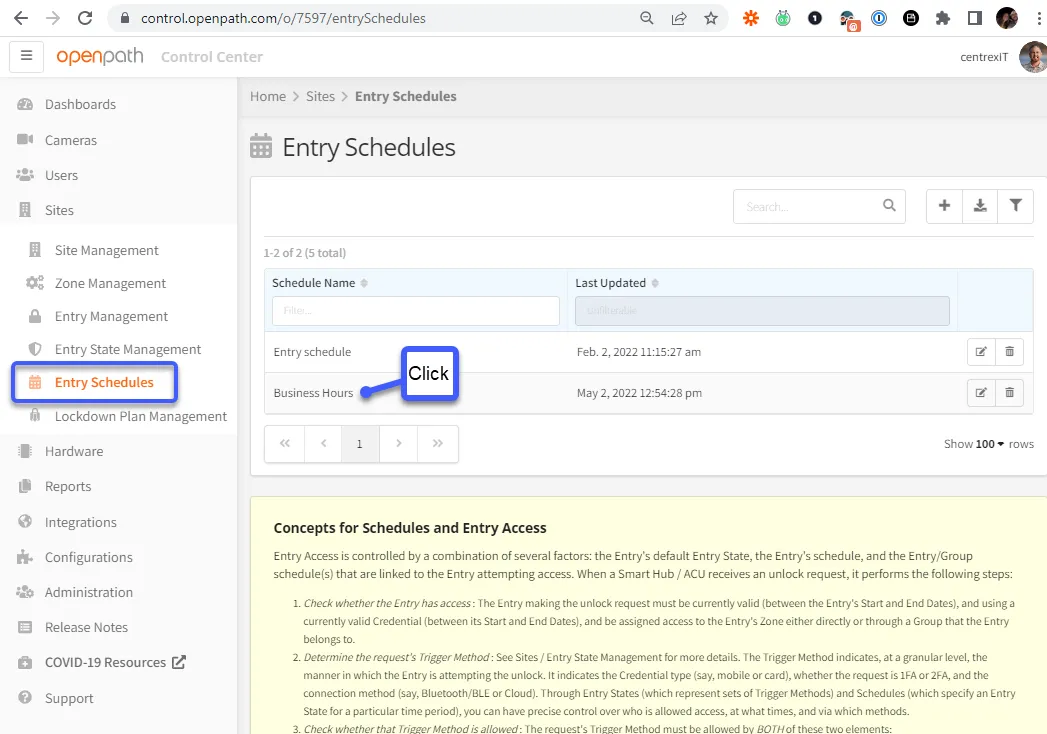
This how to guide will walk you through how to adjust the entry door schedule for centrexIT Poway HQ.
Section titled “This how to guide will walk you through how to adjust the entry door schedule for centrexIT Poway HQ.”Normal Functionality:
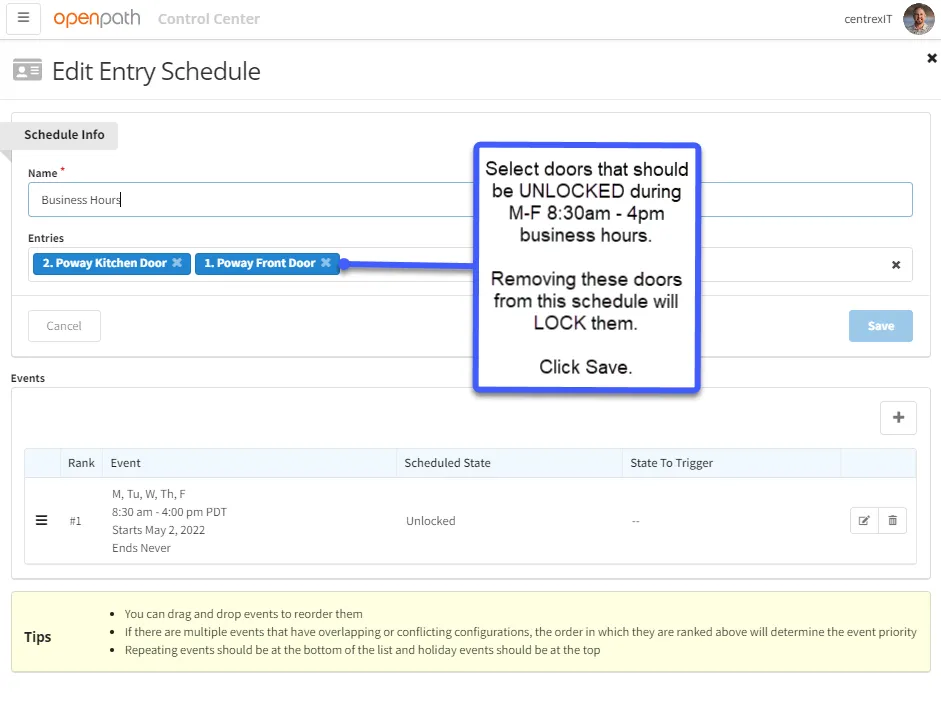
Section titled “Normal Functionality:”The normal operation for the front door and kitchen entry doors are they will remain unlocked Monday-Friday 8:30 am - 4pm unless the schedule is modified using the steps below. All other doors at the Poway HQ will be locked unless the appropriate access is granted using a mobile app credential or physical badge.
Section titled “The normal operation for the front door and kitchen entry doors are they will remain unlocked Monday-Friday 8:30 am - 4pm unless the schedule is modified using the steps below. All other doors at the Poway HQ will be locked unless the appropriate access is granted using a mobile app credential or physical badge.”Security Requirements:
Section titled “Security Requirements:”You must be a designated facility admin or super admin in order to update the OpenPath access control system schedule.
Section titled “You must be a designated facility admin or super admin in order to update the OpenPath access control system schedule.”Step 1.
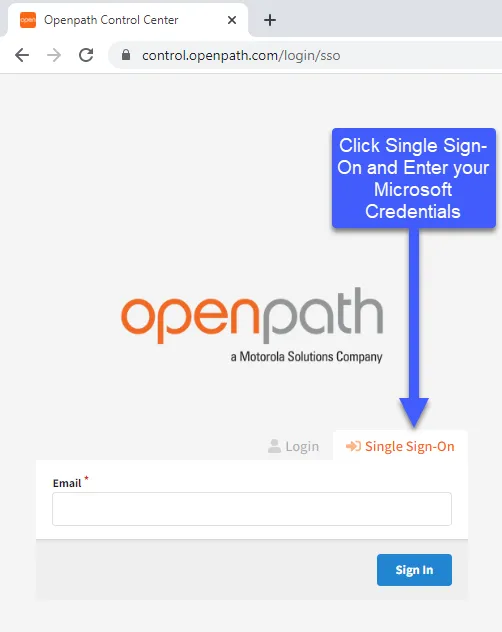
Section titled “Step 1.”Login with your centrexIT domain credentials. You may be prompted to select which account you would like to use as well as the MFA prompt.
Section titled “Login with your centrexIT domain credentials. You may be prompted to select which account you would like to use as well as the MFA prompt.”