PROCEDURE PBA support document for FileMaker Pro: including install requests and product support. Belardi Wong has a volume (pay-as-you-go) cloud license for FileMaker Pro.
REQUIREMENTS
1Password (PWS) > Websites > FileMaker Pro/Claris Cloud Portal
STEPS
Overiview: Licenses for FileMaker Pro are assigned within the FileMaker Pro/Claris Cloud Portal. Once a user is assigned a license they can register their account and download the appropriate product and license key file from the portal.
- IMPORTANT: Installs of FileMaker Pro must be approved by authorized client POC (Reference KB00002035 - Adstra/Belardi Wong - PBAs & Contact List)
- Login to FileMaker Pro/Claris Cloud Portal via PWS
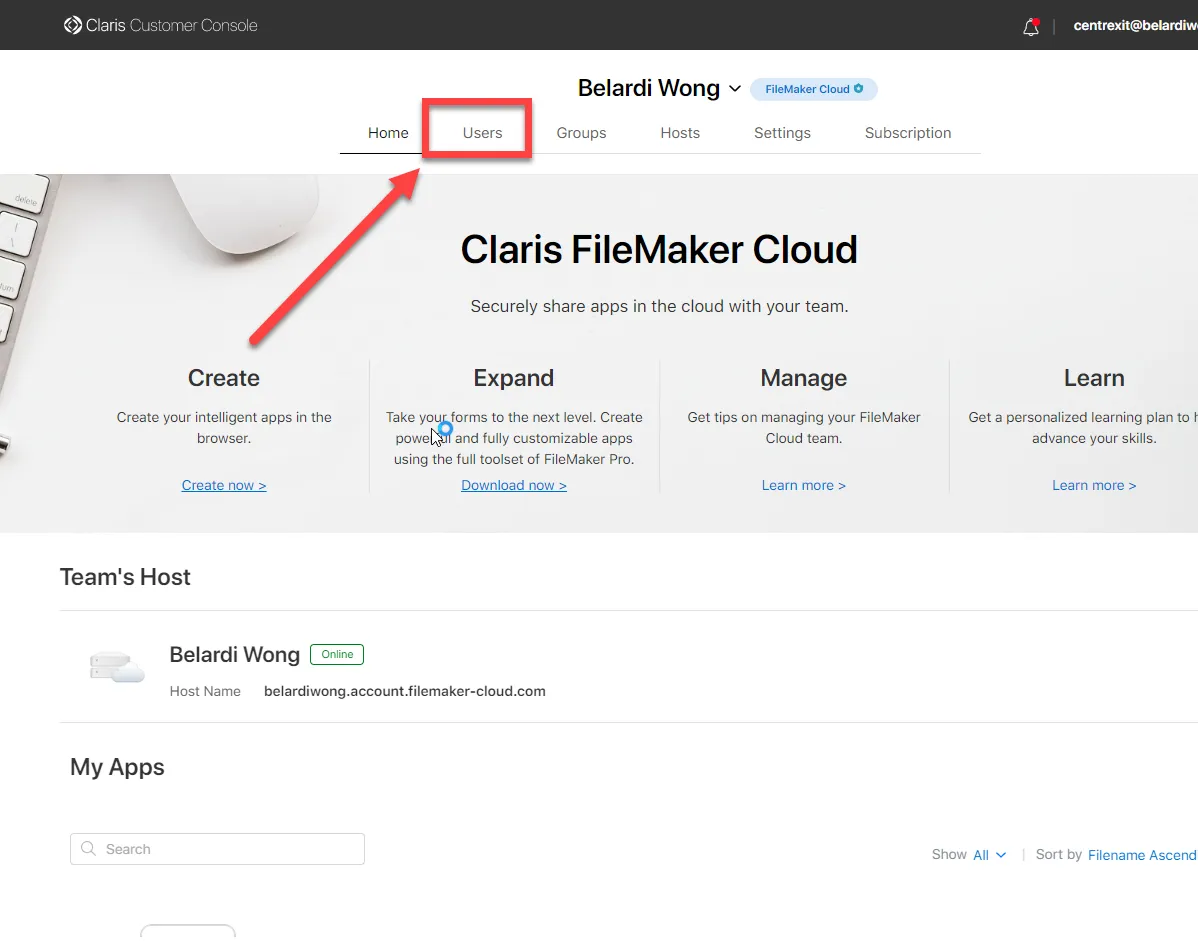
- From the Top-Nav click Users
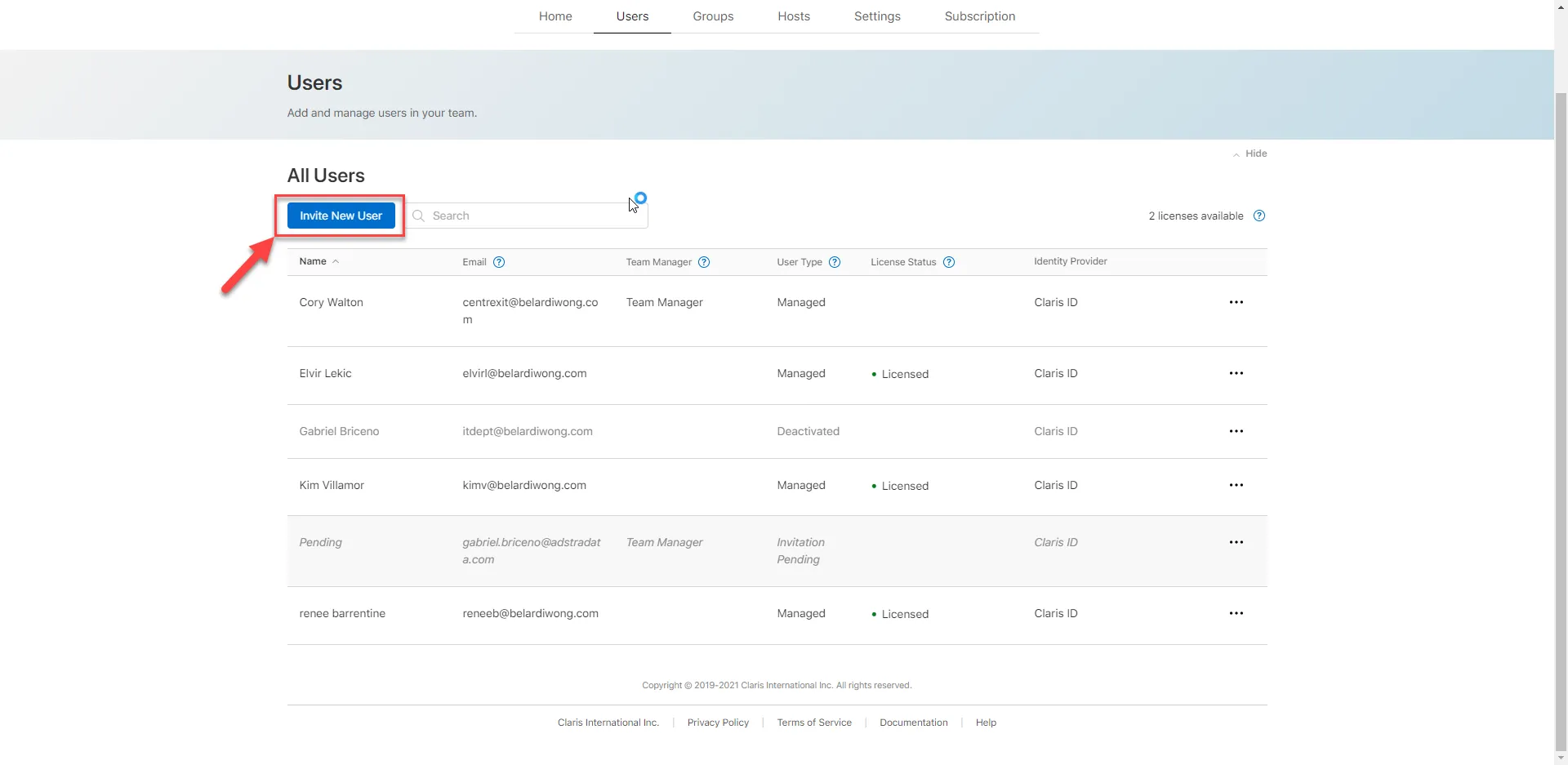
- Click Invite New User
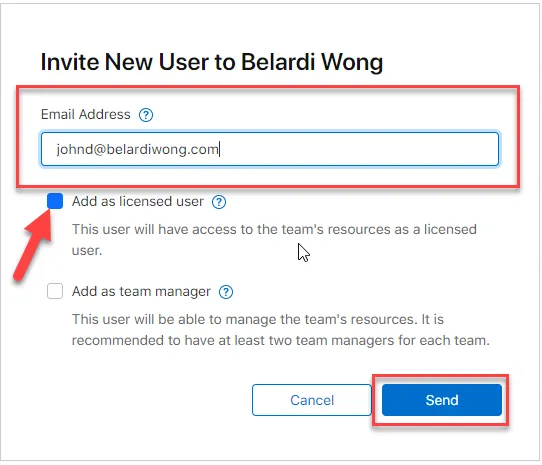
- Provide user’s Belardi Wong email address
- Make sure Add as licensed user is selected
- Click Send
- A registration email will be sent to the End-User
- End-User creates their account and signs in
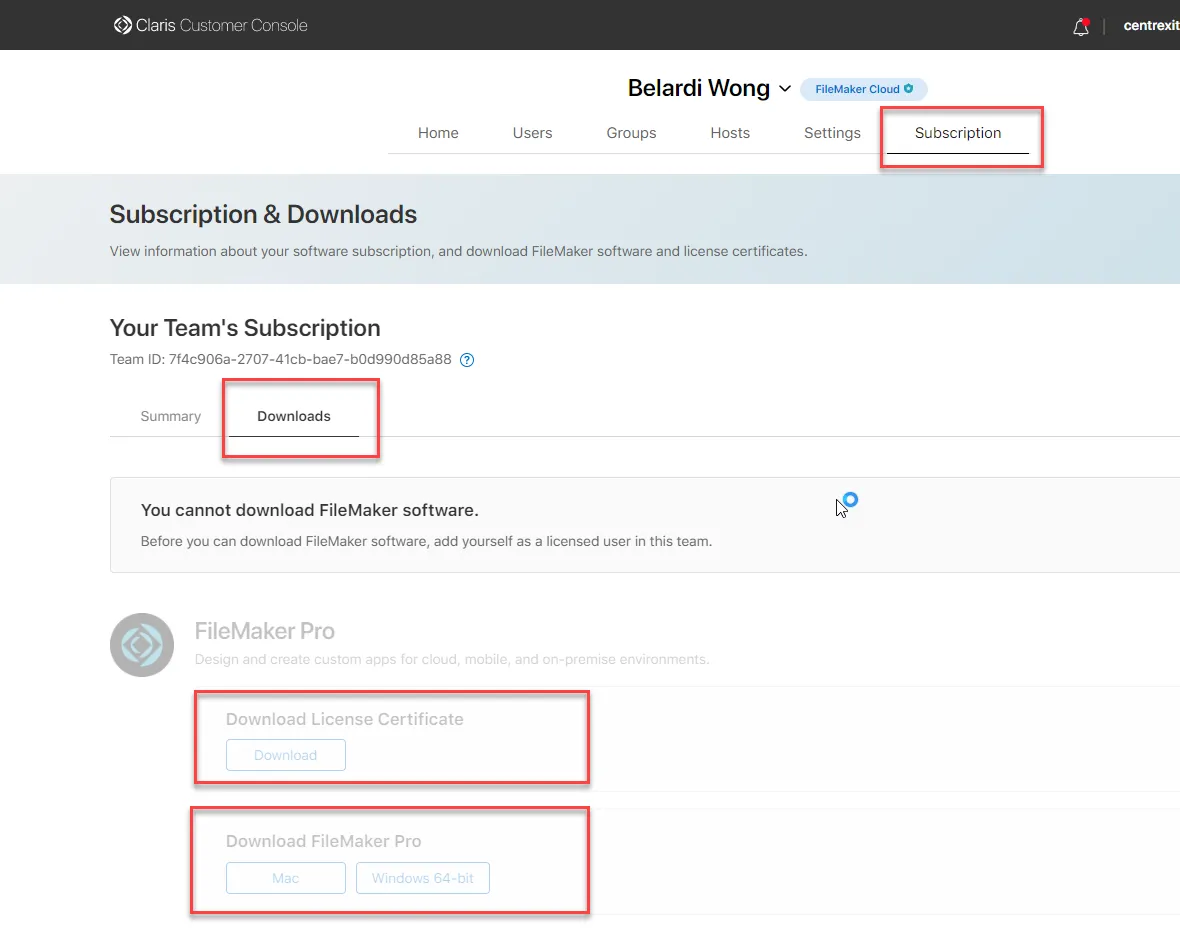
- Have the End-User click Subscription from the Top-Nav
- Click the Download Section
- Download the License Certificate
- Download the appropriate installer for FileMaker Pro (Mac or PC)
- Go to the References section for the installation guide and pic references
Success:
-
cIT verified approval to install app
-
Software invite sent
-
End-User registered their FileMaker Pro account and signed in
-
Software and Cert downloaded and installed
Failure/Errors/Questions:
REFERENCES
-
KB00002035 - Adstra/Belardi Wong - PBAs & Contact List