Scheduling and rescheduling
1. On the TK that is created and assigned to you there is an option on the upper right-hand corner to schedule.

2. Fill out the information requested for time and date of beginning and end of schedule as well if “Requested For” should be invited as well. Set the details and status to the matching criteria.
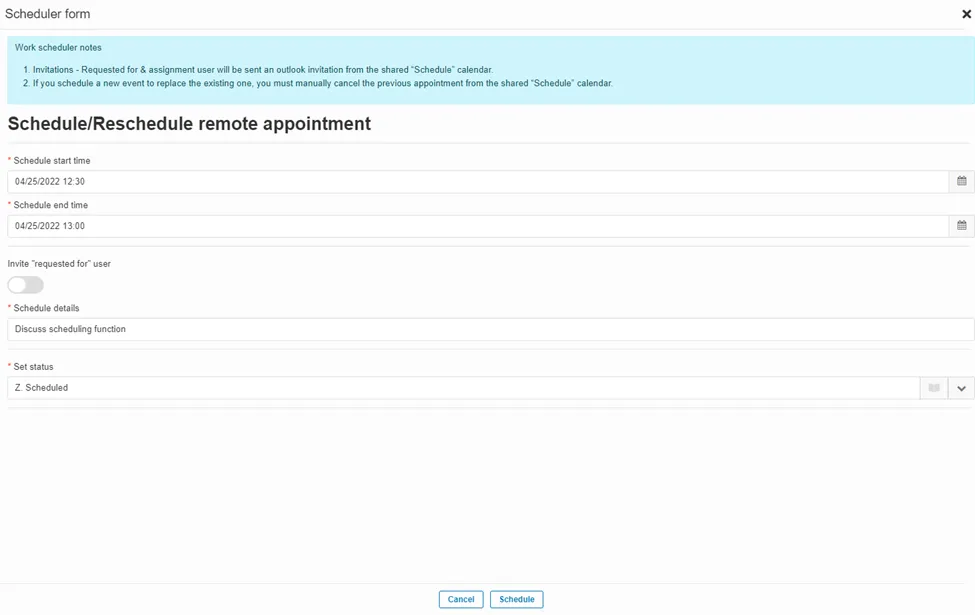
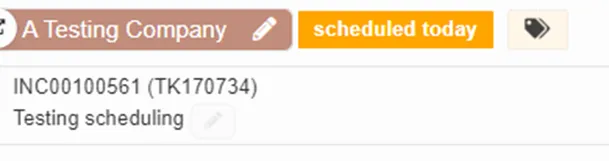
3. This will now appear on your calendar and the TK will show a tag associated to when it is scheduled

4. If you will need to reschedule or cancel this can only happen when the TK has already been scheduled.
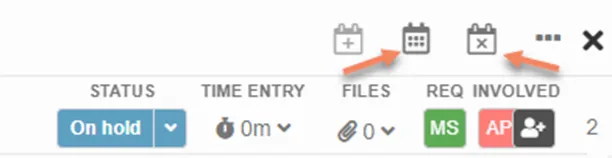
5. Rescheduling will go through the same steps as scheduling.
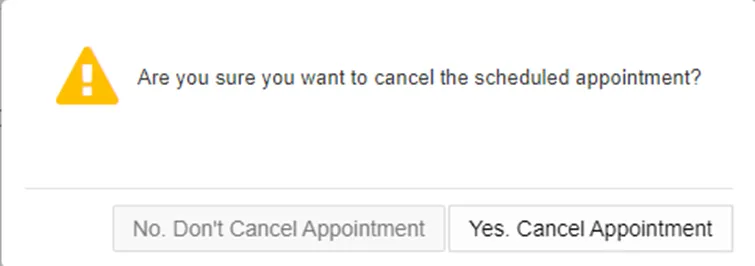
6. Cancelling will prompt you to confirm if you want to cancel the appointment.