Ryan Young Provisioning Guide
Section titled “Ryan Young Provisioning Guide”Standard Make & Model: Dell Laptops
Sandra normally buys the endpoints for Ryan Young.
Alternate Make & Model: Lenovo Laptops (Rare these are used)
Default naming schema: RYI-Number
The number will be provided by Sandra, as she tracks the end points, and assignments issued to the end user.
Minimum Windows OS Version: Windows 10 21H2/Windows 11 PRo 23H2
Domain: ad.ryan-young.com
VPN: vpn.ryan-young.com
Completion Criteria:
Section titled “Completion Criteria:”-
The device joins to the RYI domain, ad.ryan-young.com
-
The device has been renamed per Sandra’s request
-
The user is signed in with Domain Creds
-
VPN Configured with RYI address (may not be possible to connect when onsite at RYI)
-
The Cisco Umbrella module has been configured with OrgInfo.json
-
The user’s Bitlocker key has been backed up to the AzureAD account
-
User’s Office apps, Outlook, Teams, and OneDrive are signed in
-
OneDrive Backup is enabled for Desktop, Documents, and Pictures
-
Default Apps Set: Mail: Outlook, Browser: Chrome, PDF: Adobe Reader
-
Apps and Utilities loaded onto the device: per client WI
-
N-Able Windows Agent Take Control installed and tested
-
The Device and drivers have been updated (Windows Update, Lenovo Vantage/System Update)
-
Perform Mic and Camera checks with a team test call
-
Perform quality checks against the manager’s request and the provisioning Work instruction
Software:
Section titled “Software:”-
N-Able Agent
-
Office 365 Apps for Business
-
Adobe Reader (set as Default)
-
Cisco Secure Client
-
Cisco Secure Umbrella
-
Google Chrome (set as Default)
-
MS Teams
-
AV Defender
-
Zoom
Setup Steps
Section titled “Setup Steps”-
Work with Sandra to gain access to the end-point through Screen Connect
-
Create an account “localuser”, and add it to the Local Administrators Group
-
Set the password to the standard in the 1Password for the client.
-
Login to the end-point as “Localuser”
-
Navigate to the Control panel
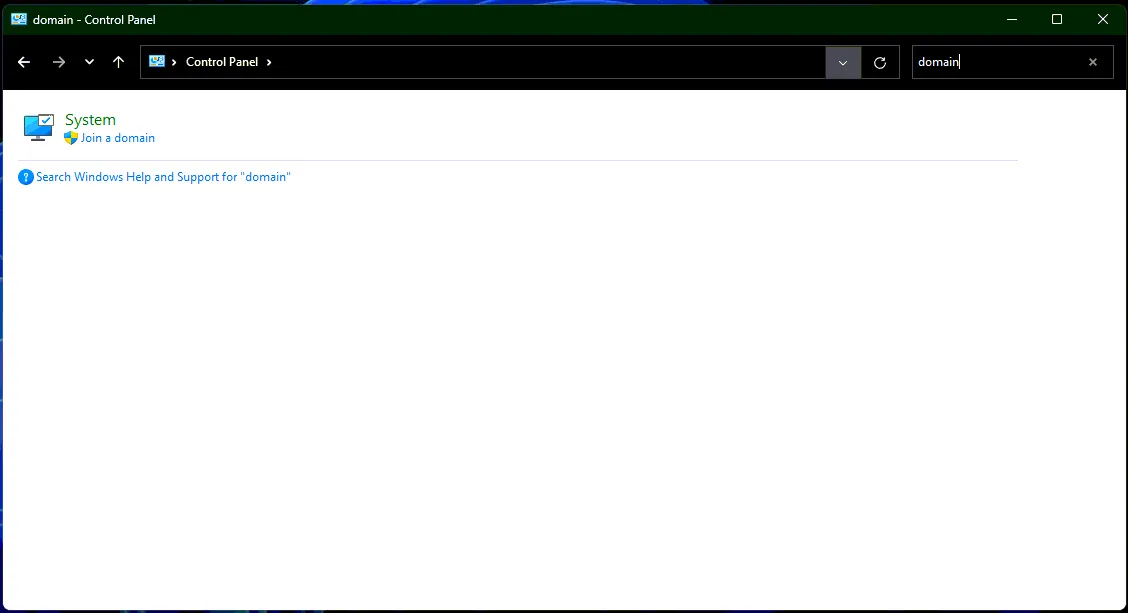
- Search for domain, click “Join a domain”
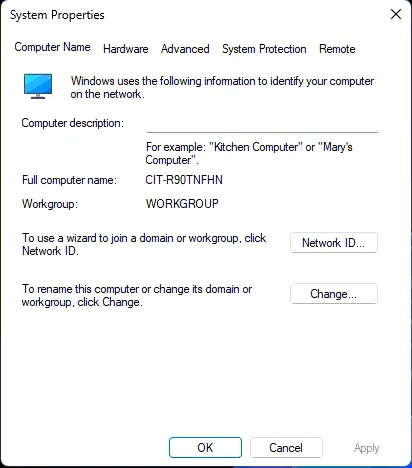
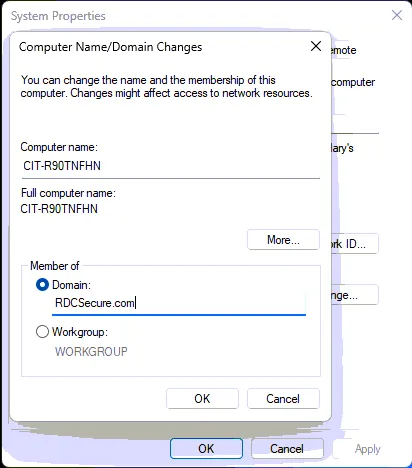
- Add computer to the domain: ad.ryan-young.com
- Rename the device per Sandra’s guidance
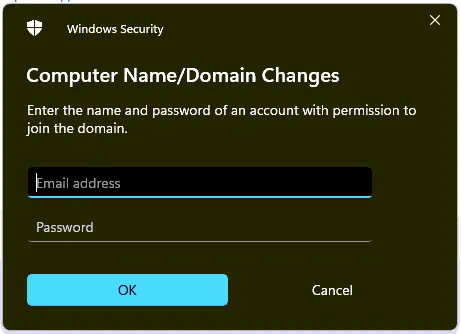
- Add to the ad.ryan-young.com Domain with RYI Domain Admin credentials (PwState)
-
Restart the system once the device has been added to the domain and properly renamed
-
Switch user accounts
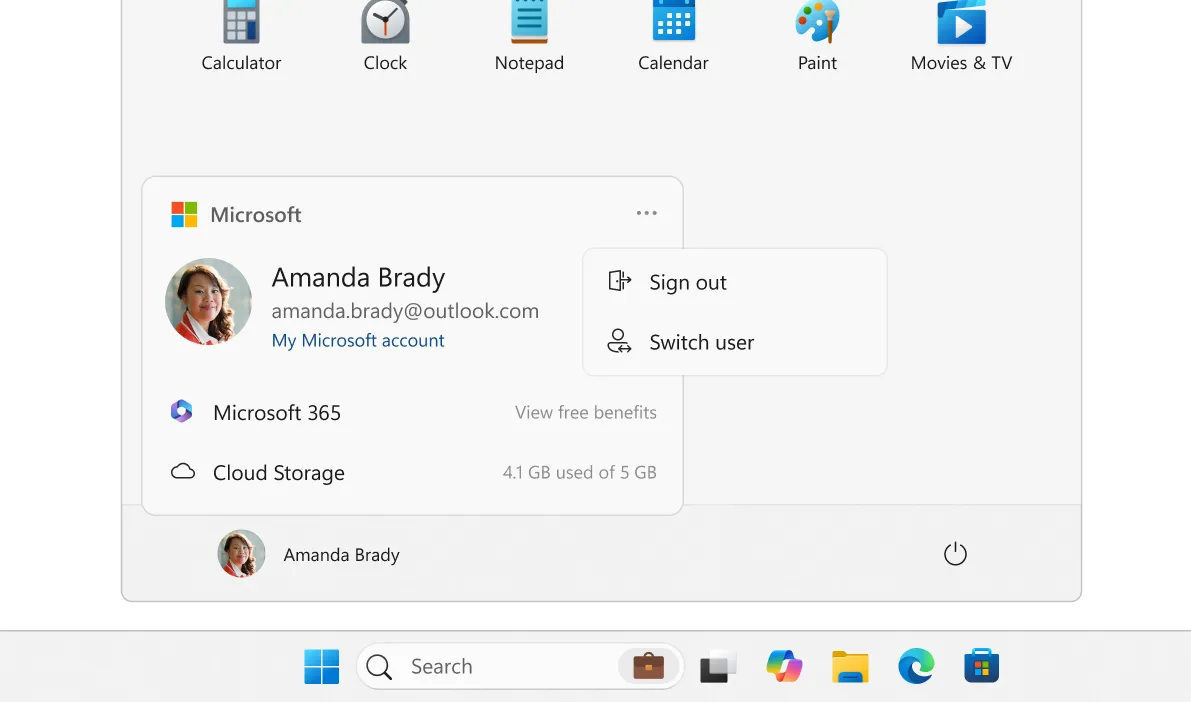
- Have the user sign in with the users domain credentials.
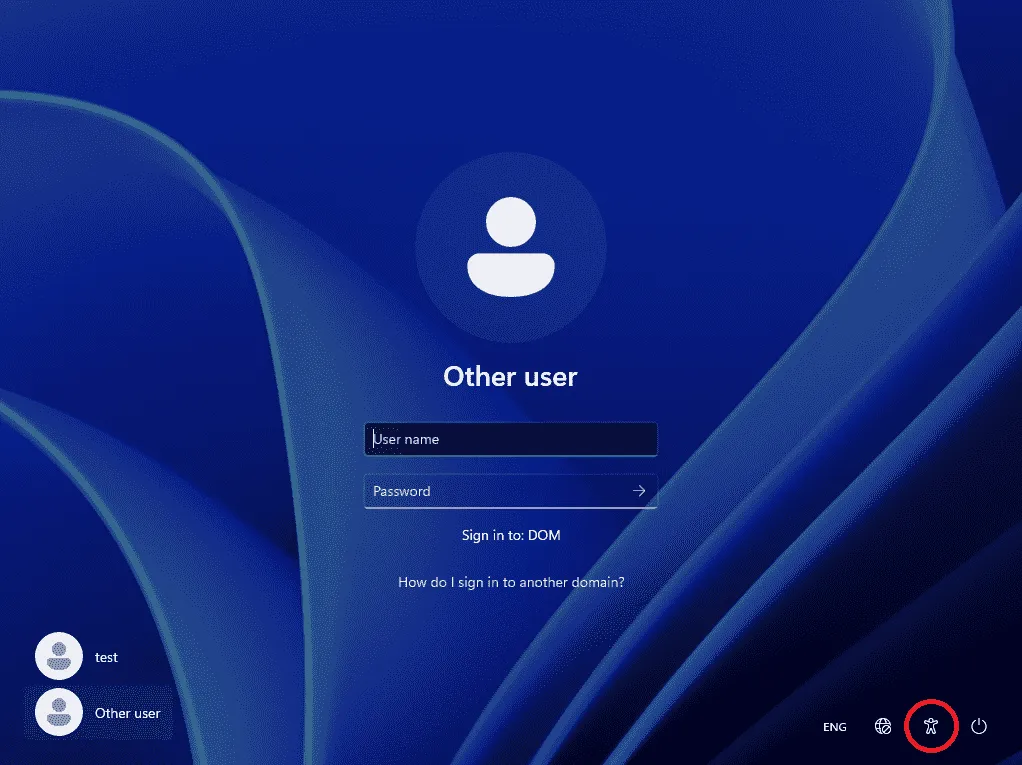
Once the user is signed in:
Section titled “Once the user is signed in:”-
Setup the user profile
-
Sign in to Outlook, pin it to the taskbar
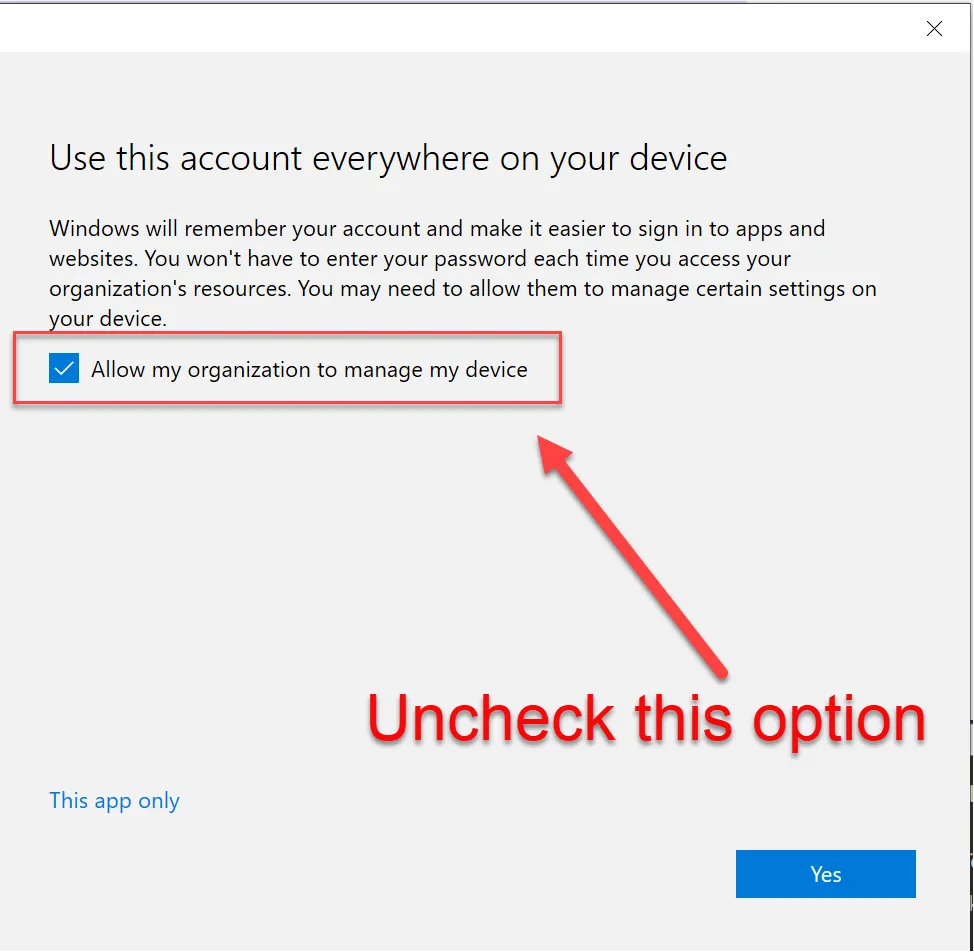
- When presented with this screen, uncheck the box that “Allows this organization to manage my device” as it tends to cause authentication issues with TPM.
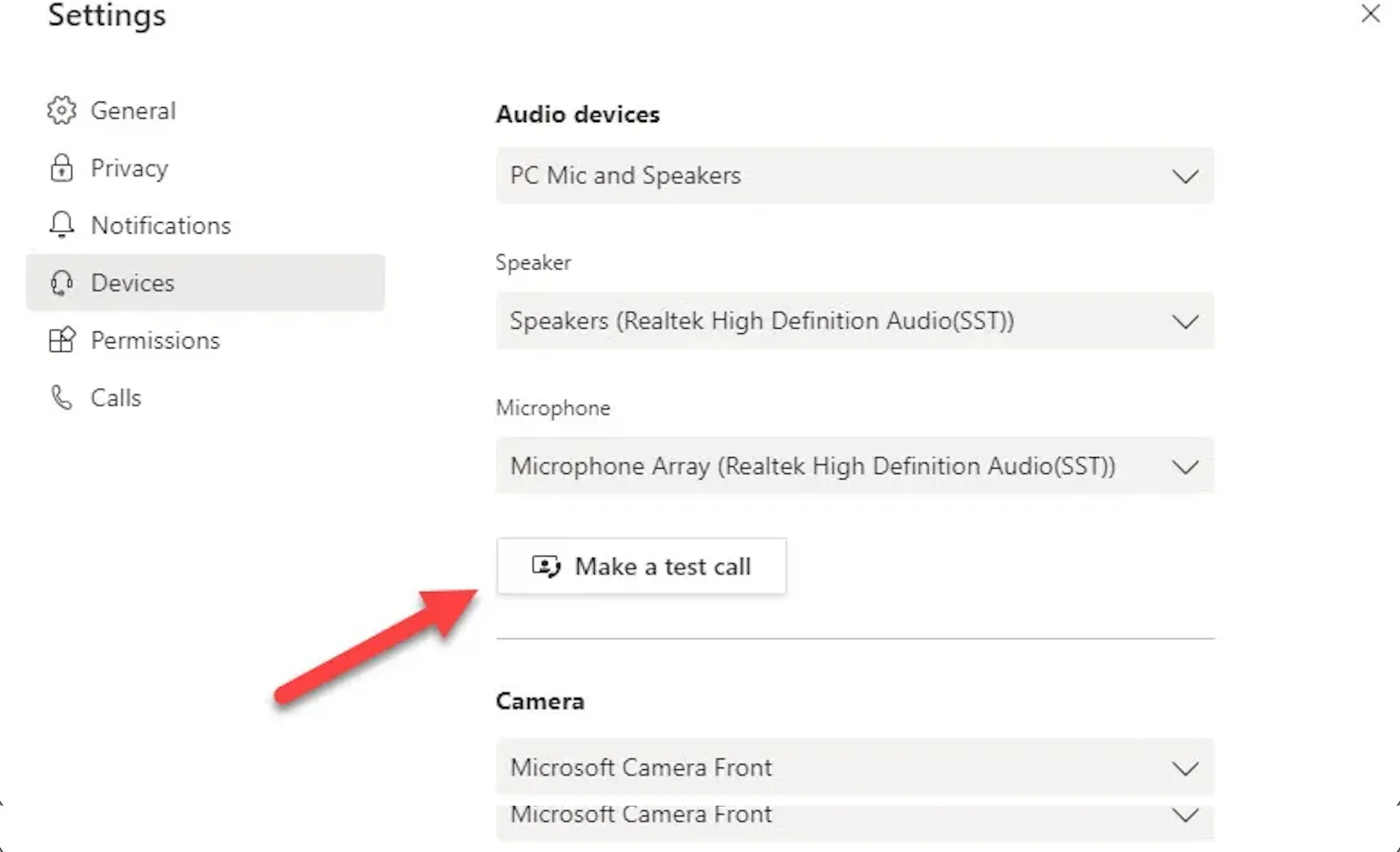
- Set up Teams, and perform a test call to ensure the camera and mic work and that no network authentication message pops up during the user’s first meeting.
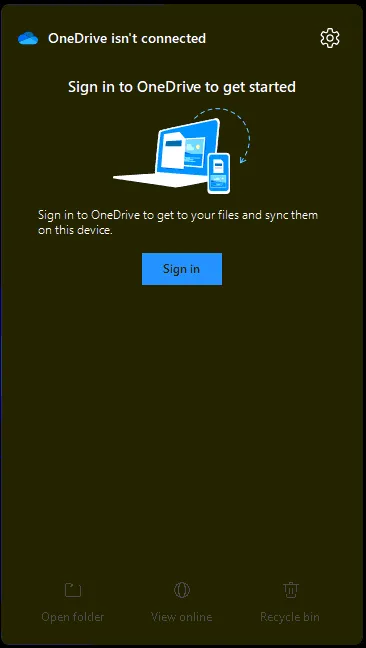
- Setup OneDrive from the taskbar shortcut
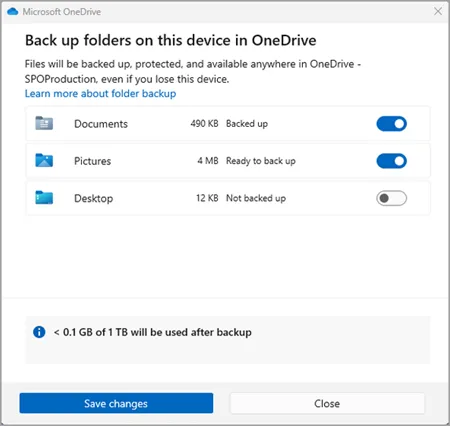
-
Enable Backup for Desktop, Documents, and Picture Backup within OneDrive
-
Set App defaults within Settings
-
Uninstall bloatware
-
Clean up the taskbar and Start menu bloat
-
Remove Widgets, CoPilot, Shrink the Search menu
-
Pinned apps: File Explorer, Google Chrome, Outlook, Teams, Fishbowl
-
Set system sleep times 15-30-30-1Hr.
-
Elevate User to local Admin: net localgroup Administrators localuser /add
Once the user’s AD Profile has been configured on the end-point setup the following applications
Section titled “Once the user’s AD Profile has been configured on the end-point setup the following applications”- Setup outlook
- Setup teams
- Sync SharePoint pages the user has access to. “Company Shares
- Verify all required\requested Shared Drives have been mapped
- Remove Cortana task view buttons
- Set Chrome as the default browser
- Configure AnyConnect
- Add the user’s AD accounts to the Local administrator’s group.
Add the below Icons to the desktop
Section titled “Add the below Icons to the desktop”- Office Suite
- Word
- Power-Point
- Outlook
- Excel
- Adobe Reader
- Chrome
Pin the below applications to the taskbar
Section titled “Pin the below applications to the taskbar”- File Explorer
- Google Chrome
- Outlook
- Microsoft Teams
- Word
- Power-Point
- Excel