Note: Depending on the version and set-up of the Mac, some steps may not apply; skip step(s) as applicable.
This documentation uses KPE as an example environment.
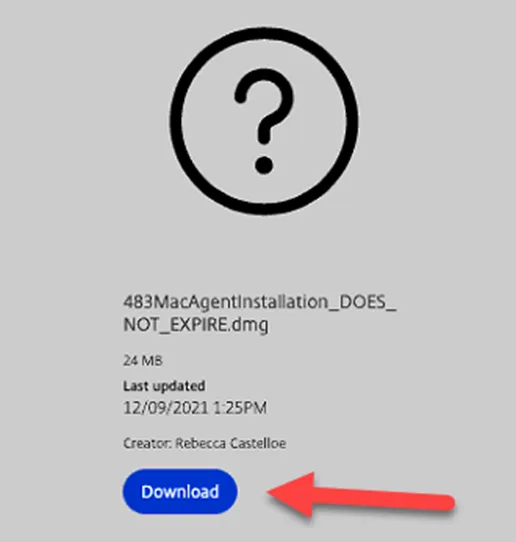
1. Download the Windows Agent from the link that was shared with you.
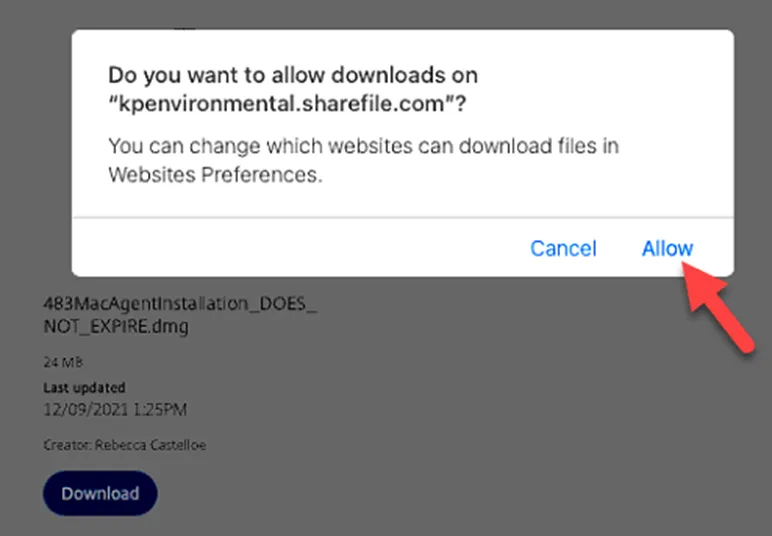
2. Click Allow and find item in your downloads.

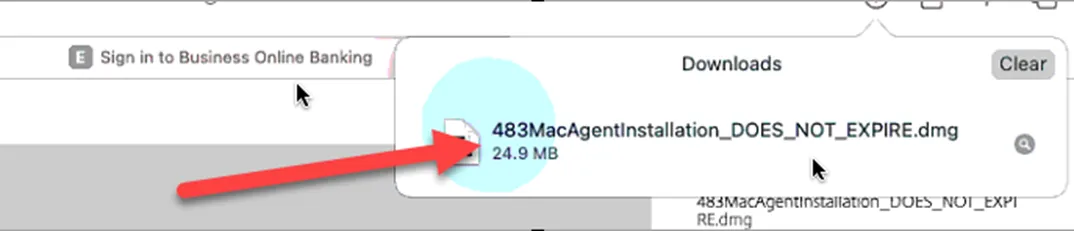
3. Click file in Downloads.
4. Click Register Agent (if you need to uninstall previous version please proceed to step 5, if not go to step 7).
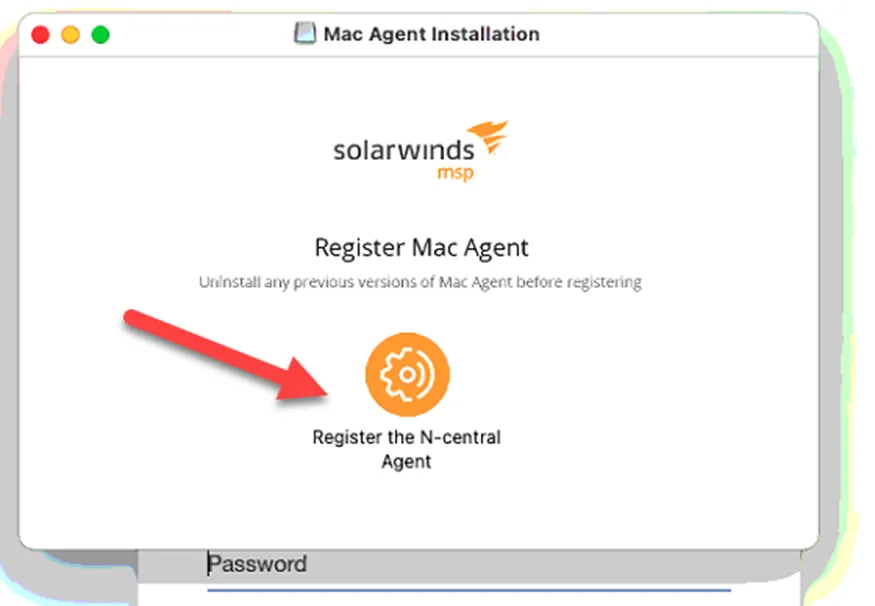
5. To Remove old app-follow these instructions:
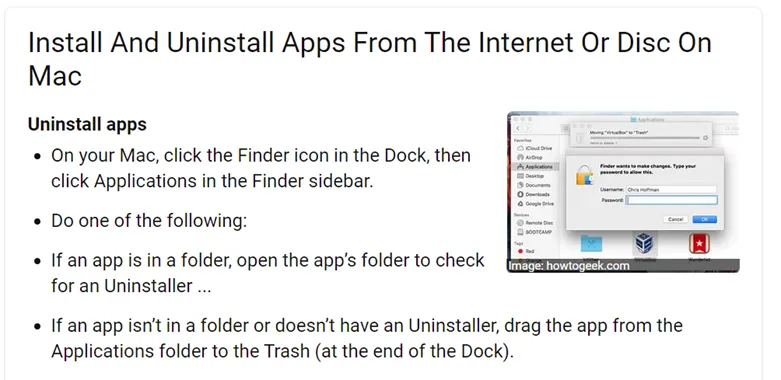
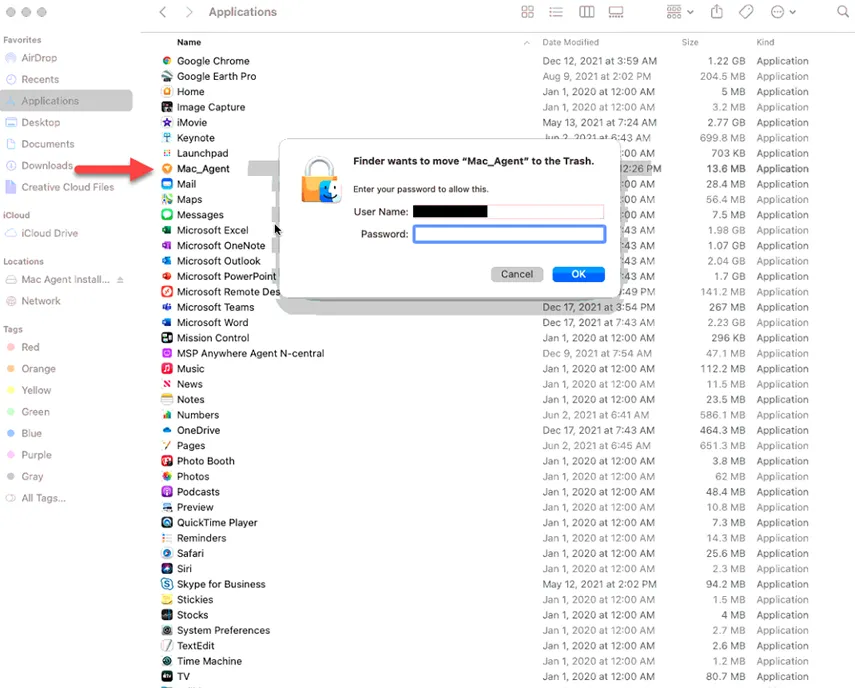
See below for App showing in applications folder.
Drag application to trash, enter credentials to allow.
6. Once removed, click file again to launch and Click Register Agent.
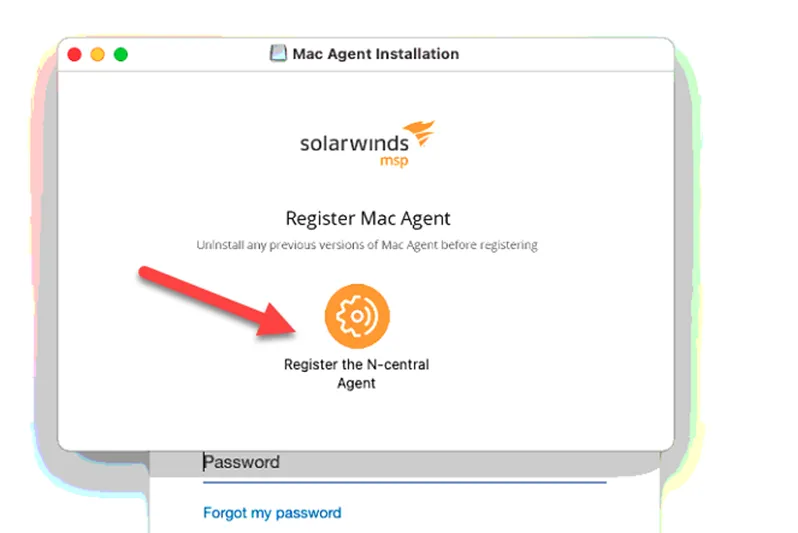
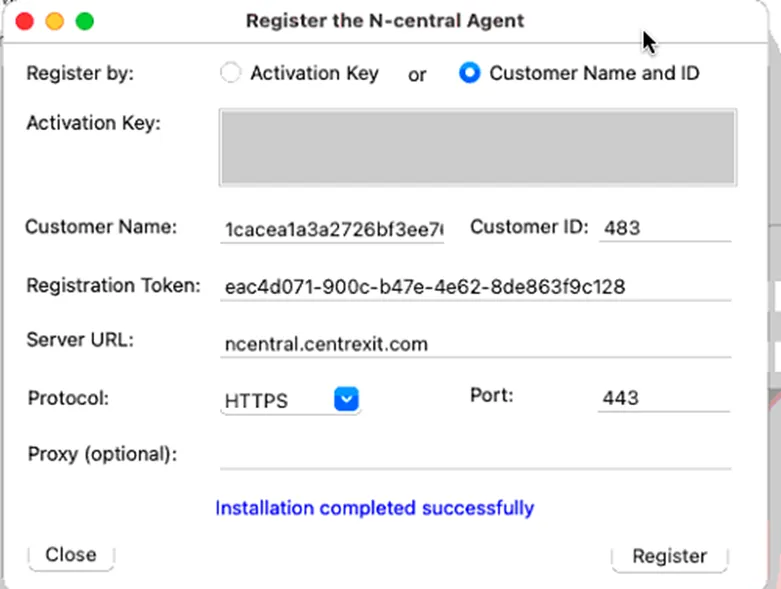
7. Click Register (shown below).
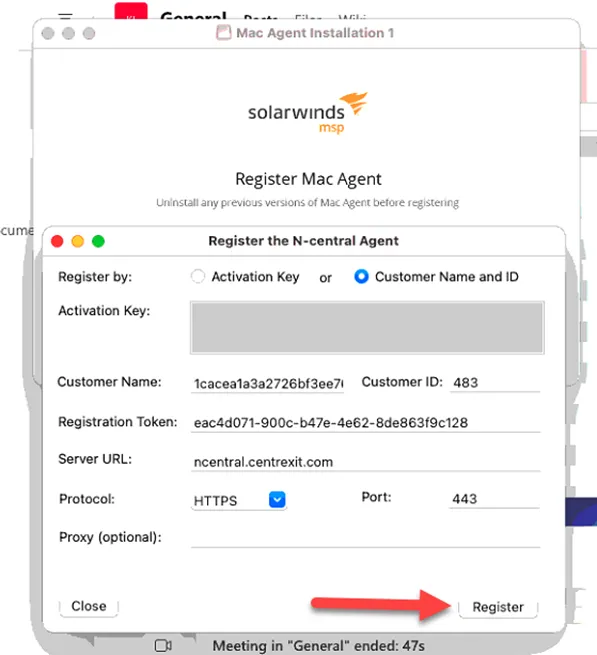
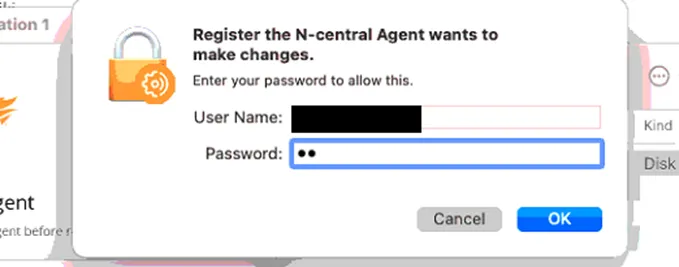
8. Enter credentials to allow.
9. If your Mac is set to not install unverified apps, you will get this error (otherwise install will take a few minutes and when finished should show as in step 11).
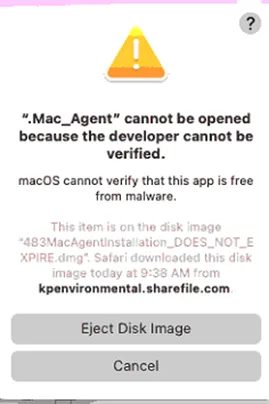
10. To Allow app one time to install:
Select the apple icon at the top right.
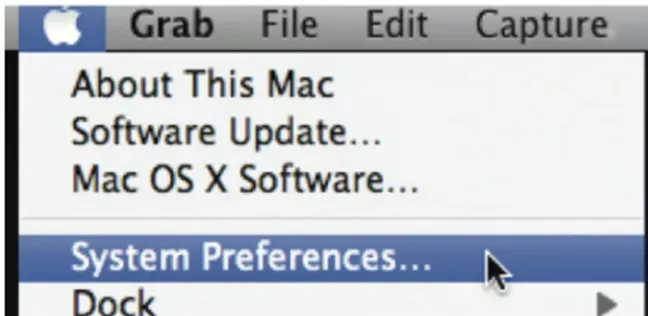
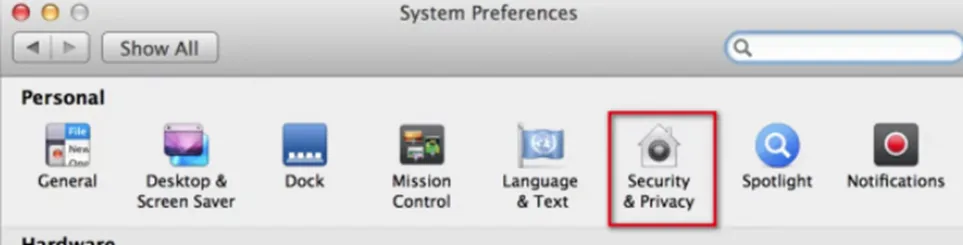
Select System Preferences.
Click Security & Privacy.
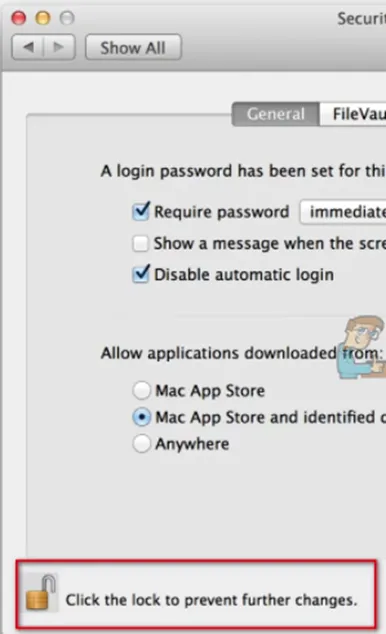
Under the General tab, click lock and enter credentials.
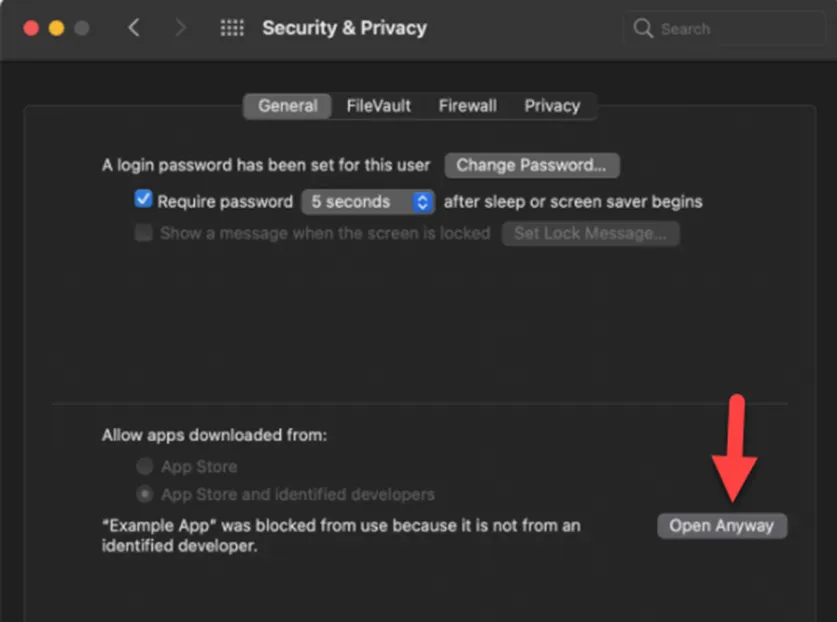
You should see the app listed as being blocked, please click to Open Anyway app.
11. It may take a few minutes to check in and Register. Once complete, you are finished!