Loading...
centrexIT
Knowledge Center

CentrexIT Client Portal - Navigating Client Admin Area

KB00002026
Kellee Blair Work Instruction 1 min
PublishedStephen Homerv0.5
Published Jun 27, 2023Expires Jan 9, 2027

To explain the navigators that are available to a user with Client admin privileges.


  • Incident - ITIL describes an incident as an unplanned interruption to or quality reduction of an IT service.

  • Request - ITIL describes a request as a request from a user for information, advice, a standard change, or access to a service


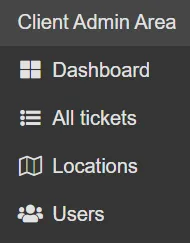
![Client Admin Area Menu](/images/kb/fc2d4a1fbac89521248652b02821a916.webp) ### Dashboard
##### Counters
**Active Incident Tickets counter**
  • Click to open a list of all active incident tickets.

  • Active is any status other than “Resolved.”

    **Active Request Tickets counter**
  • Click to open a list of active request tickets.

  • Active is any status other than “Completed.”

    **Active Users counter**
  • Click to open a list of active users.

  • This view will not show user accounts that have been disabled.

    **Active Locations counter**
  • Click to open a list of active locations.

  • This view will not show locations that have been disabled.

    ##### Graphs
    **Incidents by Category graph**
  • Click to open for a list of all incident tickets summarized by category type.

  • This graph is based on a rolling 90-day period.

    **Requests by Category graph**
  • Click to open for a list of all request tickets summarized by category type.

  • This graph is based on a rolling 90-day period.

    </td>
### All tickets
  • Displays a list of all tickets created by any user within the department or organization.

  • See Client Portal - Basic Navigation for an explantion of ticket details.

    </td>
  • ### Locations
  • Similar to the counter view, except this view includes all disabled locations in addition to active locations.

    </td>
  • ### Users
  • Similar to the counter view, except this view includes all disabled users in addition to active users.

  • Note: Take note of the tags listed next to each user. If a tag contains “Microsoft” or “Google”, the user is maintained in the associated directory.

    </td>