Note: This procedure uses the web GUI. This is used when the client doesn’t have an on-premise Veeam server and we’re hosting the backups.
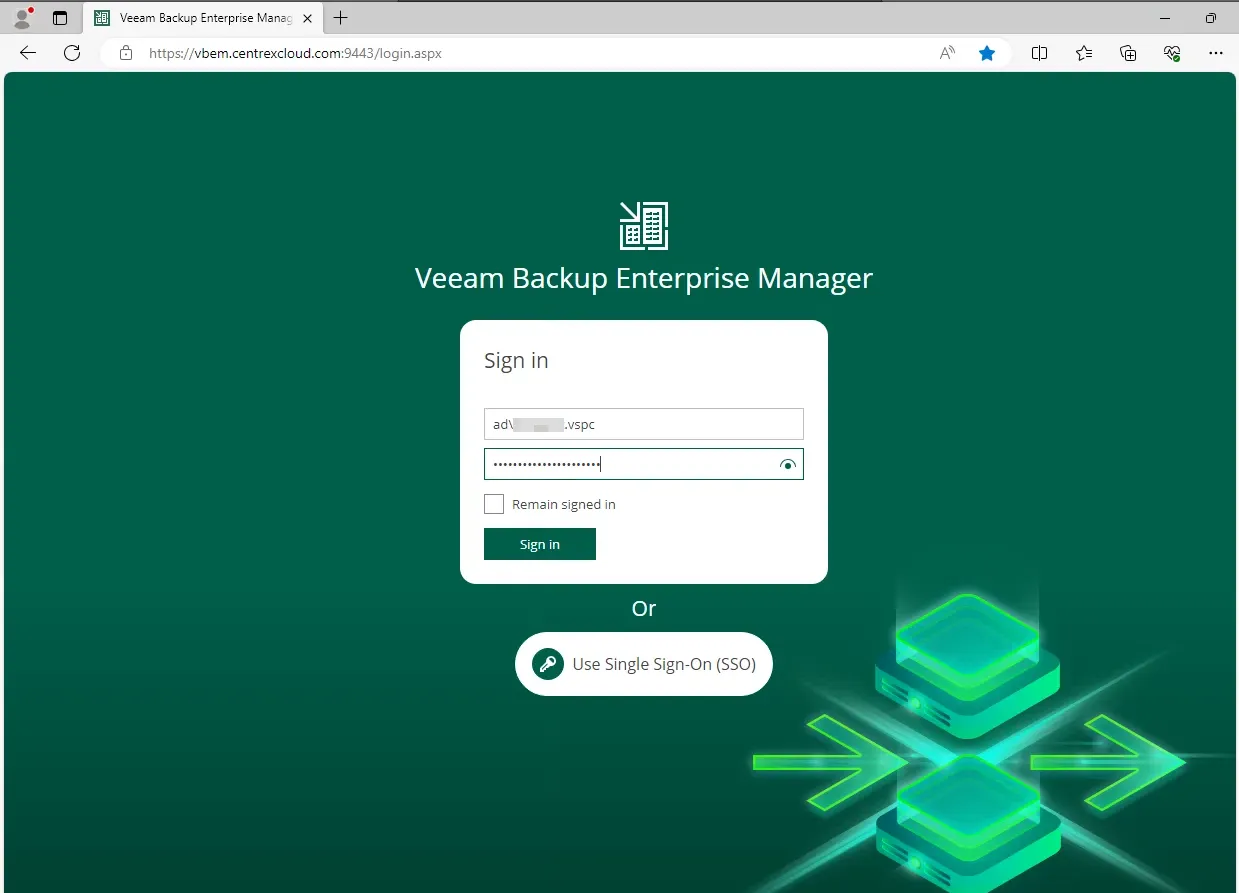
1. Log into either cit-mgmt or NFINIT-UTIL01 with your “rdcsecure\” domain account, or DR-MGMT server with your disaster recovery “ad\” domain account, then navigate to https://vbem.centrexcloud.com:9443/login.aspx in a web browser. At the console login page enter your disaster recovery domain credentials for the ad.citdr.local domain. Username format is “ad\{UserName}.vspc”
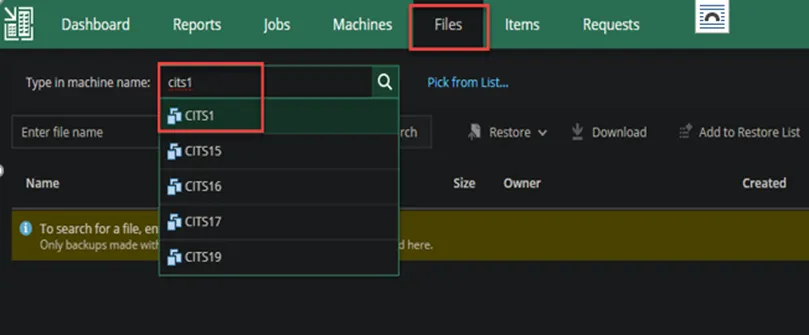
2. Click on “Files” on the top menu bar. Type in the name of the server where the file needs to be restored from. Select the server.
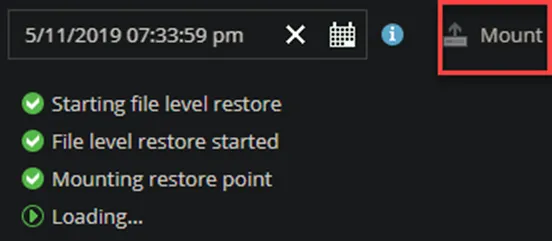
3. Click the calendar button and then select the date of when you wish to restore the file from, then select the time of the restore.
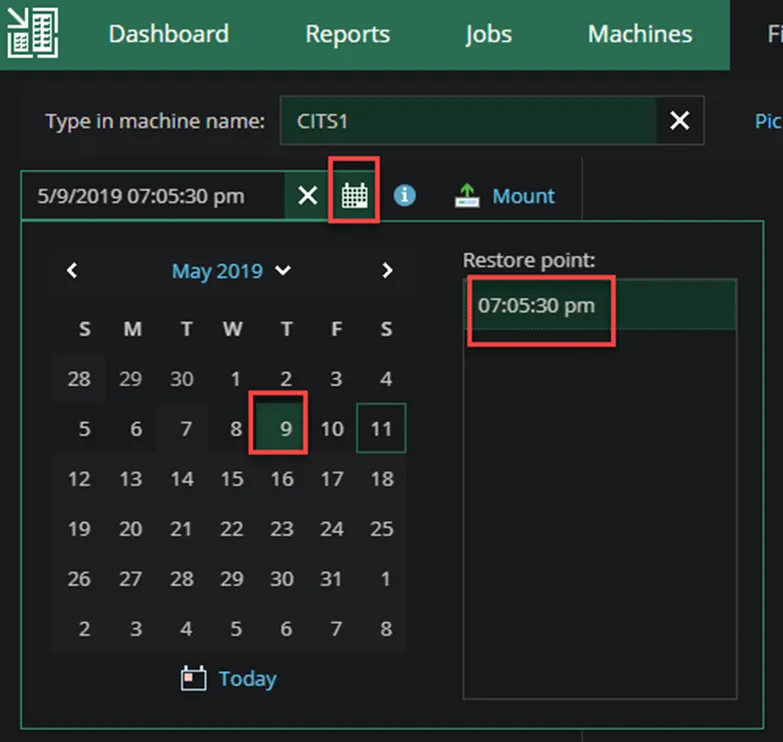
4. Click the Mount button and wait for the restore point to be loaded.
5. Once the restore point is loaded, you can search for a file name, or browse to the location.
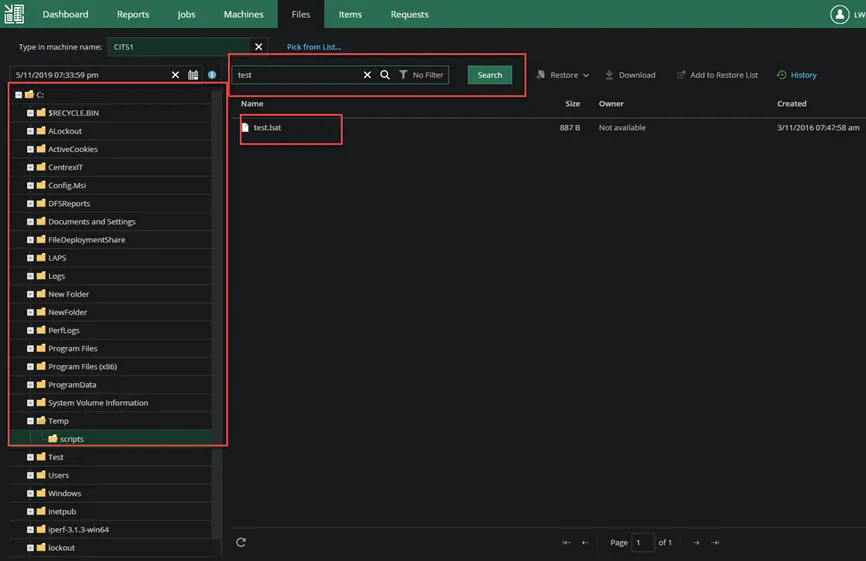
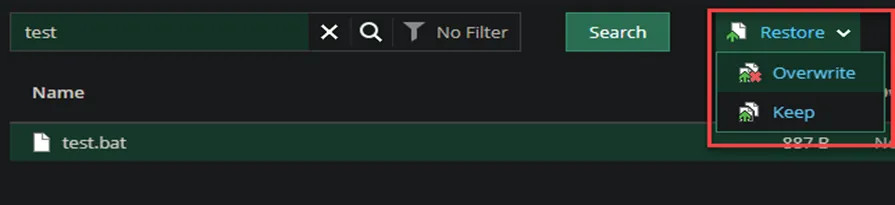
6. Select the file you wish to restore; you can either restore it to the original location or down. If restoring to the original location, you can choose to overwrite the existing file or keep it. If “Keep” is selected, the file you restore will be renamed as filename.restored. You may also select download, which will zip the file and download it to the machine you are accessing the website from.
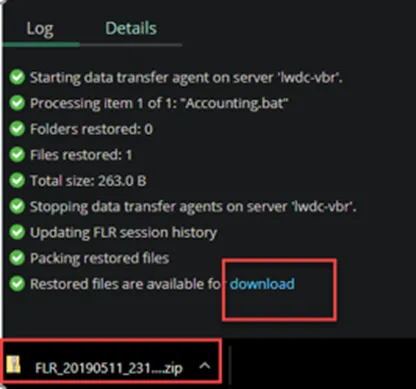
7. If downloading the file, select download; it will bring you to a screen where the restore is processed. Once completed, you will be provided with a download link.