How to Search for and Globally Delete an email for O365
· Firstly, create a search at https://protection.office.com . Expand Search => Content Search and click the plus icon to create a “New Search” rule
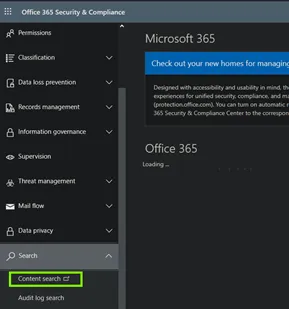
· Click on the Plus sign to create a new search, name it something simple (but explanatory) as you will use this name in powershell later
· Hit next and check only exchange mailboxes
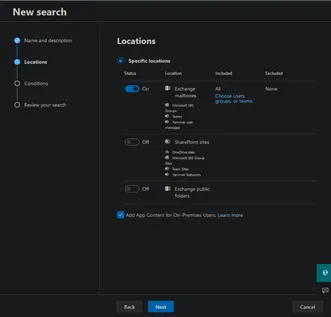
· Click next again, and then add condition(s). You can then enter the subject of the email you are searching for, or any other of the listed conditions. After that click next to review your search and then click submit
· You must then wait for the search to be completed to purge the email
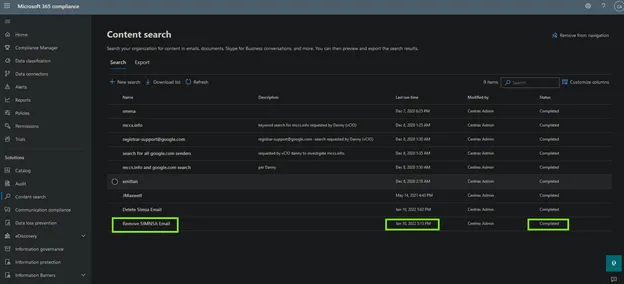
· Once that is completed, you must connect to Security and Compliance Center PowerShell with the following directions (using admin credentials for the O365 account):
1. Run the Windows PowerShell as the Administrator.
2. Connect to Office 365 PowerShell via
$SccSession = New-PSSession
-ConfigurationName Microsoft.Exchange -ConnectionUri
https://ps.compliance.protection.outlook.com/powershell-liveid/ -Credential
$credential -Authentication “Basic” -AllowRedirection
Import-PSSession $SccSession -Prefix cc
3. Connect to Security & Compliance Center via
a. $UserCredential = Get-Credential
b. $Session = New-PSSession
-ConfigurationName Microsoft.Exchange -ConnectionUri
https://ps.compliance.protection.outlook.com/powershell-liveid/ -Credential
$UserCredential -Authentication Basic –AllowRedirection
c. Import-PSSession $Session
· You will be redirected and connected via powershell within the same terminal like this:

· Next use the following command to hard delete the email:
New-ComplianceSearchAction -SearchName “The Name of Your Search Goes in These Parentheses” -Purge -PurgeType HardDelete
· You will get a confirmation to delete, to which you can accept and will get a status starting window

· To check on the progress of your purge, enter the following command:
New-ComplianceSearchAction -SearchName “The Name of Your Search Goes in These Parentheses” -Preview
· And if completed, you will get the following message:
