The Secure Print function allows you to set an ID and password that has to be entered on the copier before your document actually prints. This allows staff to print confidential documents through the copiers without worrying about rushing to pick up those documents.
How to print from your computer
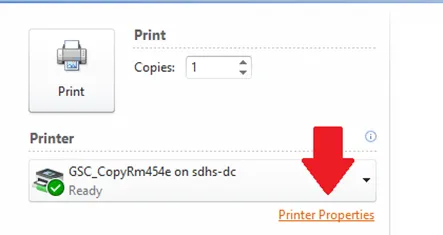
1. In the program you are printing from choose [Printer Properties] from the print dialog. It should be similar to the picture below.
2. In [Output Method] on the [Basic] tab, select [Secure Print].
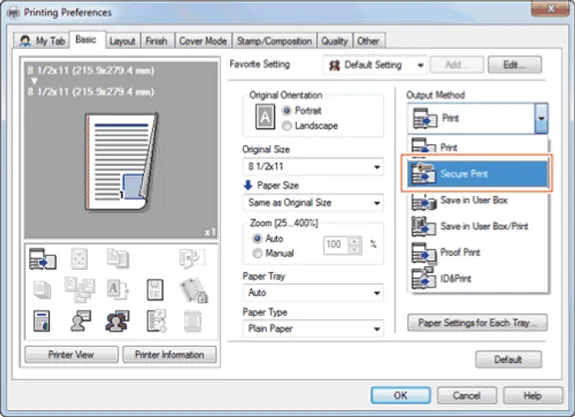
3. Enter the ID and password of your choice, then click [OK].
4. Press [OK] to get out of the printing preferences window, and print your document. It should act as if it is printing as normal.
5. Go to the copier, and log in with your regular department code.
6. Press the physical [MENU] button to the top right of the screen.
7. Press [User Box].
8. Press [System] and the [Secure Print] button.
9. Enter the document ID and password you chose as you printed to access files you have stored in Secure Print.
10. Choose the document you wish to print and press [Print]. Note that you can send numerous documents to Secure Print before going to the copier and printing them, saving you trips to the copier!
11. Change any print settings you need to and then press the physical [Print] button on the copier.
12. Your document should now be printed. It also is now removed from the copier memory.