Note: You should always go to the ChildPlus site for the install file, as they update the program frequently.
1. Go to childplus.net.
2. On the logon screen type the following:
Agency ID: MAACProject
Username and password are in 1Password.
3. Click on Sign In.
4. Click Download to get the executable file.
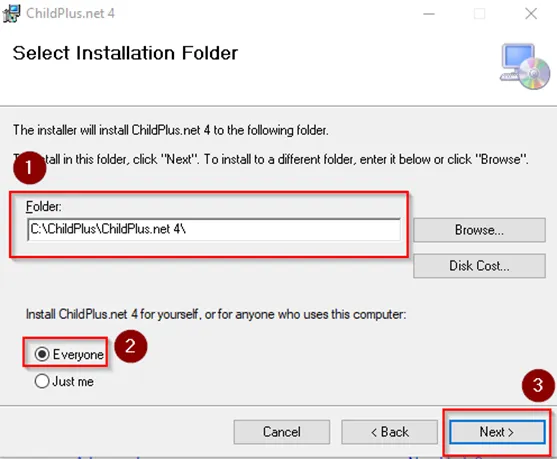
5. When running the file, you can just click through with Next for each page. The only setting you need to change is set the Install ChildPlus.net option to Everyone.
6. Click Close on the last page.
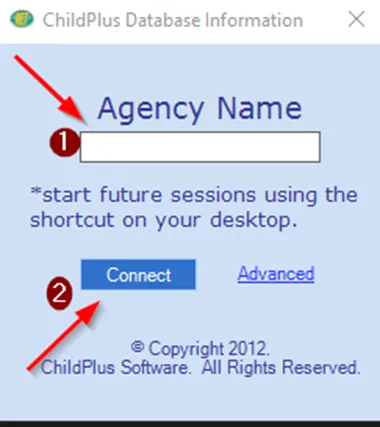
7. Once ChildPlus is installed, open the program and put MAACProject in the Agency Name box and click Connect. An update will often run after logging into this page for the first time.
8. If the user is available, make sure they can login on the page that opens after the update runs. The first time they login to a fresh install, they will receive either an email or text with an authentication code to enter in the program. After they put in the code, check the box for “Remember this device” so they won’t get prompted to do this every time.
If the user is having issues logging in or with their account details, please advise them to reach out to Sonia Hilstock (shilstock@maacproject.org), who is the ChildPlus administrator.