Configuring Holiday Schedule
Section titled “Configuring Holiday Schedule”The guide will cover the basic steps for configuring the holiday schedule in PagerDuty, NCentral, and CJP.
PagerDuty
Section titled “PagerDuty”To set the Holiday Schedule in PagerDuty, it must be done with the Supervisor Account.
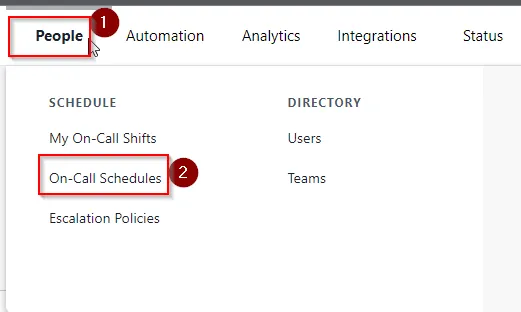
1) Navigate to People > On-Call Schedules
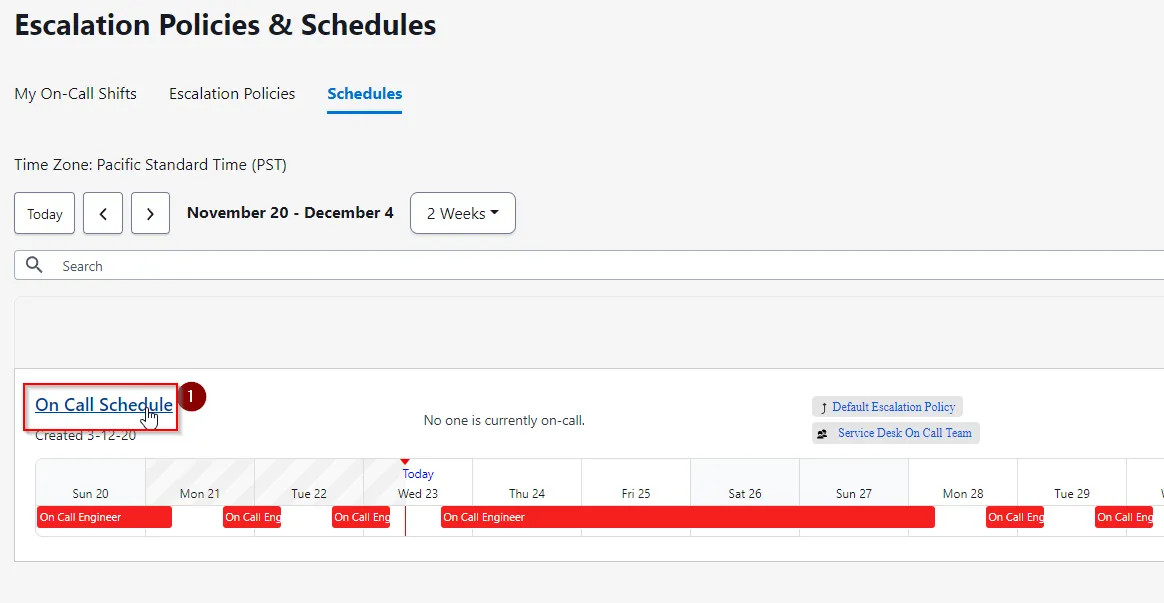
2) Click on the “On Call Schedule”
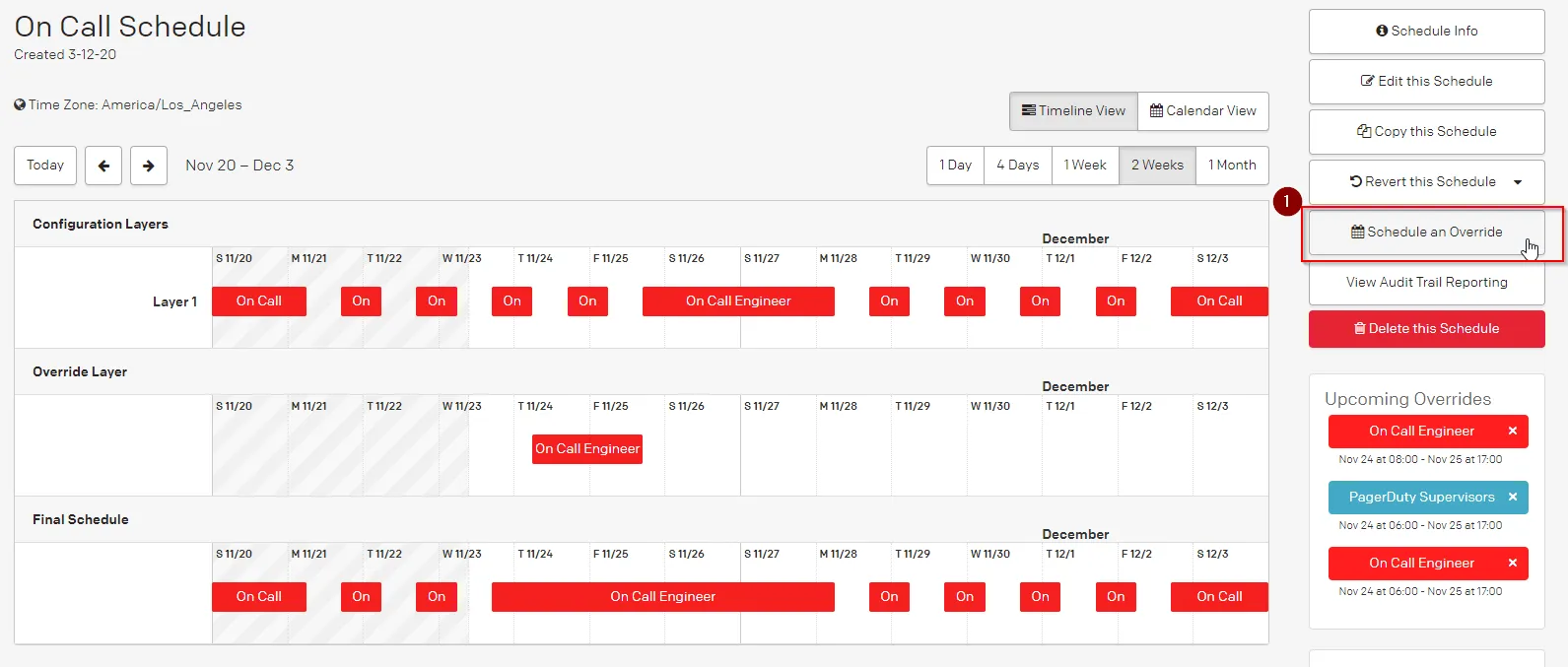
- Click on Schedule an Override and Select Custom
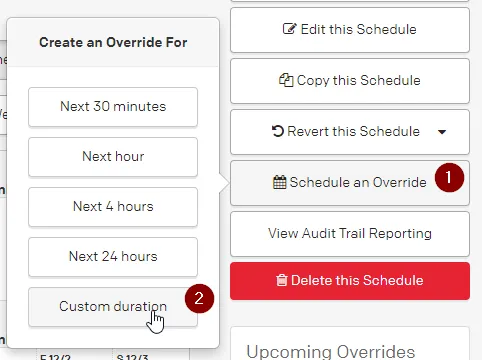
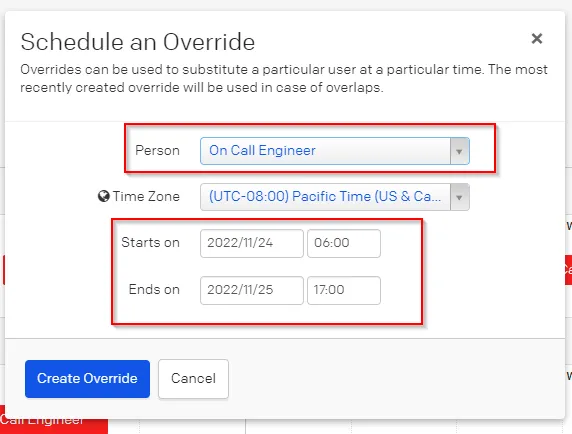
4) In the Schedule an Override, make sure to set the Person field to the “On Call Engineer” and set the desired schedule to cover the typical Business hours of 0600 - 1700 PST. In this example we are setting the Holiday schedule to cover Thursday and Friday for Thanksgiving. To complete, click on Create Override.
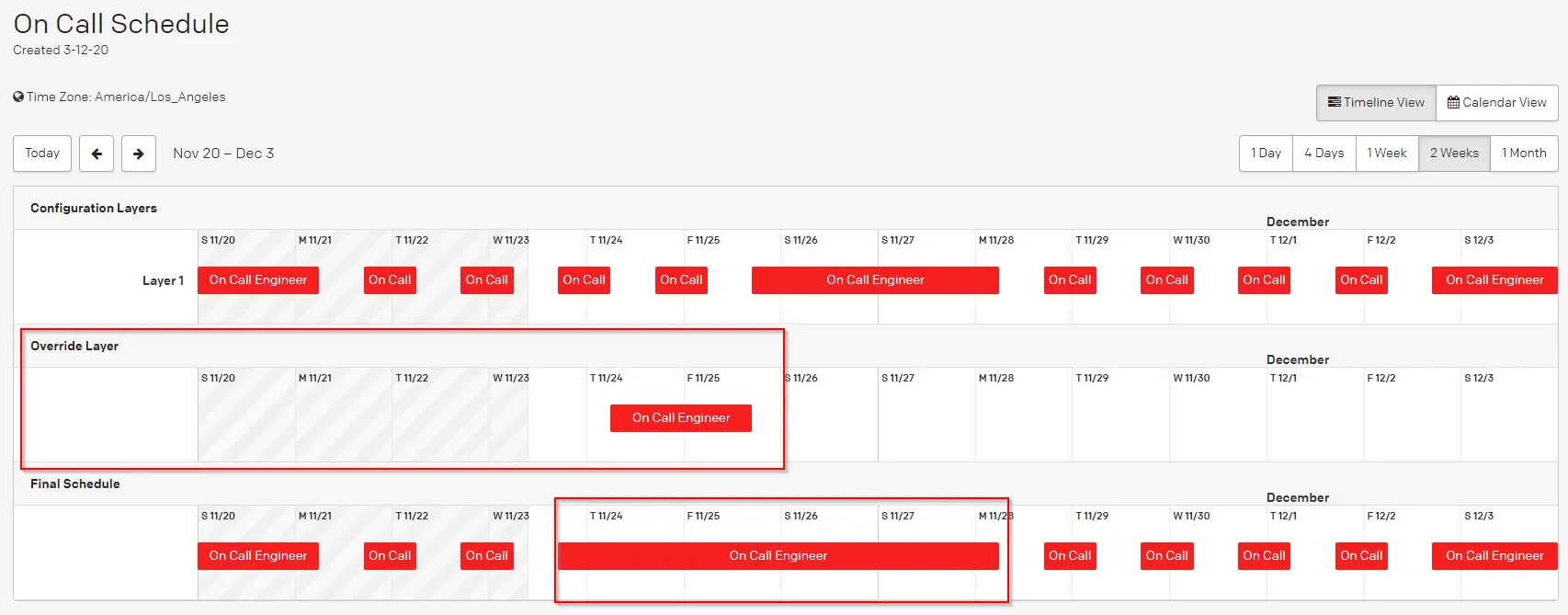
5) You can review the schedule within the calendar to verify, edit, or delete the override schedule.
If you need to modify the Override schedule that was created, click on the schedule under the Override Layer and click Schedule an Override.
Section titled “If you need to modify the Override schedule that was created, click on the schedule under the Override Layer and click Schedule an Override.”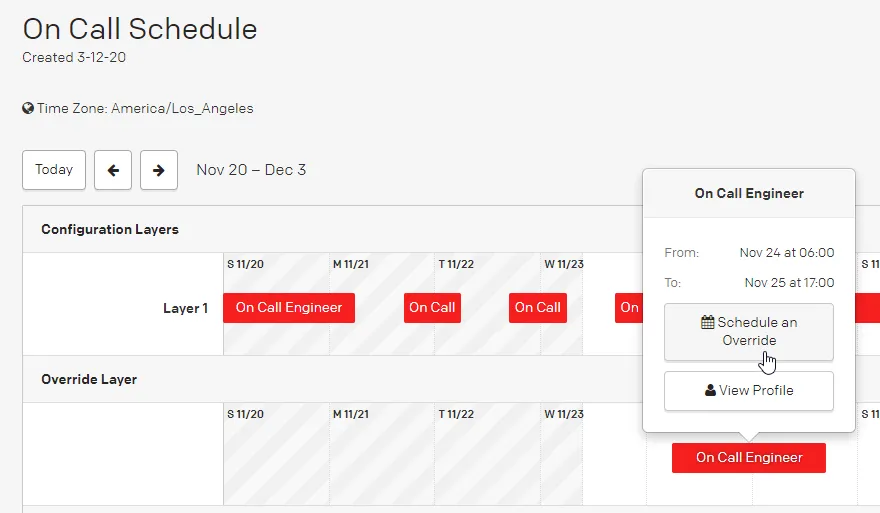
NCentral
Section titled “NCentral”To setup NCentral for Holiday Coverage, it will need to be done with a Team Lead Account, because they have the access to manage Users.
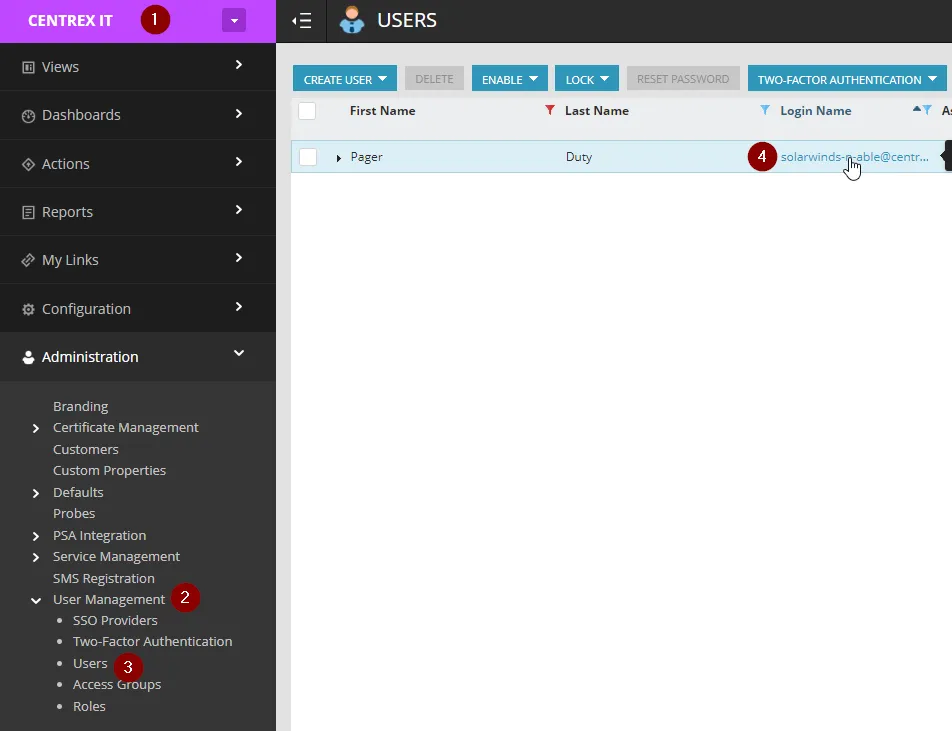
- In NCentral under the SO Level, Navigate to Administration > User Management > Users > Find the Pager Duty account and click on the Login Name solarwinds-n-able@centrexIT.com.
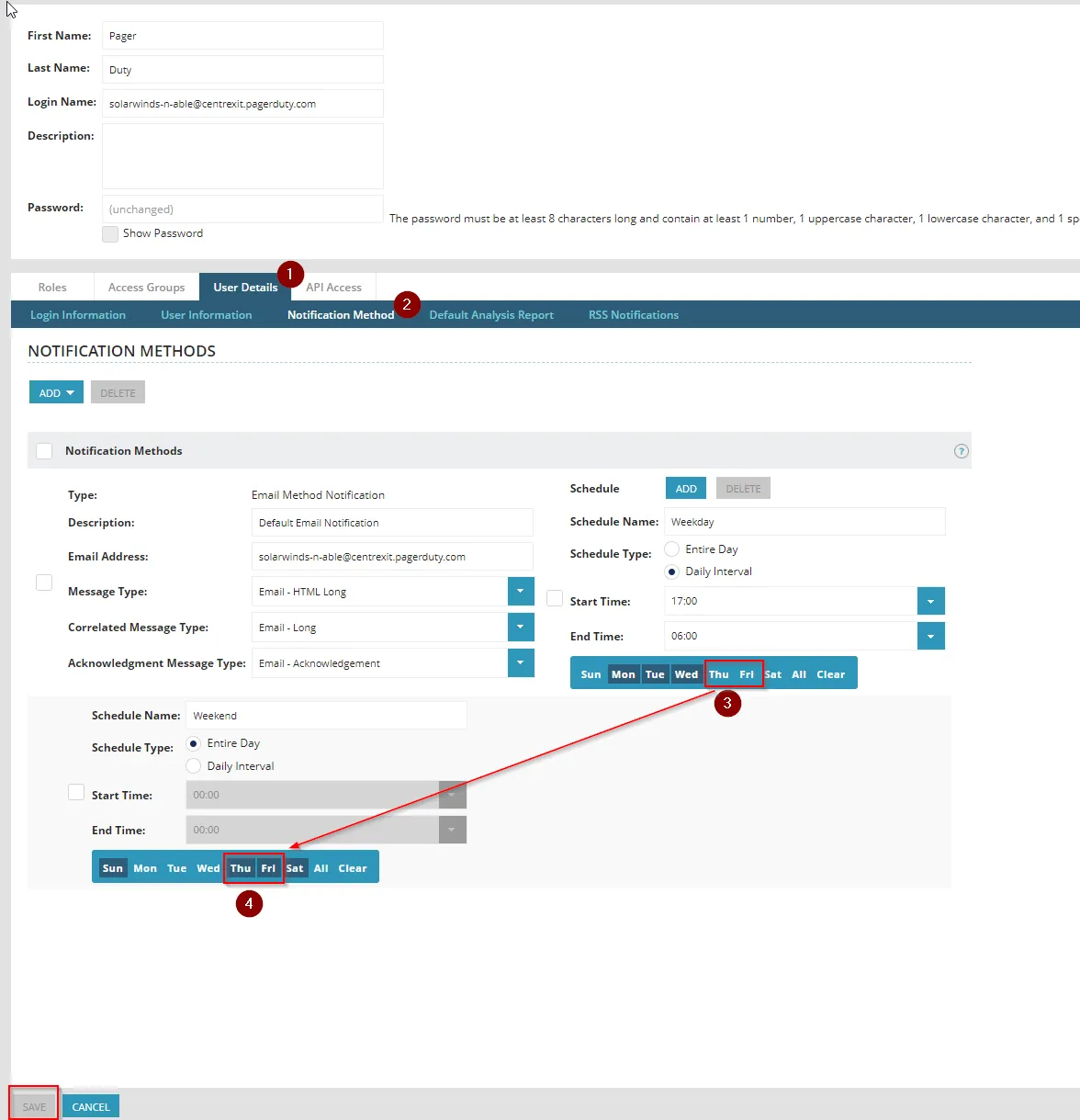
- Within the User Profile, Navigate to User Details > Notification Method > Uncheck Thursday and Friday under the Weekday Schedule, and Check it off under the Thursday and Friday under the Weekend Schedule. This example is still focusing on the Thanksgiving Holiday. This same process can be done for any other Holiday such as Labor Day which Typically falls on a Monday. Click Save to Commit the change. **Please NOTE the Notification schedule will need to be reverted back, once the Holiday is over.**
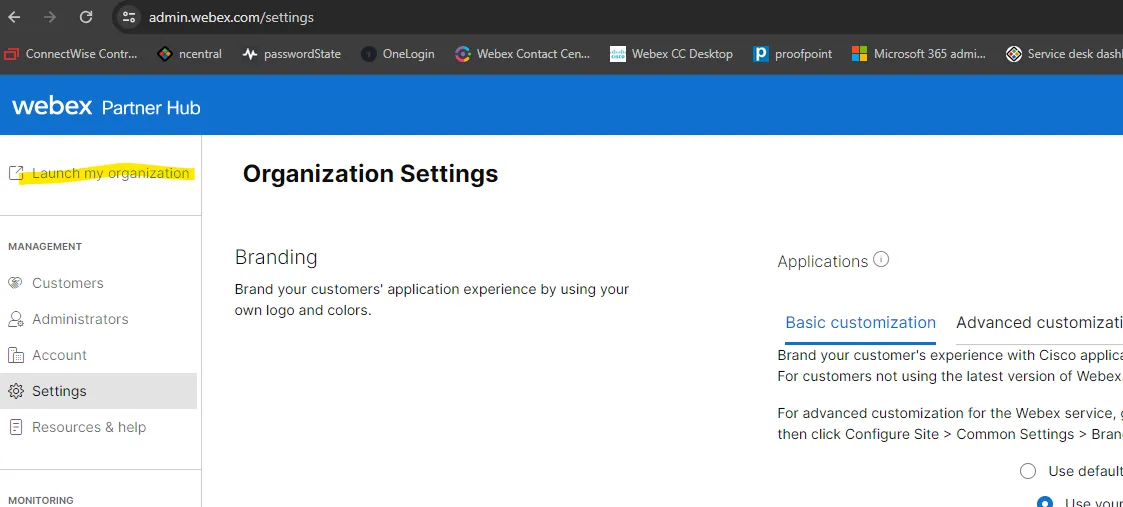
This step will need to be performed by an on-call escalation that will have the access to the control panel. Login to https://admin.webex.com/
Select “Launch My Organization”
Select “Business Hours”
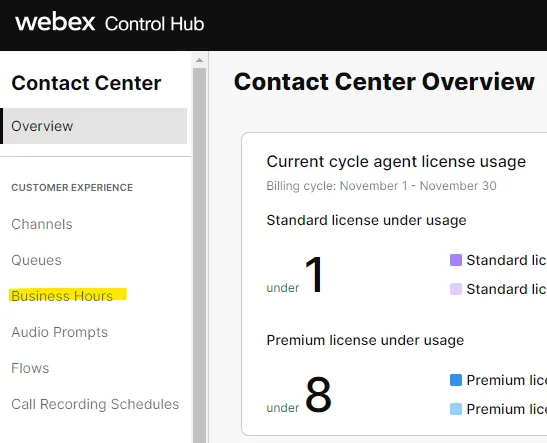
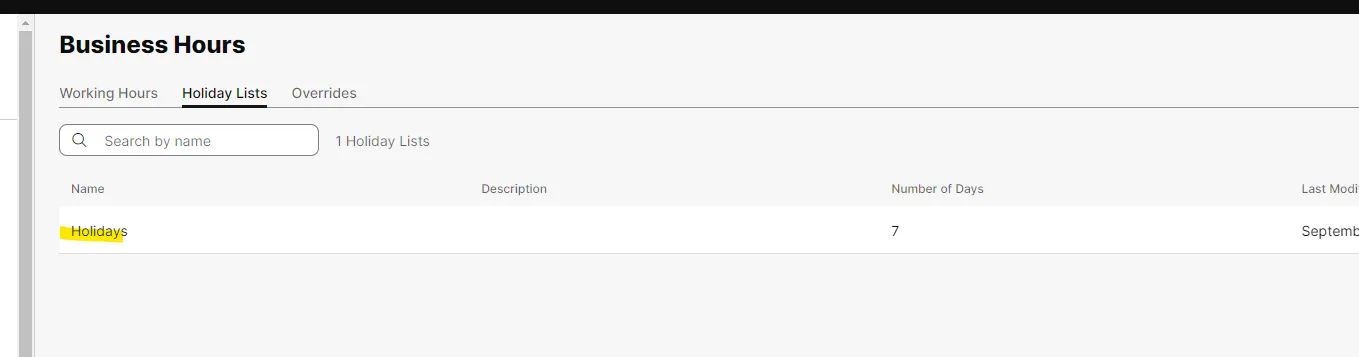
Select “Holiday Lists”
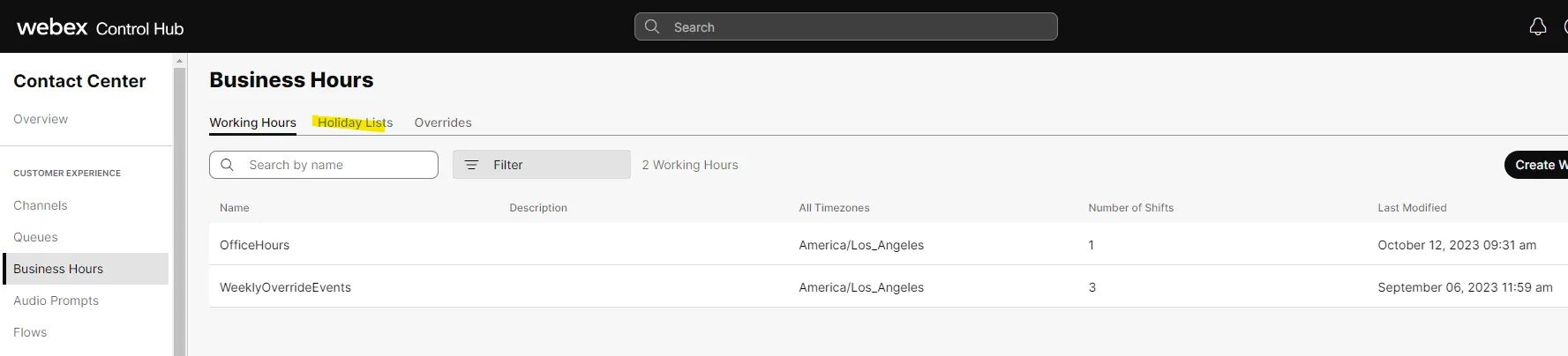
Select “Holidays”
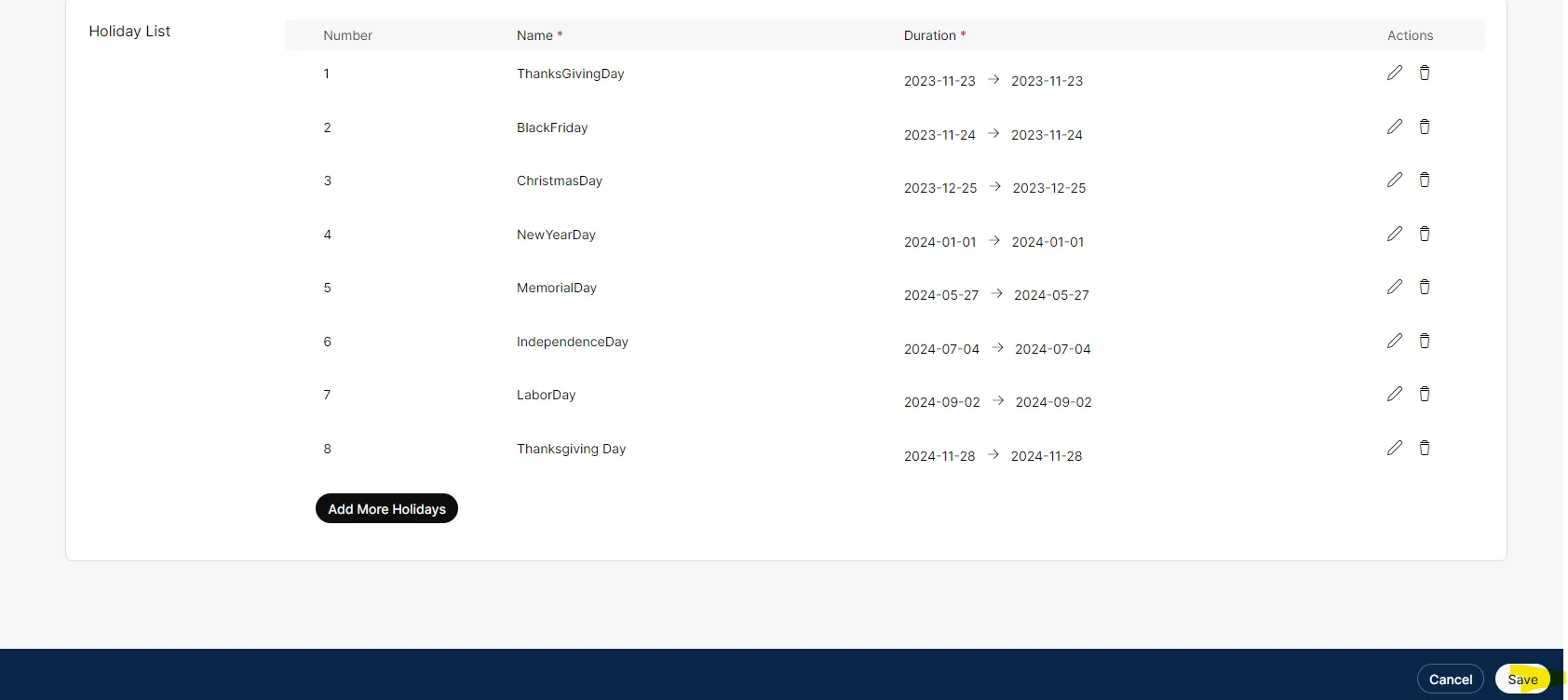
Scroll down and select “Add More Holidays”
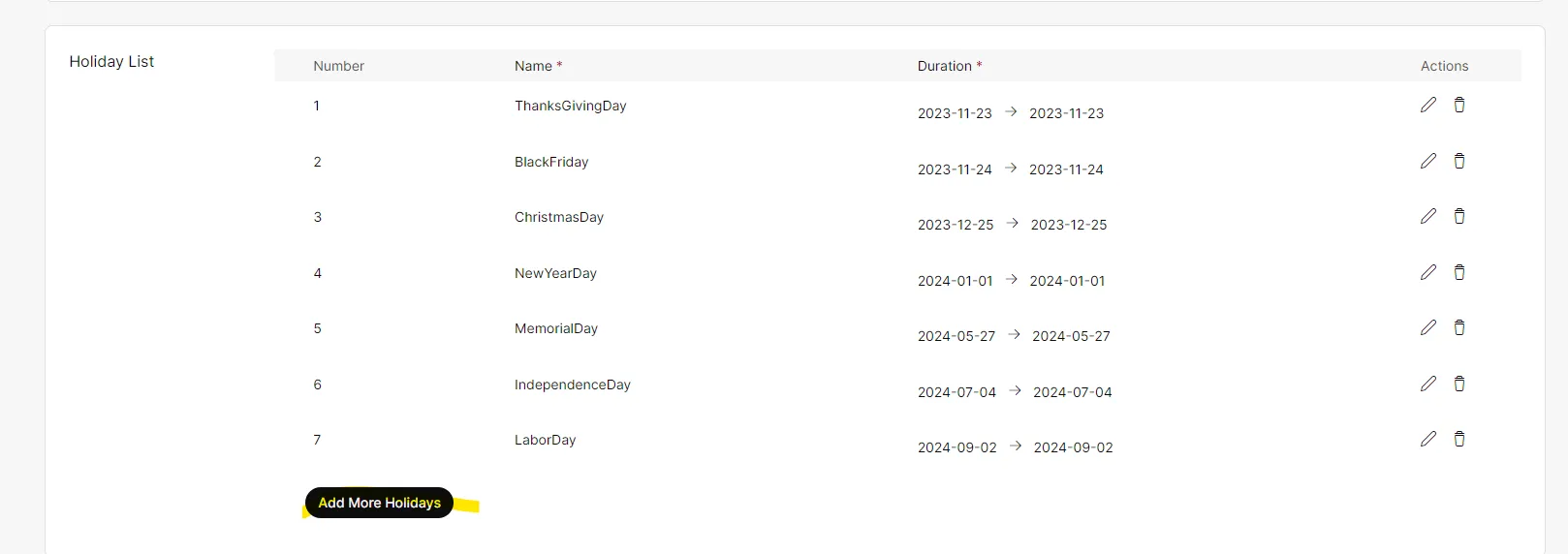
You will enter the name and the dates

Then Press the Check Mark

Click “Save” in bottom right