Resolving OneNote File Not Found Errors after Domain Change
Section titled “Resolving OneNote File Not Found Errors after Domain Change”Summary: After a domain change, users may experience issues access their OneNote notebooks. This is due to the URL changing after the domain is changed. Follow these instructions to resolve the issue.
IMPORTANT: Before performing any changes, open the OneNote app, and export all notebooks they have open that is having sync issues. Export it to the local disk as a backup.
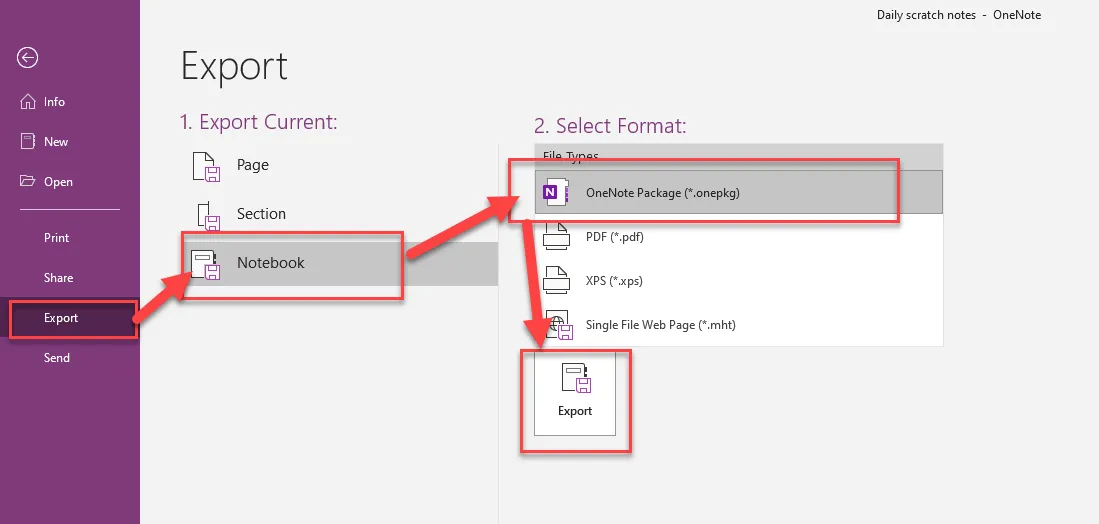
To export notebooks:
1. For each notebook, select the notebook then click File.
2. Click Export.
3. Under Export Current, click Notebook.
4. Under Select Format, select OneNote Package
5. Click Export. Save to the local drive.
6. Repeat these steps for each notebook they have.
To resolve the issue:
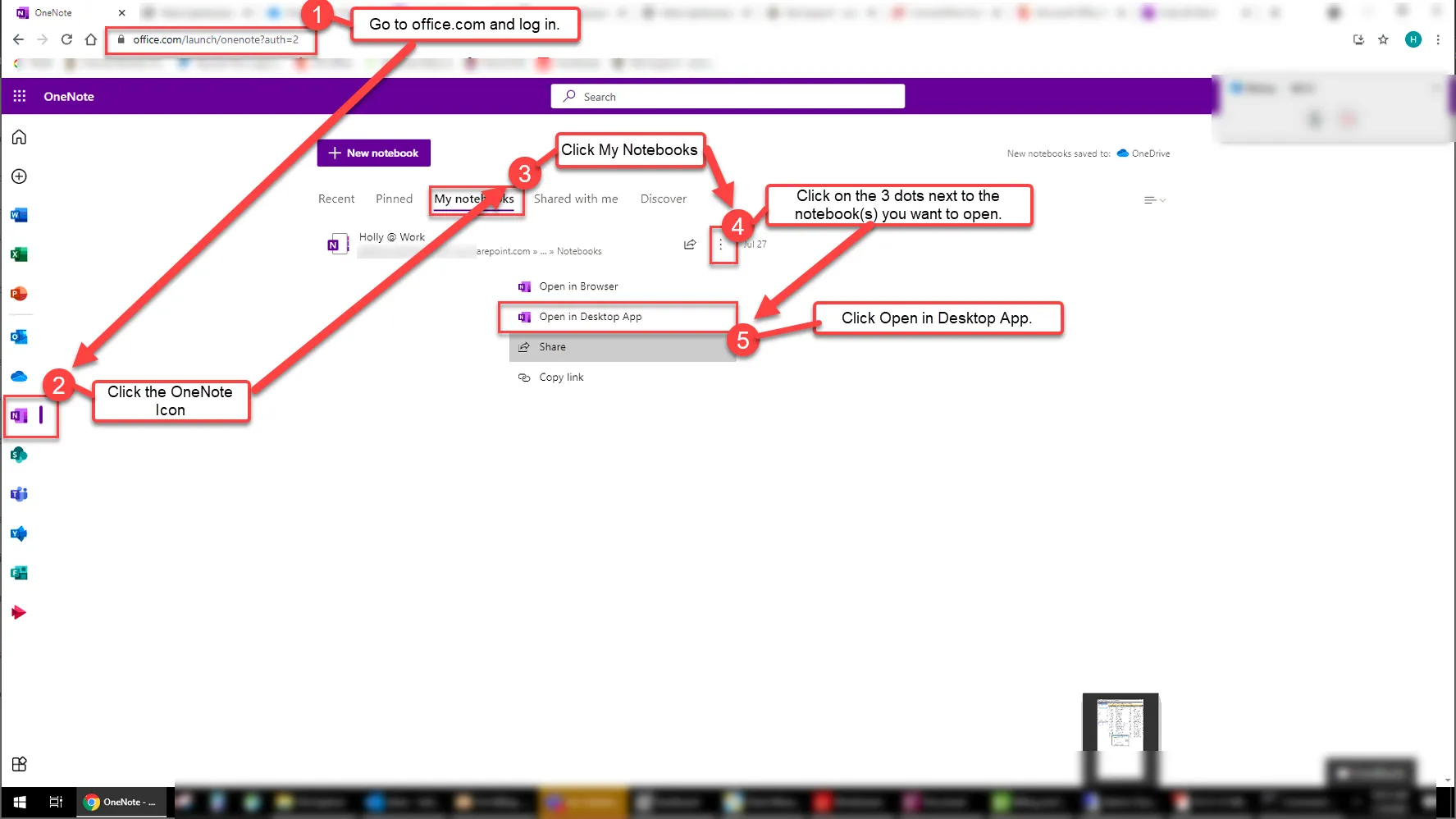
1. Log into office.com
2. Click on the OneNote Icon
3. Click on My Notebooks. (Do not pay attention to the notebooks in the recents tab. That will contain notebooks that point to the old path and no longer work.)
4. Click on the 3 dots next to the notebook you want to open.
5. Click Open in Desktop App