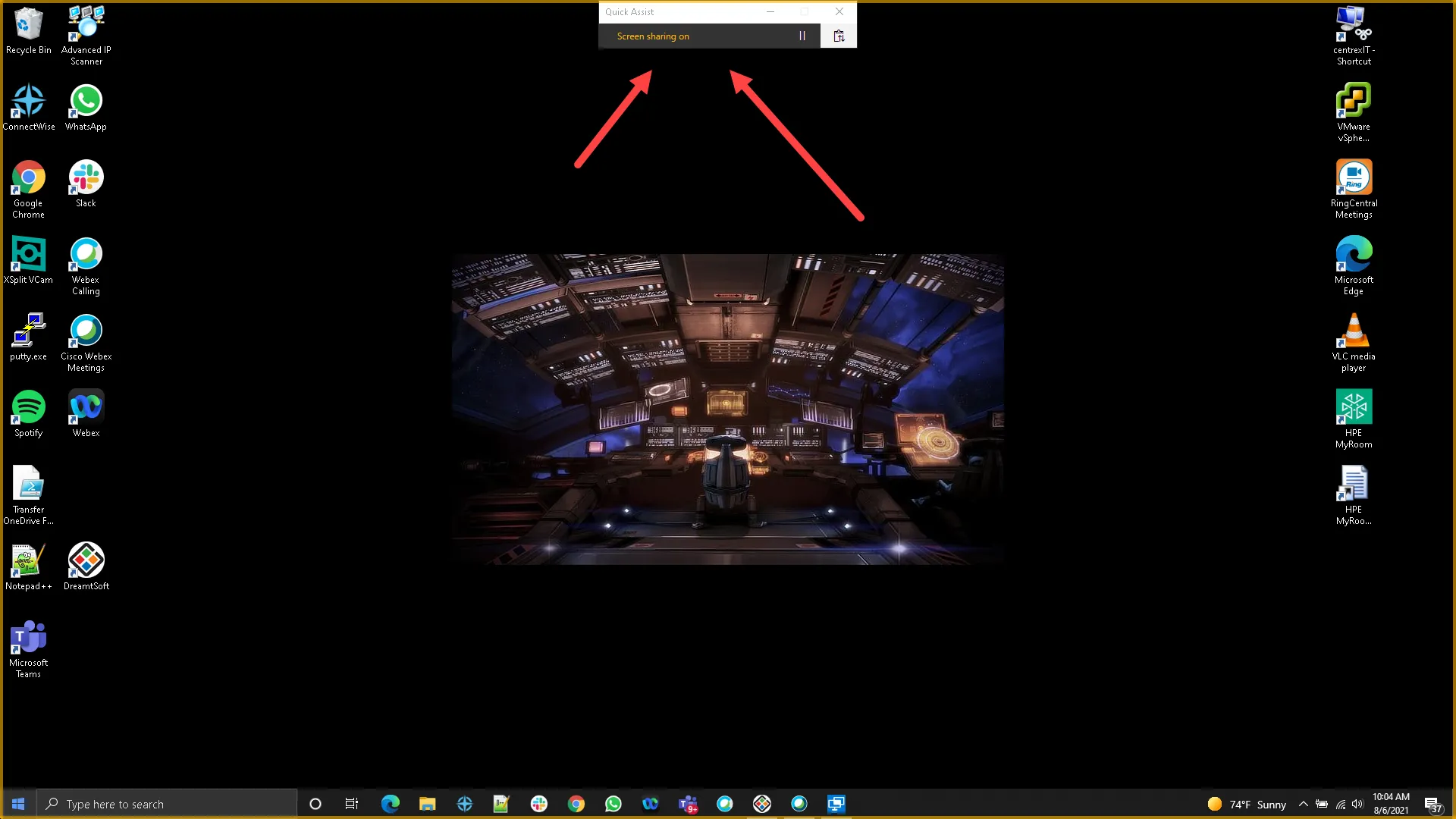
This is to show how to use Microsoft built in Quick Assist for remote control (in case ScreenConnect, nCentral, and TeamViewer do not work). Please note both computers have to be Windows 10 or higher.
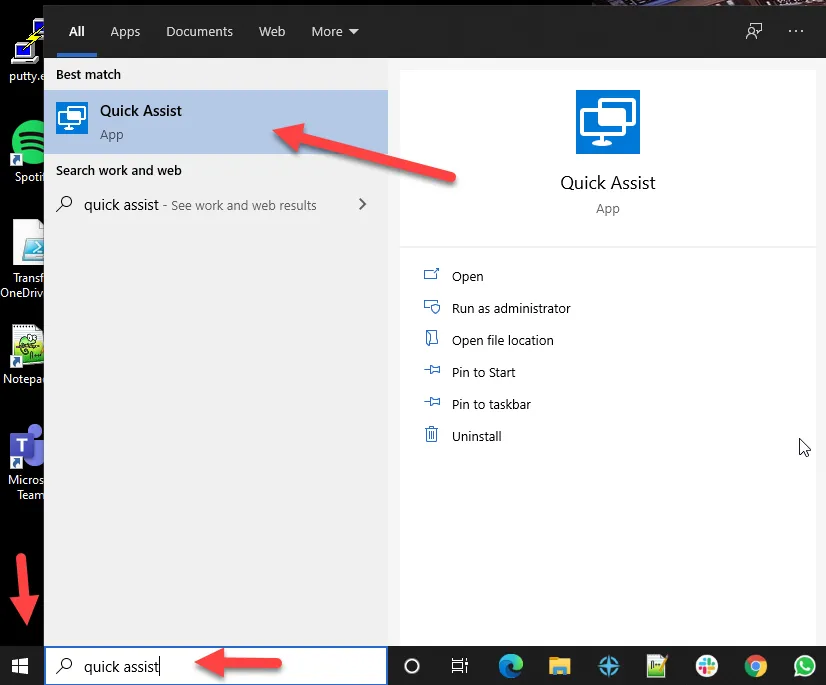
1. From your computer, open the Start menu and type in Quick Assist
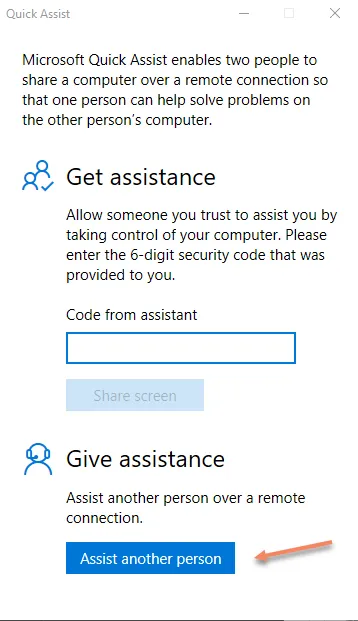
2. Click “Assist another person”
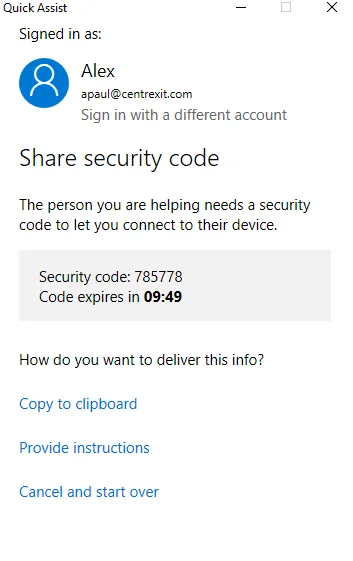
3. You will then see the screen with the security code and will need to provide this to the user you are assisting later
4. Ask the end user to click on Start and then type in “Quick Assist”
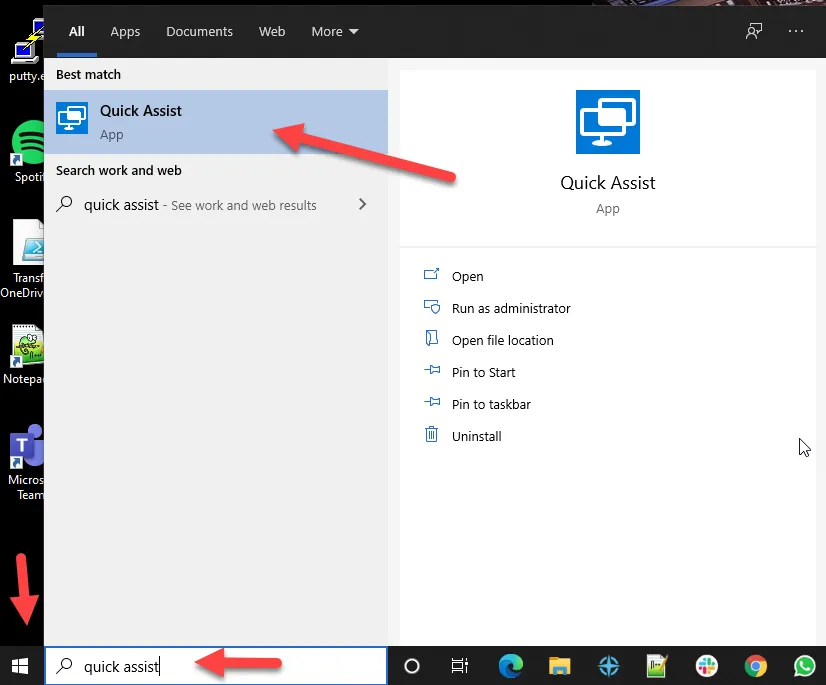
5. It will open up and you should see the program asking for the code you got in Step 2. Provide the user the code and then have them click “Share Screen”
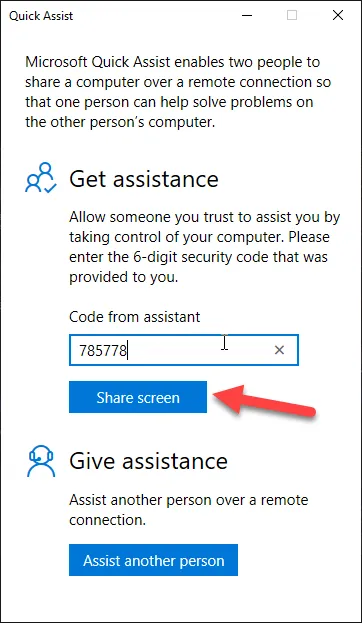
6. You will then see this screen
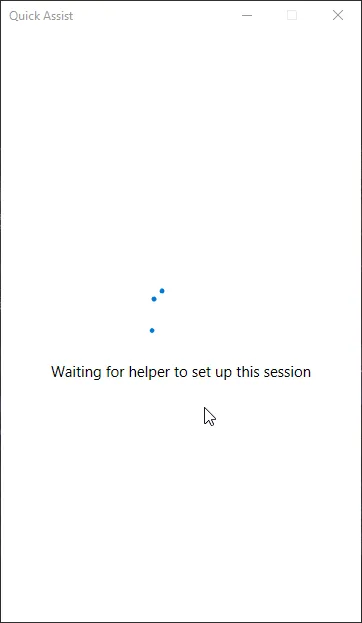
7. You will then see this screen
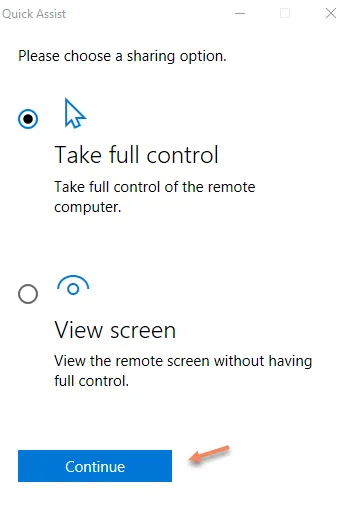
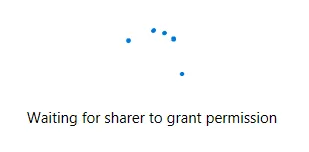
8. Wait for the sharer to grant permissions
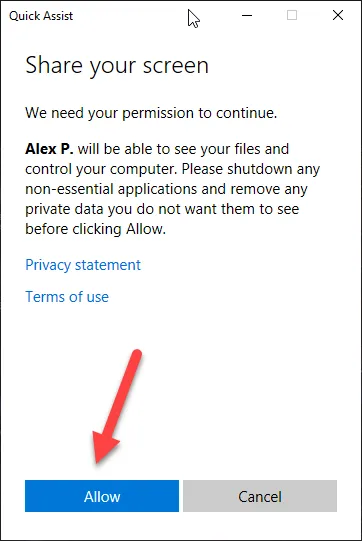
9. The sharer will need to click “Allow” on the next prompt
10. Once that is done, you will be able to see their screen and control their computer