1. Connect to the users computer, and navigate to H:\IT\Mitel
a. Note all users should have access to the H Drive, and the install folder.
2. Run ShoreTel Connect by right clicking and running “As Administrator”
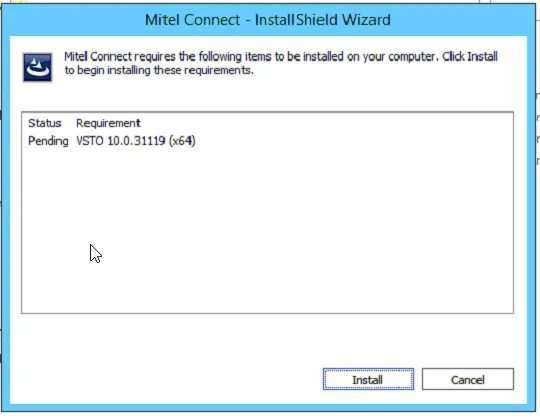
3. When the Mitel Connect – Install wizard loads. Hit install to start.
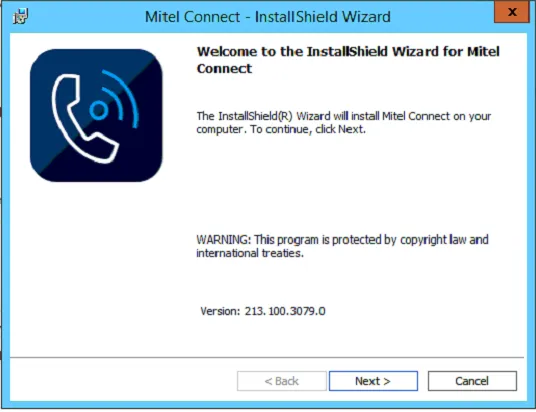
4. Once you get to “Welcome to the install Shield Wizard for Mitel connect. Click Next:
5. Accept the licensing agreement and click next, and click next till you get the install option.
6. Click install
7. Once prompted Click Finish
Configuring Shoretel Connect
1. Launch the Mitel Connect Icon on the desktop.

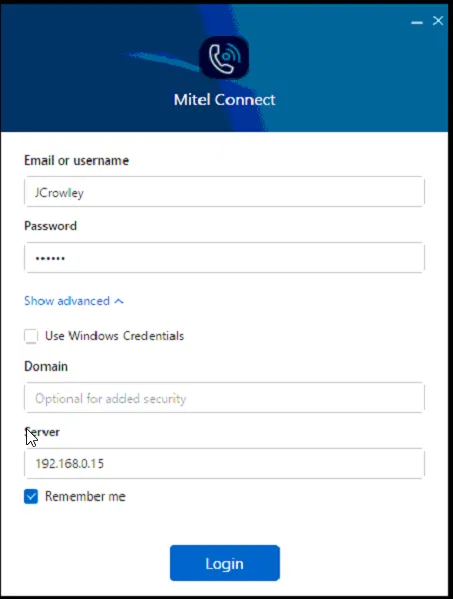
2. Put in the user name (Can be found in Shoretel Connect Director), as well as there password.
a. If they don’t know there client password. Please follow-up WI: “Connect — Reset Users Client Password” to reset the password.
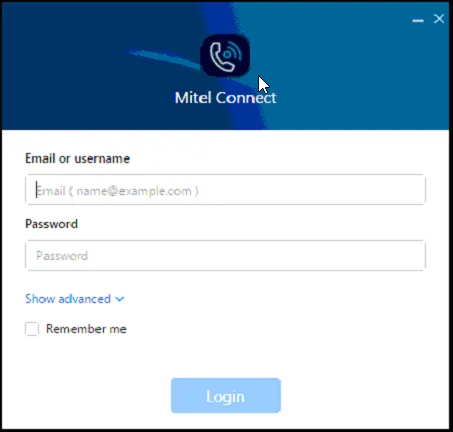
3. Once the username and password have been entered. Check “Remember Me”, then click login.
4. Once prompted put in the server address: 192.168.0.15. Then click login
5. If prompted click “upgrade now” and run through the installer.
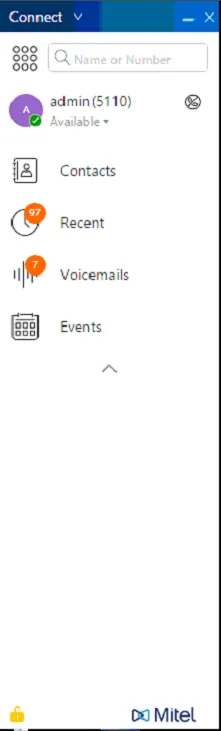
6. Launch the application. If successful you should see the following: