Activating Duo Mobile
Section titled “Activating Duo Mobile”Role required: Owner, Administrator, User Manager, or Help Desk.
Users will occasionally need to have Duo Mobile activated or re-activated on their device. For example, a new user may have a problem during enrollment, or an existing user may lose or replace a phone or tablet. Here’s how to activate or re-activate Duo Mobile for a user:
- Log in to the Duo Admin Panel and click Users in the left sidebar.
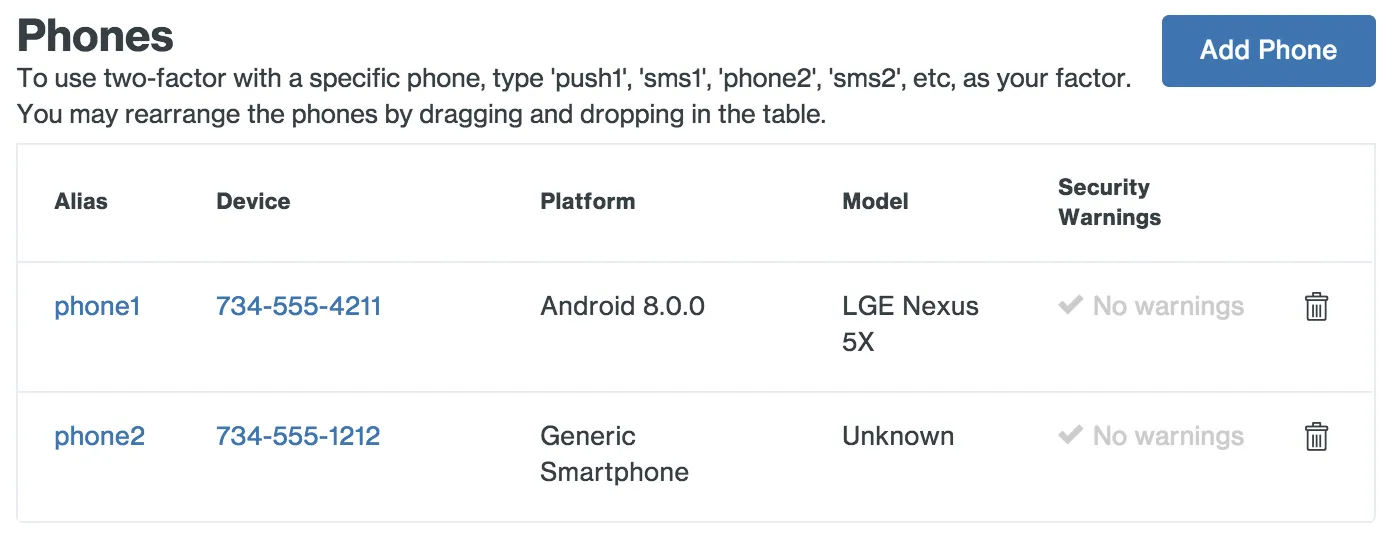
- Select a user by clicking their username, then scroll down to the “Phones” section of the entry and click on the alias or number of the device you need to activate.
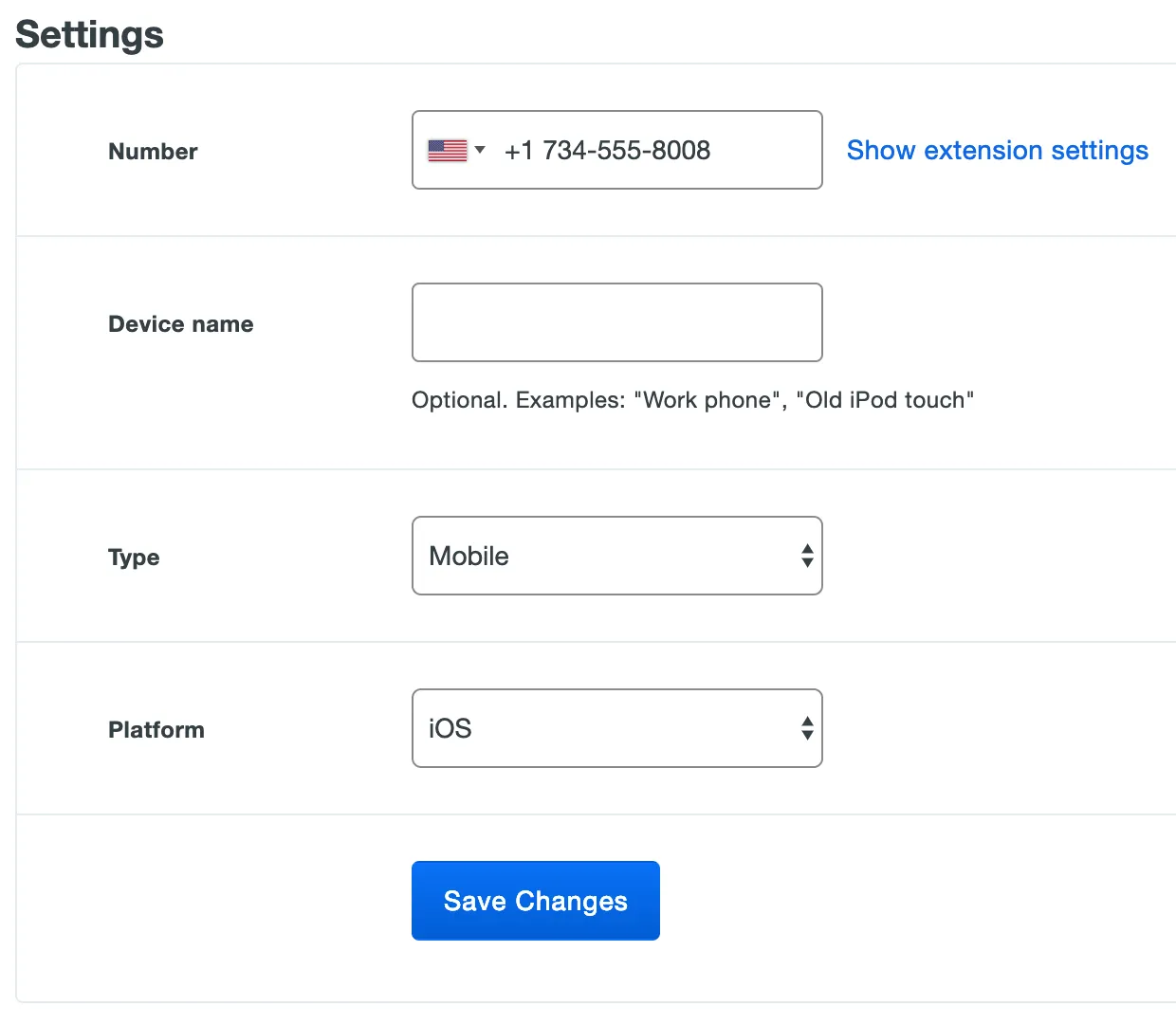
3. Make sure that the device’s “Type” is Mobile and that the “Platform” is correct. Click the Save Changes button when you’re done.
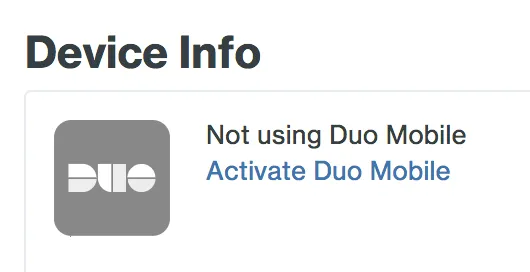
4. Once the page refreshes, click the Activate Duo Mobile (or Reactivate Duo Mobile) link in the “Duo Mobile” section near the top of the page.
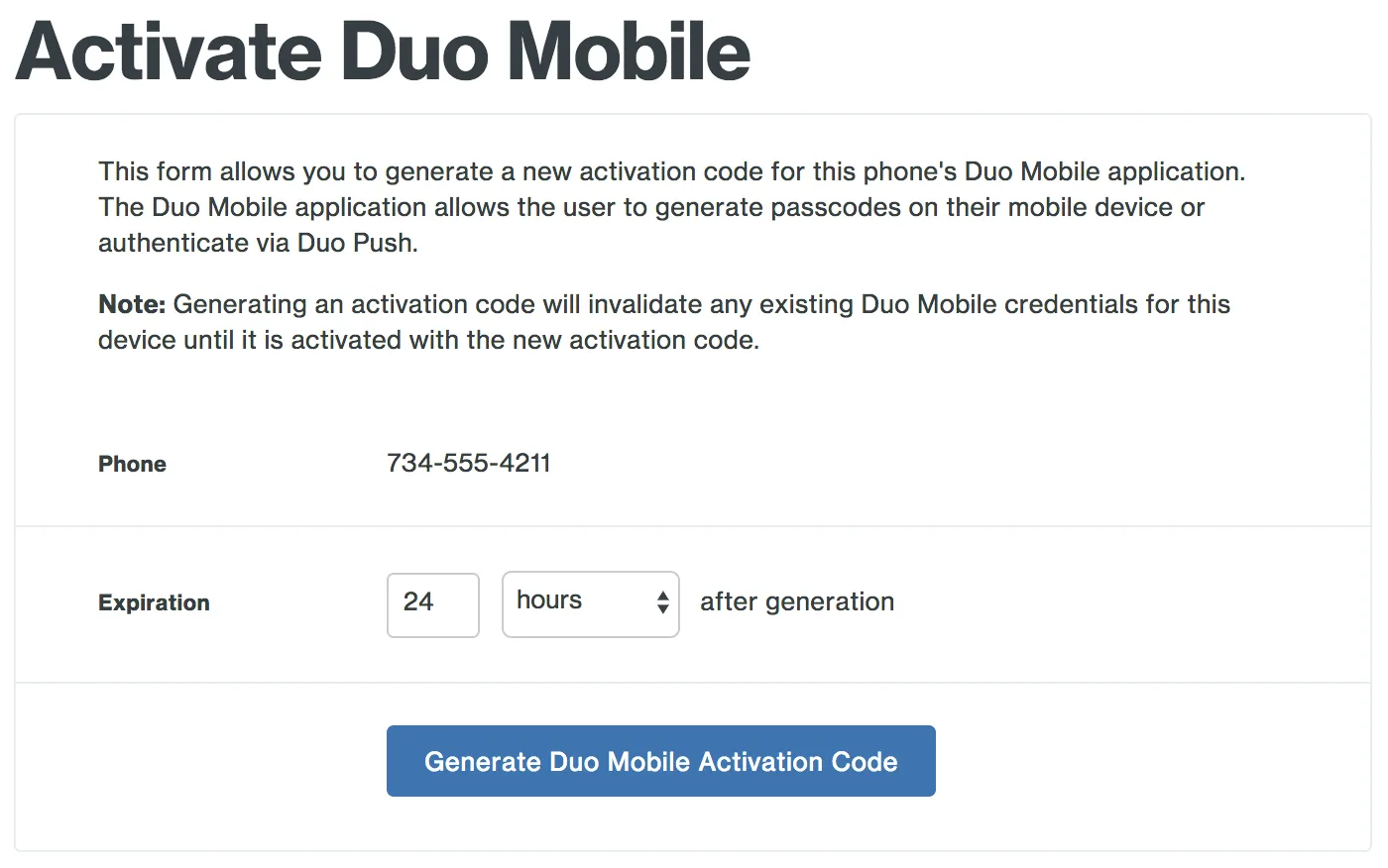
5. On the next page, you can adjust the lifetime for the mobile activation code (by default these expire 24 hours after generation). Click the Generate Duo Mobile Activation Code button once you’re ready to issue a new activation code for this device.
IMPORTANT
This will immediately invalidate any existing Duo Mobile credentials for that device. The Duo Mobile app on that device will need to be activated with the new activation code to restore access.
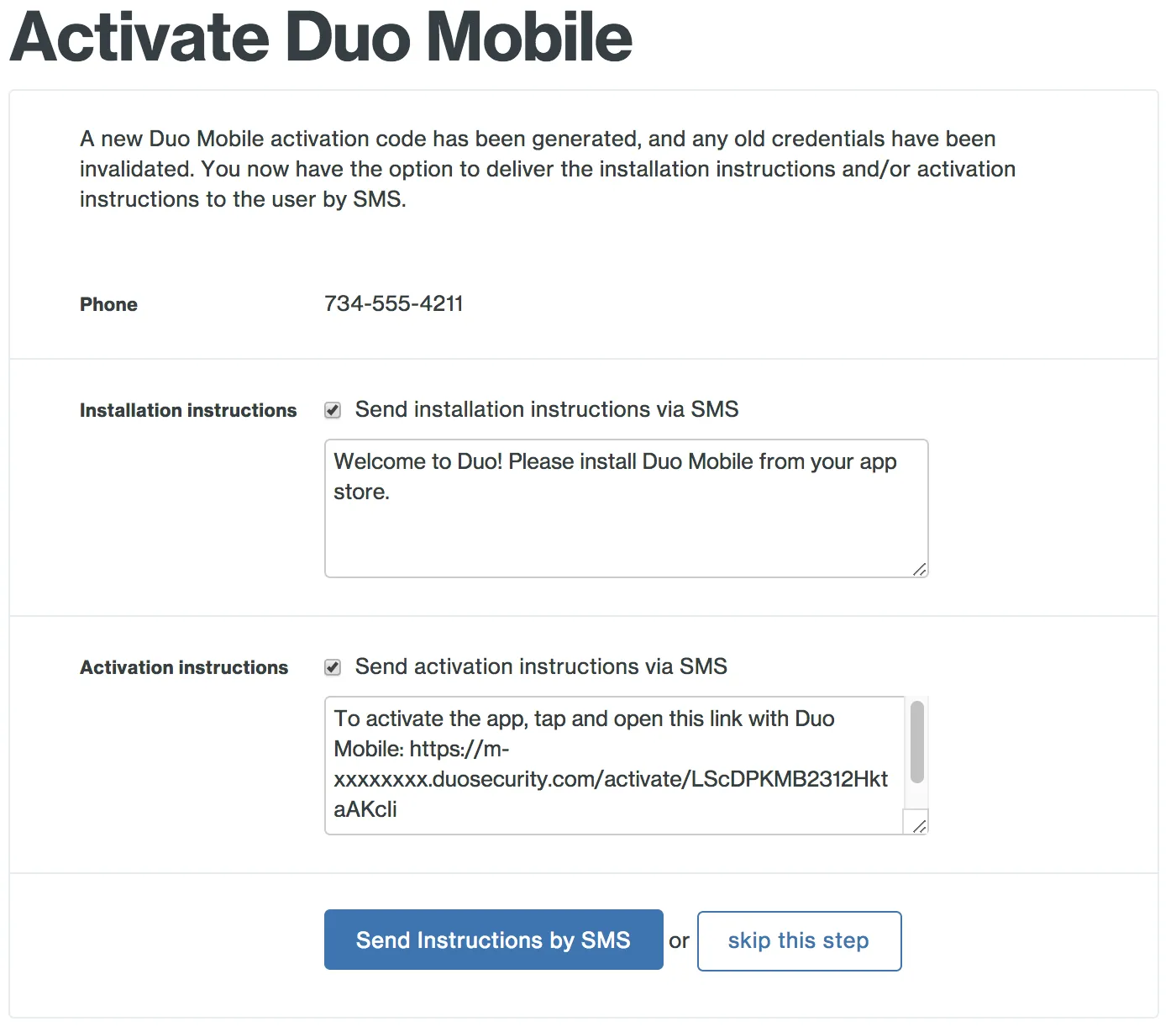
6. If the device you’re activating is a phone (with a phone number), you’ll see two text messages that you can send. The first has a link that helps the user install Duo Mobile. The second message has a code that the user can use to immediately add the account to their Duo Mobile app. Click the Send Instructions by SMS button to send the text messages to the user’s phone. These instructions can also be copied and pasted into an email to the user, if that’s preferable.
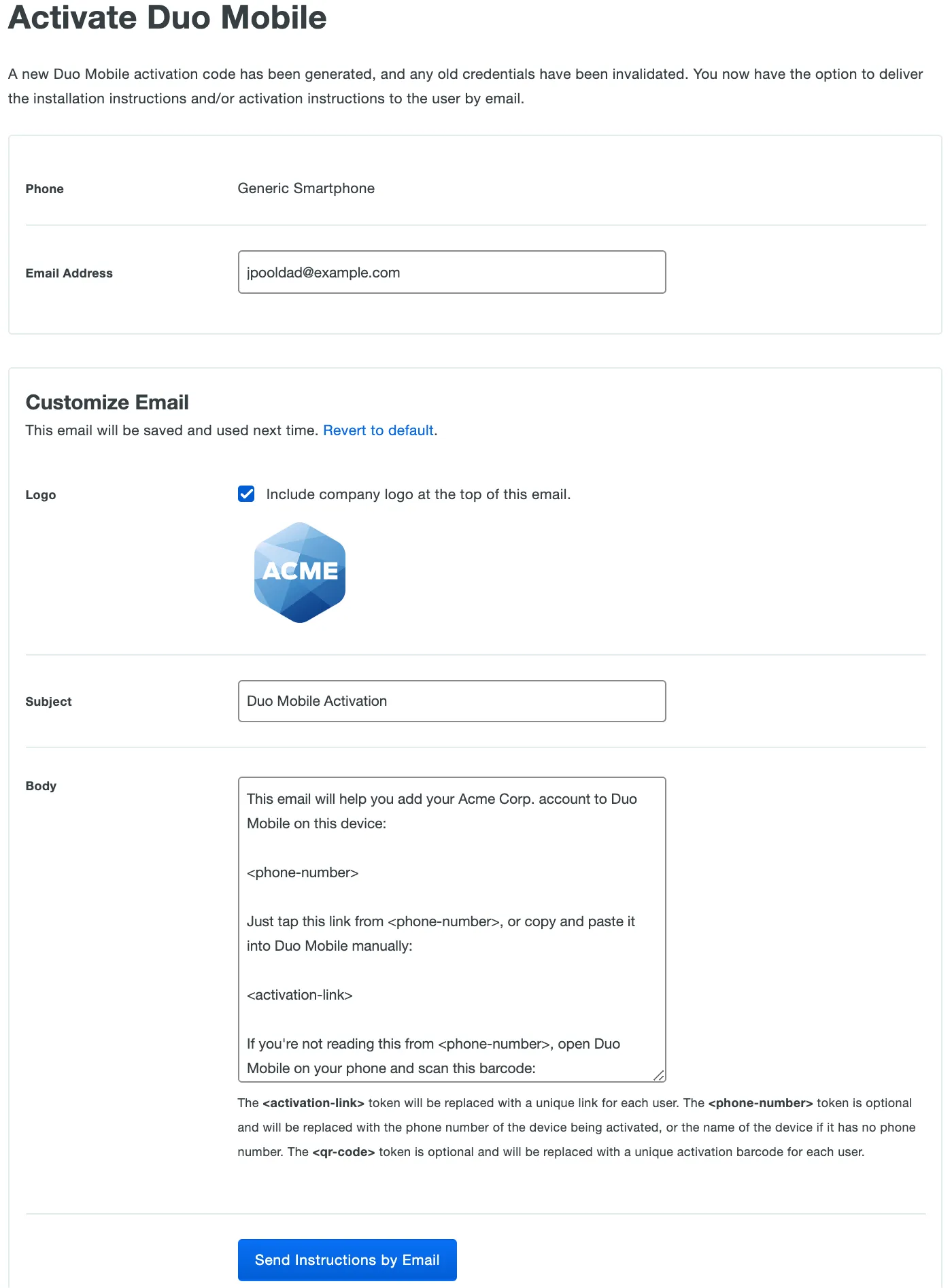
If the device is an iPad or Android tablet (and does not have a phone number), you’ll be able to email the activation link to the user. If the Duo user has an email address set then that address will be automatically present in the Email Address field. You can change this destination email address if you need to, or enter it if the Duo user has no email address saved. You may also choose whether to include your organization’s logo in the message, or modify the subject or content before clicking Send Instructions by Email.
You can also send activation emails or text messages in batches. See Activating Duo Mobile After Enrollment for more information.