You will need to update your metrics in the Service Desk Metrics.xlxs Excel document.
This document can be found in Microsoft Teams > Service Desk > General > Files.
It can also be navigated to from: https://centrexdata.sharepoint.com/:x:/s/ServiceDesk/EaUzeBy2WohHp1G0nSWPgZIBAM7CiPcSyTyxPhv4CwrgmA?e=UvSCSF
1. Navigate to the Service Desk Metrics.xlsx Excel document. Input the hours you worked today into the “Hours Worked” column.
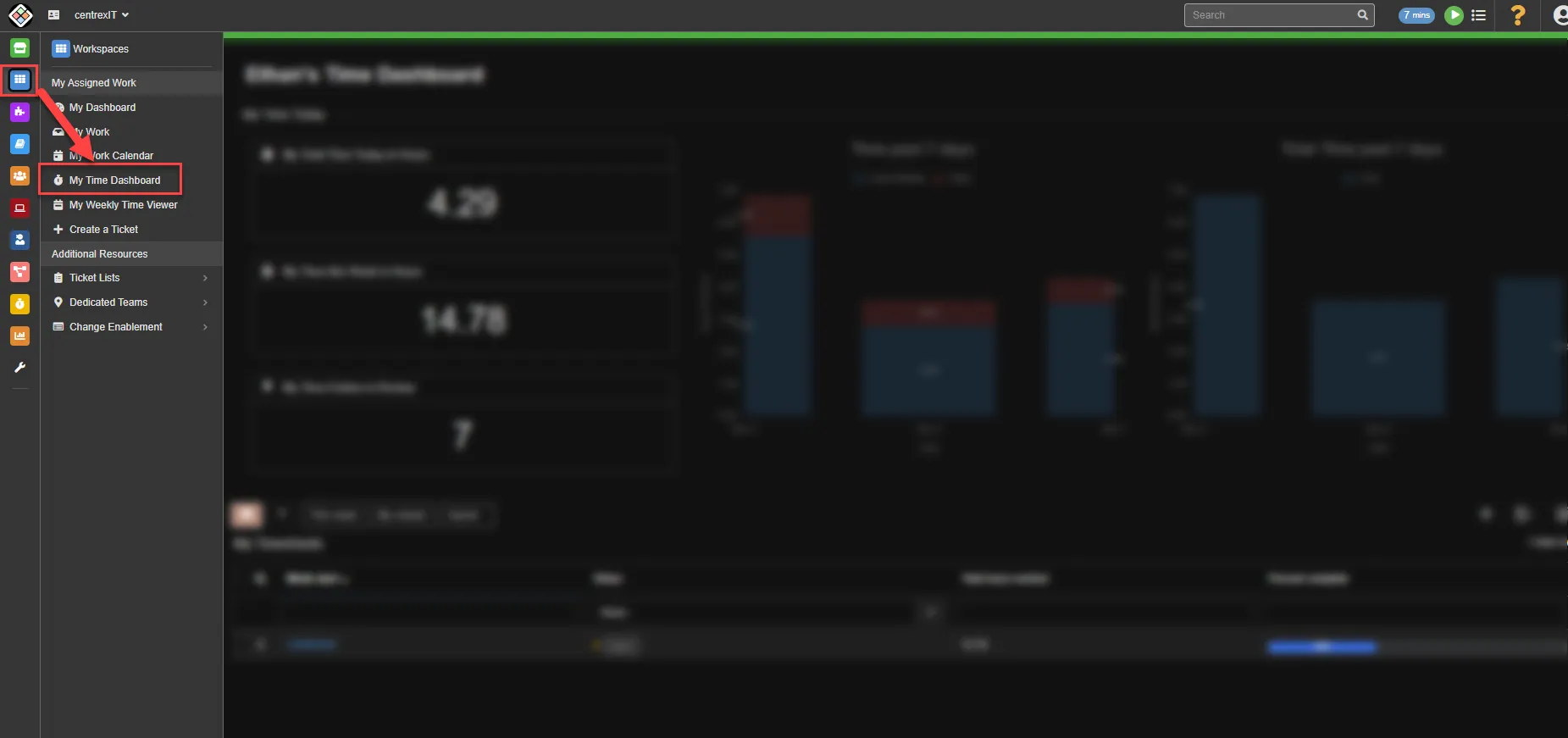
2. In Pzzle, navigate to Workspaces > My Time Dashboard.
3. In the middle pane, click on the “My Total Time Today in Hours”.
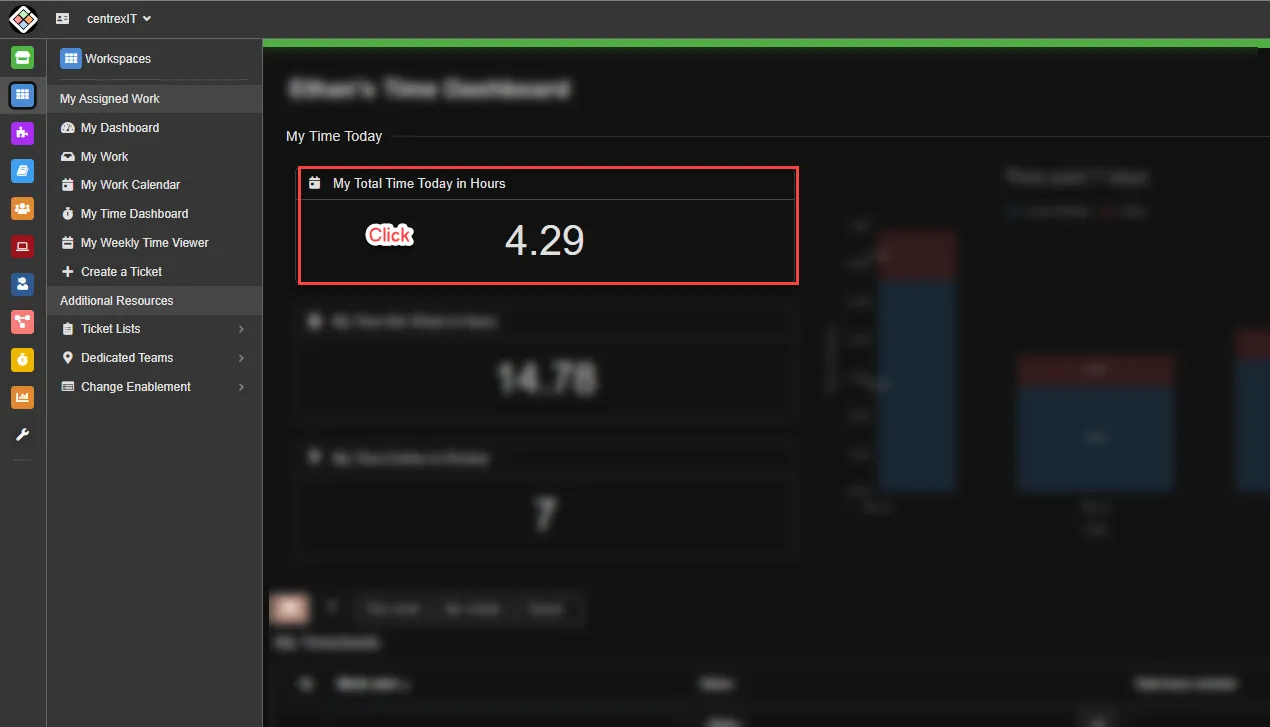
4. Verify that you do not have any After Hours (AH) billable items. If you do, take note of how many hours there are billed towards After hours. (See screenshot for example)

5. Click on the “Work” column and this will sort the work in order. This will make it easier to count how many separate tickets that you worked.
6. Count each individual ticket that you worked (Do not count duplicates). Input your ticket count into the Service Desk Metrics.xlsx Excel document under the “Tickets Worked” column. Do not count after hours tickets worked since we do not report this on our metric.
7. Close out of the “My Time Entries” page.
8. The number in the “My Total Time in Hours” box found in the middle pane, is the total billable hours for the day. Take this number and subtract the After Hours’ time (If applicable) and then input your total billable hours for the day in the Service Desk Metrics.xlsx Excel document under the “Client Billable” column.
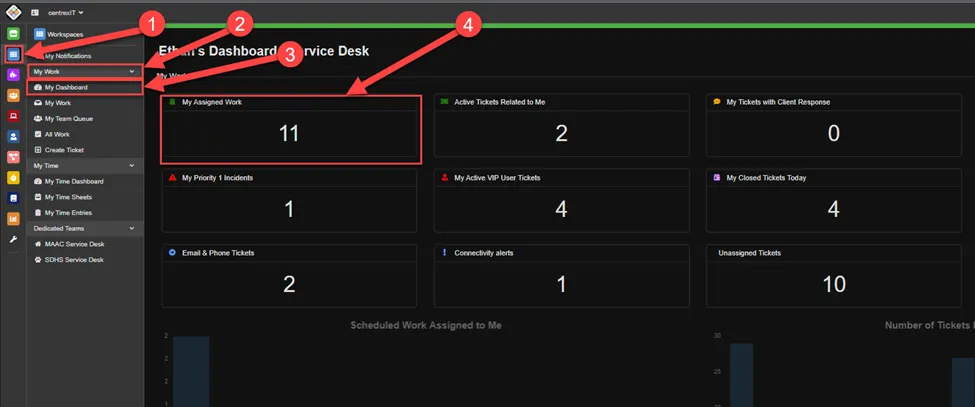
9. Navigate to Workspaces > My Work > My Dashboard. Click on the “My assigned Work” box.
10. Count how many INCIDENT tickets you are assigned. Input your ticket count into the Service Desk Metrics.xlsx Excel document under the “Inc Assigned” column.
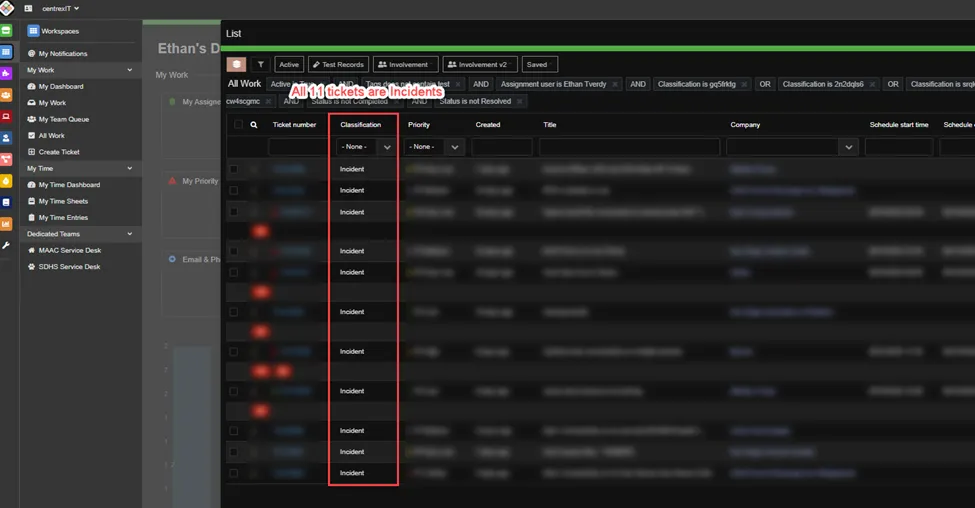
11. Close out of the “All Work” fly out.
12. You can find the number of tickets you closed today in the “My Closed Tickets Today” found in the middle pane. Input your closed ticket count into the Service Desk Metrics.xlsx Excel document under the “Tickets Closed” column.

The Service Desk Metrics document should auto calculate your utilization. In case this does not happen, you will need to obtain the metrics manually. Please see below on how to do that.
Example:
Take the Hours Billed (6.18) divided by Hours Worked (8). This equals 77% utilization.
6.18 / 8 = .7725 (77%)